You'll learn how to: Understand what's in your daily briefing and how to configure when and where it arrives.
Time: 3 minutes.
Prereqs: You're signed in to a workspace with at least one contact or deal.
What's in your daily briefing
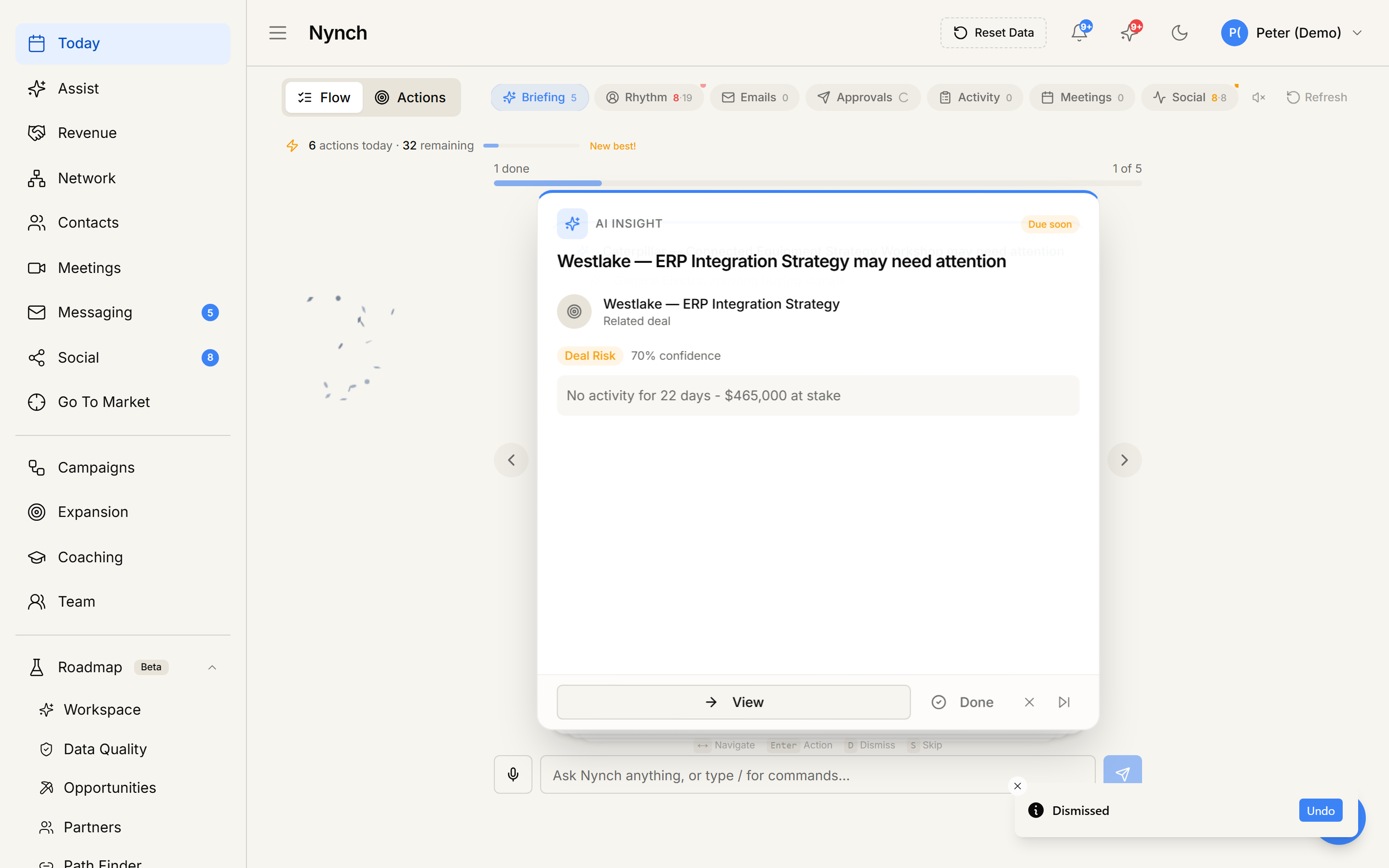
Your daily briefing is a single card that arrives once per day (by default, at a time you choose). It's your executive summary of the day ahead and what changed overnight. The briefing includes:
- Pipeline value: Total value of active deals, broken down by stage (if you track pipeline).
- Overdue items: Tasks, commitments, or contacts due for rhythm check-ins that are past due.
- Today's meetings: Calendar events for today, pulled from your connected email or calendar.
- Pending approvals: AI actions waiting for your green light (emails, outreach, deal moves).
- Relationship highlights: High-value signals or moments from contacts you're tracking.
You don't see raw data. the AI frames it with context ("Your top three deals are..." or "Sarah from Acme has been recently promoted").
Where your briefing arrives
Choose one or more delivery channels:
- In the app: The briefing shows as a card in the Next Steps section of the Today feed, first thing when you open Nynch.
- Email: Sent as a digest email at your chosen time.
- Telegram: Sent to the Nynch bot chat when you send the
/briefingcommand, or automatically at your scheduled time if you've enabled daily briefing in Telegram preferences.
Configure briefing time and delivery
- Open your avatar (top-right), then click Settings.
- Click the Notifications tab.
- Find the Daily Briefing row in the event types.
- Toggle on the channels where you want it (email, Telegram, in-app).
- For email and Telegram, set your preferred delivery time using the time picker or inline buttons.
The briefing respects your quiet hours. If your quiet hours are 7pm to 8am and you set the briefing for 6pm, it will wait and arrive the next morning at 8am instead.
Trigger a briefing on demand
You don't have to wait for the scheduled time. In two ways:
- In the app: On the Today page, click the Next Steps chip. If there's no briefing card showing, you can often request one via a button or link on the page.
- Telegram: Send the
/briefingcommand to the Nynch bot anytime, and it will generate and send your briefing instantly.
Customize what appears in your briefing
The briefing is AI-generated and context-aware, so it adapts based on:
- What's in your workspace (contacts, deals, tasks).
- What changed since yesterday (new signals, moved deals, incoming emails).
- Your past engagement (which sections you click on most).
You can't currently cherry-pick individual sections (e.g., "just pipeline, skip approvals"), but the AI learns over time if you consistently ignore a section.
Tips
- Set the briefing time for your actual morning routine. If you check email at 7am, set it for 7:05am so it arrives when you're ready.
- Use Telegram for mobile. If you want your briefing on your phone without opening the app, connect Telegram and toggle daily briefing on there.
- Don't skip the in-app briefing. The Next Steps card is AI-generated each day and usually suggests 2-4 specific actions worth your attention. It's the fastest way to know where to start your day.
If something goes wrong
- Symptom: "I'm not getting my daily briefing." → Fix: Check avatar > Settings > Notifications that Daily Briefing is toggled on for at least one channel. Confirm the time is set (not midnight or an invalid time). Check your spam folder if using email. If using Telegram, make sure the bot is still connected (send
/pingto test). - Symptom: "The briefing is arriving at the wrong time." → Fix: Open Settings > Notifications and adjust the time. Remember that quiet hours may delay delivery. If your quiet hours are 7pm to 8am and the briefing is set for 6pm, it will arrive after 8am instead.
- Symptom: "The briefing shows old information." → Fix: The briefing is generated once per day at your scheduled time. To see the latest data, open the Nynch app directly. You can also trigger an on-demand briefing via the
/briefingcommand in Telegram. - Symptom: "The briefing email goes to spam." → Fix: Add the nynch.com email address to your contacts or safe-sender list. Check your email provider's settings to whitelist Nynch.
FAQ
Q: What is your daily briefing? Understand what's in your daily briefing and how to configure when and where it arrives.
Q: What do I need before I start? You're signed in to a workspace with at least one contact or deal.
Q: How long does this take? About 3 minutes.
Q: I'm not getting my daily briefing? Check avatar > Settings > Notifications that Daily Briefing is toggled on for at least one channel. Confirm the time is set (not midnight or an invalid time). Check your spam folder if using email. If using Telegram, make sure the bot is still connected (send /ping to test).
Q: The briefing is arriving at the wrong time? Open Settings > Notifications and adjust the time. Remember that quiet hours may delay delivery. If your quiet hours are 7pm to 8am and the briefing is set for 6pm, it will arrive after 8am instead.
Related: Today, your daily action feed | Choose notification channels | Use the Nynch Telegram bot.