You'll learn how to: Send a single email to a person without leaving their profile. The composer already knows who you're writing to and the conversation history.
Time: 30 seconds.
Prereqs: Your email account is connected (see Connect Gmail to Nynch). The person has at least one email address on file.
Steps
- Open People section and People tab, then click the person's row to open the profile.
- Find the Email action button. Common locations:
- In the action buttons at the top of the profile.
- As a quick action on the Quick Actions row.
- Click it.
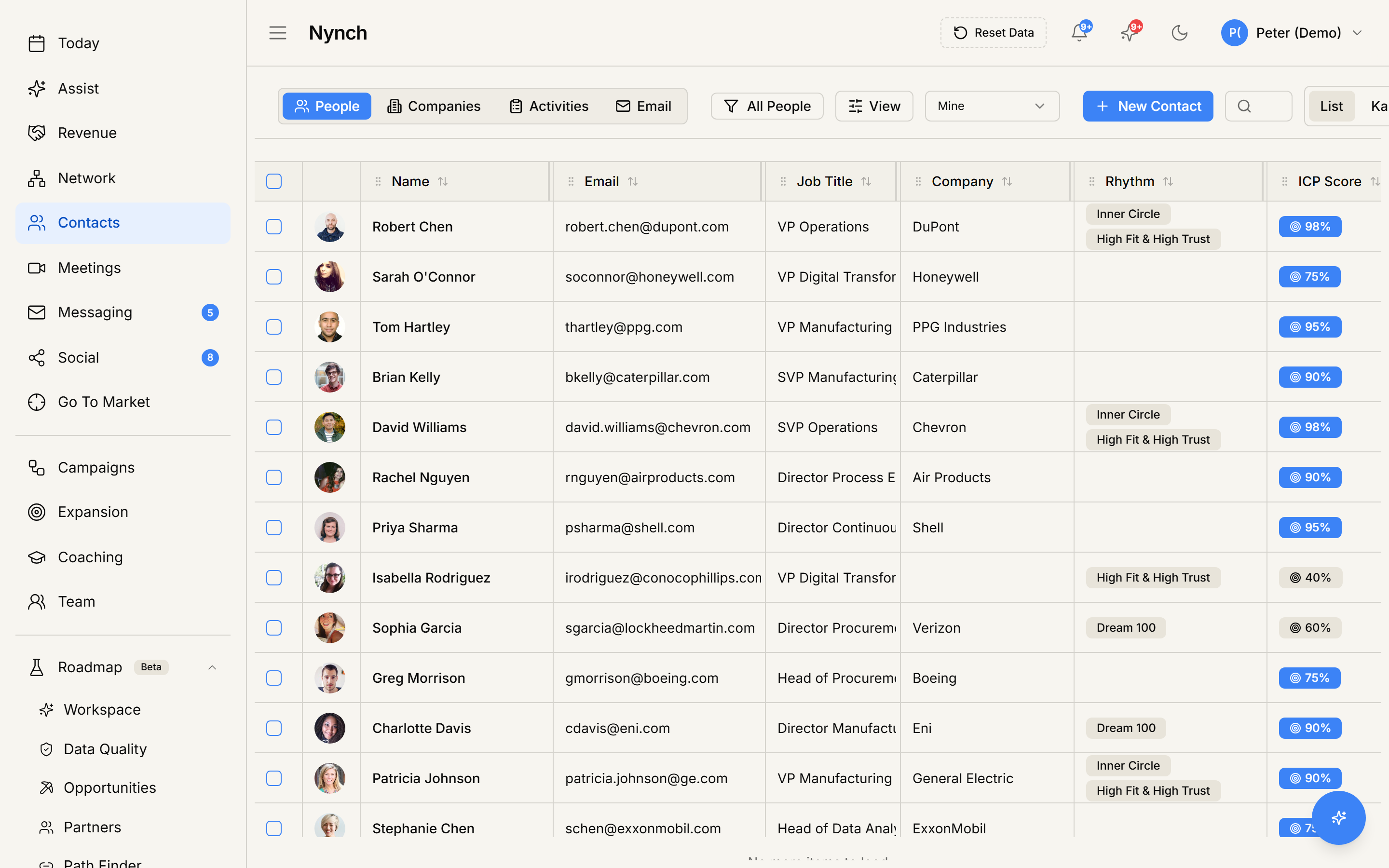
- The composer opens with:
- To pre-filled with the person's primary email.
- From defaulting to your primary sending account (or you can pick another via the dropdown if you've connected additional sending accounts).
- Subject blank. Type a subject.
- Body with Reply Coach inactive by default for a brand-new thread (but you can engage it with a prompt).
- Write the email. Drag-and-drop attachments if needed.
- Click Send.
What happens after
- The email sends through your connected provider (Gmail / Outlook).
- It appears in your provider's Sent folder within a few seconds.
- It lands on the person's timeline in Nynch immediately.
- The person's last-touched date updates to now.
- If they're in a rhythm, the rhythm cadence resets from now.
Schedule send
If your plan supports it, the composer has a "Send later" / clock icon next to the Send button. Click it to schedule the email for a specific time.
The scheduled send goes through your provider. if you disconnect Nynch from your email account before the scheduled time, the send may or may not happen depending on the provider.
Reply to an existing thread instead
If you've emailed this person before, the profile shows the email history under the activity timeline. To continue a thread:
- Click the most recent email on the timeline.
- Click Reply at the bottom of the thread view.
- The Reply Coach panel offers context-aware drafts.
See Use the Reply Coach.
If something goes wrong
- Symptom: "Email action isn't there." → Fix: Email account isn't connected, or the person has no email on file. Connect or fill in the email and the action appears.
- Symptom: "Composer opens but the To field is blank." → Fix: The person has no primary email but maybe an additional email. The composer prefers primary. Set the person's primary email and re-open.
- Symptom: "Email sends but doesn't appear on the timeline." → Fix: Refresh the page. Timeline updates on next data load. If still missing after a minute, check that the person's email matches the recipient address exactly.
- Symptom: "I want to send from a different address than my primary." → Fix: Click the From dropdown in the composer. If your alternate address isn't there, connect it via avatar > Settings > Email & Calendar > Additional Email Sending And Receiving Accounts > Connect Account.
- Symptom: "Email action is greyed out." → Fix: Your connected email account's status is "Reconnect Required" (token expired). Click your avatar (top-right), open Settings, and go to Email & Calendar to reconnect.
FAQ
Q: How do I send a one-off email from a contact's profile? Send a single email to a person without leaving their profile. The composer already knows who you're writing to and the conversation history.
Q: What do I need before I start? Your email account is connected (see Connect Gmail to Nynch). The person has at least one email address on file.
Q: How long does this take? About 30 seconds.
Q: Email action isn't there? Email account isn't connected, or the person has no email on file. Connect or fill in the email and the action appears.
Q: Composer opens but the To field is blank? The person has no primary email but maybe an additional email. The composer prefers primary. Set the person's primary email and re-open.
Related: Use the Reply Coach | Connect Gmail to Nynch | Bulk-email selected contacts.