You'll learn how to: Turn sales methodologies on or off, make one your primary, and create a custom pipeline for your own sales process.
Time: 5 minutes.
Prereqs: You have a Nynch account and you've signed in. Read Settings, tab by tab if you want the full map first.
What a methodology does
A sales methodology is the set of stages and qualification checks Nynch uses for the deals in your pipeline. Pick the one that matches how you sell. Your primary methodology is the one Nynch selects by default when you open the pipeline.
Open the Sales tab
- Click your avatar (top-right of the screen).
- Click Settings.
- Click the Sales tab.
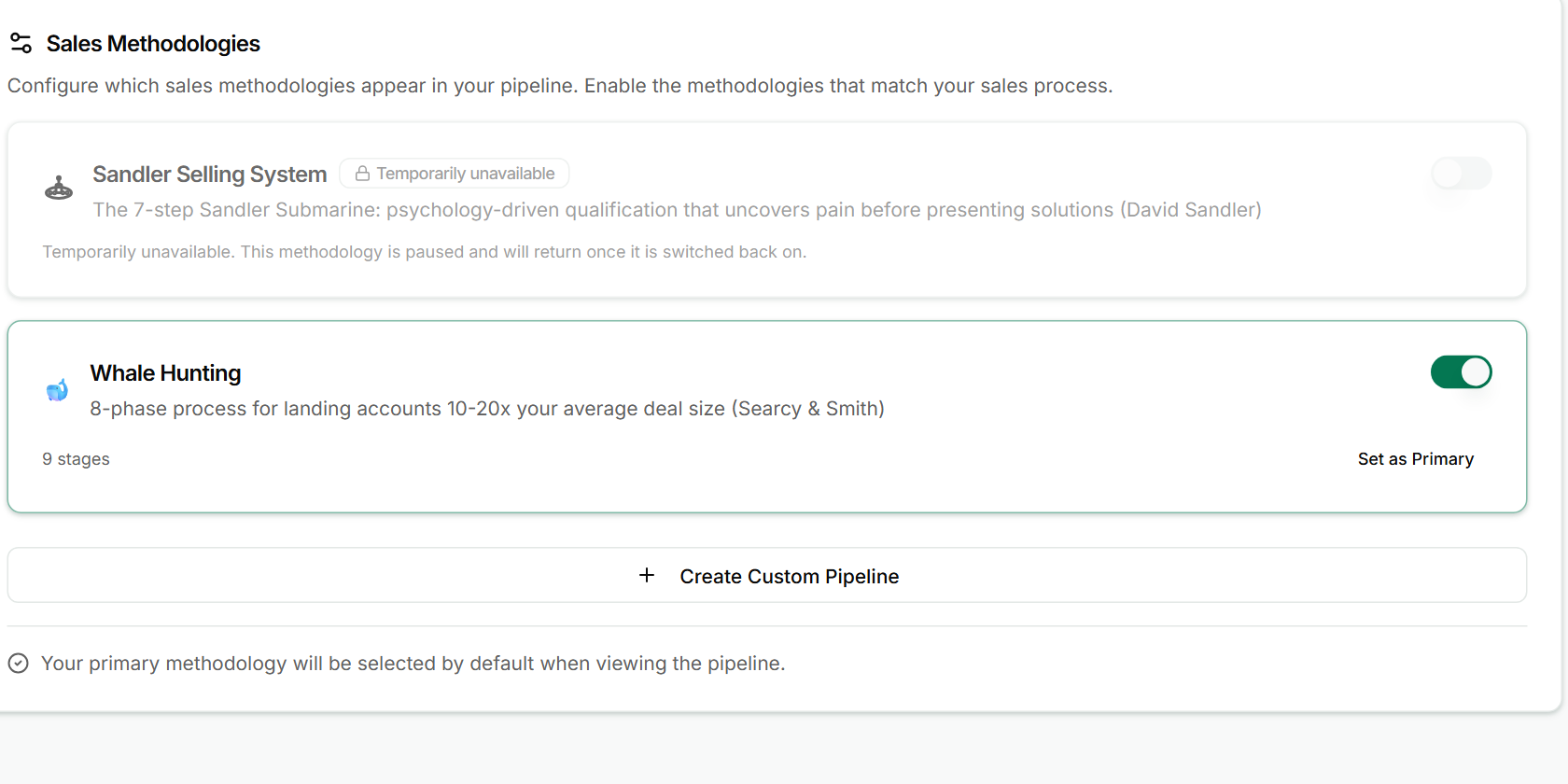
The Sales Methodologies card lists each methodology with a short description and its number of stages.
Turn a methodology on or off
Each card has a switch on the right. Turn it on to show that methodology in your pipeline. Turn it off to hide it.
On any enabled methodology that isn't your primary, click Set as Primary. The card that is primary shows a Primary badge. You can have more than one methodology enabled, but only one primary.
Sandler is temporarily unavailable
The Sandler Selling System card shows a Temporarily unavailable badge. Its switch is locked off, and the card says the methodology is paused and will return once it is switched back on. You can't turn it on from Settings until Nynch does that.
Create a custom pipeline
- Scroll to the bottom of the Sales Methodologies card and click Create Custom Pipeline.
- Work through the pipeline dialog and save it.
- Your new pipeline appears under Your Custom Pipelines. Turn it on and set it as primary the same way as any other methodology.
To change a custom pipeline, click its pencil icon (Edit). To remove it, click its trash icon (Delete). Nynch asks you to confirm first. Any opportunity that uses that pipeline loses its methodology link, so check before you delete.
If something goes wrong
- Symptom: "A methodology I expected is missing." → Fix: Refresh the page. Methodologies that Nynch has paused stay on the list with a Temporarily unavailable badge, so a missing card usually means a refresh is needed.
- Symptom: "The switch won't move on Sandler." → Fix: The methodology is paused by Nynch. It can't be turned on until it returns.
- Symptom: "Create Custom Pipeline is greyed out." → Fix: You've reached the custom pipeline limit. The button says so. Delete a custom pipeline you no longer use, then create the new one.
- Symptom: "I can't see Set as Primary on a card." → Fix: The button only appears on methodologies that are turned on and aren't primary yet. Turn the switch on first.
FAQ
Q: What's the difference between enabled and primary? Enabled means the methodology is available in your pipeline. Primary is the one Nynch opens by default. You can enable several and set just one as primary.
Q: Why is Sandler greyed out? Nynch has paused that methodology for now. The card shows the reason and will be usable again when it's switched back on. You can't fix this from your settings.
Q: Can I build a pipeline that matches my own process? Yes. Click Create Custom Pipeline. You can edit or delete it later from the same card list.
Q: What happens to deals if I delete a custom pipeline? Opportunities that used it lose their link to that methodology. Nynch warns you before it deletes, so read the message and cancel if you're not sure.
Related: Settings, tab by tab | Configure pipeline stages | Move a deal to a different pipeline