You'll learn how to: Open Nurture Sort, work through your unsorted contacts one card at a time, take the AI's suggested rhythm seriously, and use the undo / skip controls to keep moving without overthinking.
Time: 2-3 seconds per contact once you find your rhythm. 50 contacts is ten minutes.
Prereqs: You have unsorted contacts (e.g. just finished a CSV import with Hold in Rhythm Sort ticked, or your Gmail history sync auto-created a bunch of new contacts).
Why a game
Sorting hundreds of contacts into rhythm cadences in a list view is grim. You stare at columns, second-guess yourself, and stall.
Nurture Sort flips it. One card at a time, three peek cards behind, AI suggests which rhythm fits, and you click a bucket button to assign. The card flies off, the next one appears. Sound effects, milestone celebrations at 10 / 25 / 50 / 100 / 150 / 200 / 250 / 500, and confetti on the big ones. It turns the chore into a 10-minute focused session.
Open the game
Open the Nurture section and click Sort (typically a button labelled with the count of unsorted contacts, e.g. "Sort 124 contacts"). Once running, the URL holds your progress, so refreshing keeps your place.
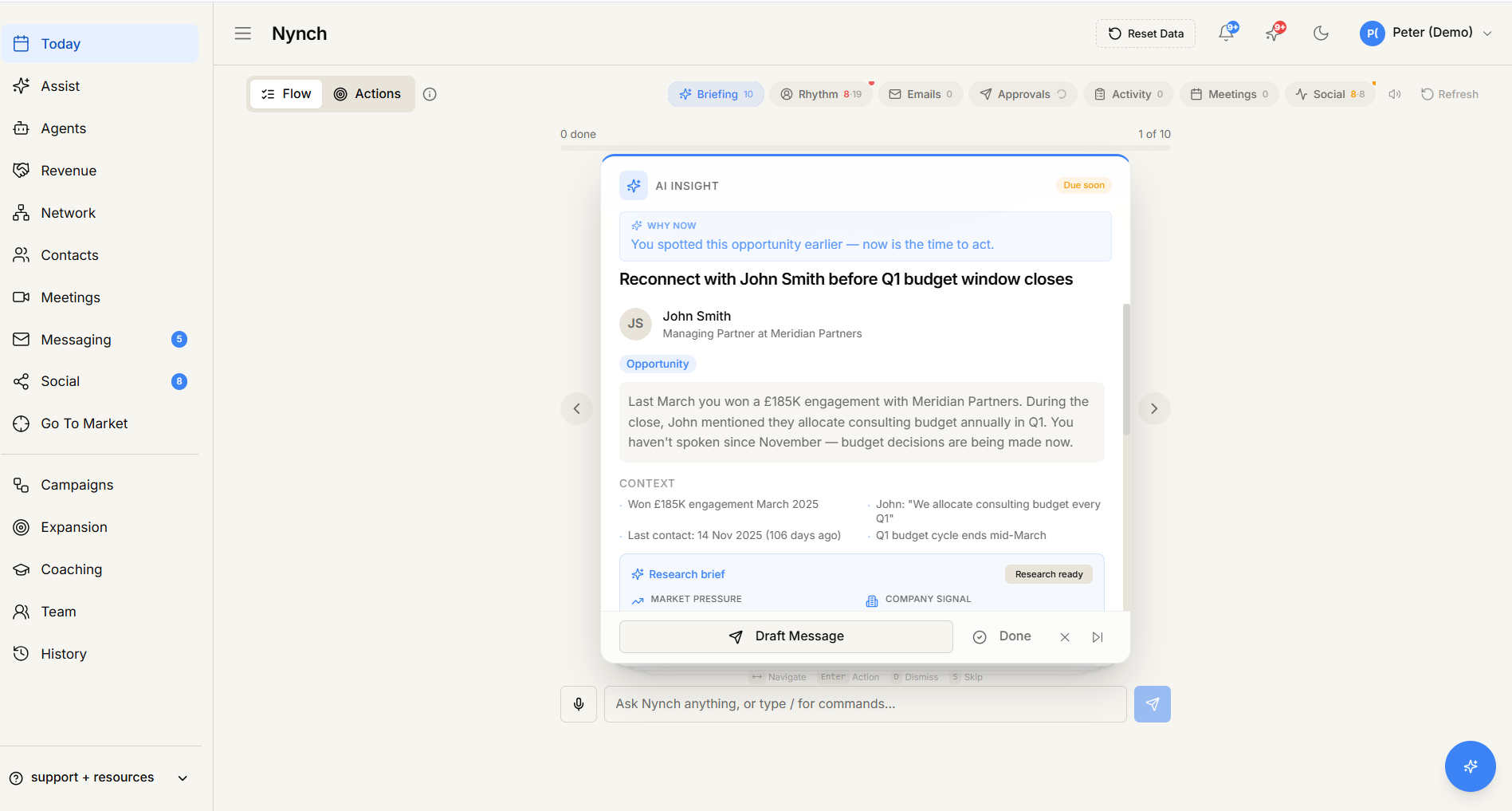
What you see
A focused card in the centre of the screen showing the contact:
- Avatar, name, job title, company.
- LinkedIn handle if you have one.
- ICP fit score and what drives it.
- Recent activity (last email, last meeting, last touch).
- Active deals if there are any.
- AI recommendation: the rhythm Nynch thinks fits this contact, and why.
Behind the focused card, three peek cards stack so you can see who's next.
Below the card, your buckets sit as a row of clickable buttons (each labelled with the rhythm's name and its frequency, e.g. "Weekly (7d)", "Monthly (30d)", "Quarterly (90d)"). Skip and Undo controls sit alongside.
Working the game
For each card:
- Read the AI recommendation. If it makes sense, click that bucket. If it doesn't, pick a different one based on what you know.
- Card flies off to the bucket. The next card slides in.
- Repeat. Aim for 2-3 seconds per card. The point is rhythm, not precision: you can always re-bucket later.
The Skip button defers the contact (sends them to the back of the queue) for later. Useful when you genuinely don't remember who the person is or need to look something up.
The Undo button reverses your last assignment if you misclicked. There's no limit on how many undos in a session.
Milestone celebrations
At specific counts, a milestone overlay pops:
- 10: "10 sorted! You're building momentum."
- 25: "Quarter century. You're in the zone."
- 50: "50 contacts done! Most people never get this far."
- 100: "Triple digits. That's a network transformation."
- 150 / 200 / 250 / 500: increasing-stakes celebrations.
Confetti fires on the bigger milestones. The session-complete celebration fires when you empty the queue.
These exist on purpose. The sound + celebration loop is what makes the game habit-forming enough that you actually finish.
Sound and haptics
A speaker toggle at the top of the screen mutes / unmutes game sounds. On touch devices, a haptic buzz fires on assign and milestone. You can leave both on by default. they're not loud or jarring.
What the AI recommendation considers
The recommendation looks at:
- Existing relationship strength (do you email this person? when did you last meet?).
- ICP fit score (the closer to your priority ICP, the higher-cadence rhythm).
- Recent signals (job change, funding, post activity).
- How many active deals you have with them.
- Existing rhythms for similar contacts.
A high-ICP contact with recent activity will be recommended for a Weekly rhythm. A low-engagement former client will be recommended for Quarterly. Cold leads with no activity get Skip or your lowest-cadence rhythm.
Tips
- Don't overthink. The game works best at 2-3 seconds per card. If you're agonising, click Skip and move on. The contact comes back later.
- Trust the AI on bulk imports. When you've just imported a LinkedIn export and have 500 contacts to sort, the AI's recommendations are usually 80% right. Trust them. Re-bucket the wrong ones later.
- Re-bucket later. Nothing in the game is permanent. You can move any contact to a different rhythm any time from the Contacts table.
- Skip when you don't recognise someone. Skipped contacts queue at the back. If you Skip the same person three times, it's a strong signal you should delete them.
- Take breaks. The chunk-break feature lets you stop mid-session and resume later without losing progress.
If something goes wrong
- Symptom: "Sort 0 contacts" / no game appears. → Fix: Your queue is empty. Either everyone's been sorted, or your latest CSV import didn't have "Hold in Rhythm Sort" ticked. Run a CSV import with that option on, or just sort newly added contacts manually from the People table.
- Symptom: "AI recommendation says 'Loading...' and never finishes." → Fix: The AI service can stall on rare calls. Click the retry icon next to the recommendation. if it stays stuck, just pick a bucket manually and move on. The session keeps working without AI recs.
- Symptom: "I deleted a contact mid-game by accident." → Fix: Most delete actions surface an Undo toast. If you missed it, the contact is soft-deleted and can be restored from the People table to the Recently Deleted view.
- Symptom: "Card animation feels slow." → Fix: The animation is intentional. If it's a problem, the speaker toggle near the top also doubles as a sound preference, and the game respects your browser's reduced-motion preference if you've set one in your OS.
- Symptom: "Milestones don't pop." → Fix: The session-stats panel shows your running count. If it's below the next milestone, just keep going. Milestones at 10 / 25 / 50 / 100 / 150 / 200 / 250 / 500.
FAQ
Q: How do I sort your network with nurture sort? Open Nurture Sort, work through your unsorted contacts one card at a time, take the AI's suggested rhythm seriously, and use the undo / skip controls to keep moving without overthinking.
Q: What do I need before I start? You have unsorted contacts (e.g. just finished a CSV import with Hold in Rhythm Sort ticked, or your Gmail history sync auto-created a bunch of new contacts).
Q: How long does this take? About 2-3 seconds per contact once you find your rhythm. 50 contacts is ten minutes.
Q: Sort 0 contacts" / no game appears? Your queue is empty. Either everyone's been sorted, or your latest CSV import didn't have "Hold in Rhythm Sort" ticked. Run a CSV import with that option on, or just sort newly added contacts manually from the People table.
Q: AI recommendation says 'Loading...' and never finishes? The AI service can stall on rare calls. Click the retry icon next to the recommendation. if it stays stuck, just pick a bucket manually and move on. The session keeps working without AI recs.
Related: Relationship rhythms | Importing your network | CSV import step by step | Manage your contacts and companies.