You'll learn how to: Roll back a CSV import that went wrong, within the undo window (typically 24-72 hours after the import).
Time: 1 minute.
Steps
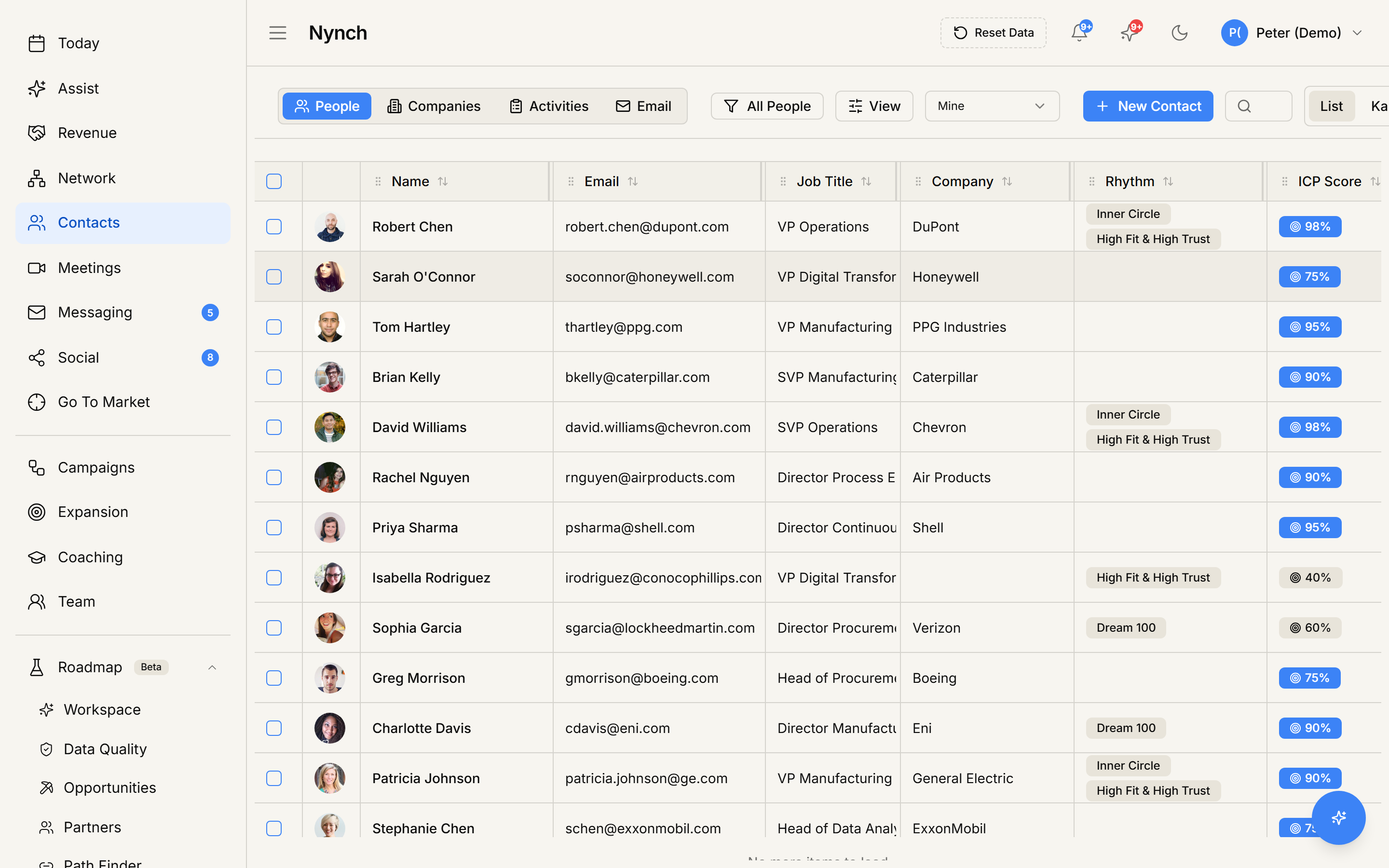
- Open the People section, People tab.
- In the toolbar's far right, click the ... (three-dots) menu > Import History.
- The dialog lists every past import. Find the one to undo.
- The import's row has an Undo button if it's within the undo window. If it's past the window, the button is greyed out or absent.
- Click Undo.
- A confirmation asks you to confirm. The dialog also shows what will and won't be reverted.
- Confirm.
- The undo runs. New records from that import get soft-deleted. The undo completes in a few seconds for small imports, longer for very large ones.
What gets reverted
- New records the import created: soft-deleted.
- Tags and rhythm assignments the import added to those new records: removed.
- Custom field values on those new records: gone with the record.
- Activity entries the import created (e.g. "imported from CSV"): removed from the timeline.
What does NOT get reverted
- Merges the import performed on existing records: stay merged. The new data that was merged INTO an existing record stays on that record.
- Custom field values the import wrote to existing records (Update Existing strategy): stay updated.
- Side effects like rhythm cadence calculation: still based on whatever the records show post-undo.
- External systems the import may have triggered (webhooks, integrations): NOT rolled back. If a webhook fired on import, the downstream system already received the event.
In short: undo handles the "rows I created" case cleanly. It doesn't unwind the "I merged X into Y" case. For deeper rollback, contact support within 24 hours.
When undo isn't enough
If the import did real damage (merged contacts you didn't want merged, overwrote correct fields with wrong CSV data), contact support immediately. They can do a deeper rollback from database backups within 24 hours. After 24 hours, recovery is much harder.
Tip: dry-run on big imports
For imports larger than a few hundred rows, walk the wizard's validation preview carefully BEFORE committing. The wizard surfaces problems (bad email format, missing required fields, suspicious dedup matches) that are far easier to fix in the CSV than to undo after import.
The Smart Deduplication strategy is also safer than Update Existing, since it gives you a review step before merging anything.
If something goes wrong
- Symptom: "Undo button is missing for an import I ran yesterday." → Fix: Some imports skip the undo registry (very small imports, demo imports). Contact support for help rolling back.
- Symptom: "I clicked Undo and got 'Undo failed'." → Fix: Some records may have been edited since the import (e.g. you added notes). Edited records can't be cleanly undone. Support can help with manual rollback.
- Symptom: "Undo completed but contacts are still in the table." → Fix: Refresh once. Soft-deleted rows disappear on next load. If still there, check the import detail page for the actual undo summary.
- Symptom: "I undid by mistake, want the import back." → Fix: The soft-deleted records are still in the database. Contact support within 24 hours to restore.
FAQ
Q: How do I undo a recent csv import? Roll back a CSV import that went wrong, within the undo window (typically 24-72 hours after the import).
Q: Where do I start in Nynch? Open the People section, People tab.
Q: How long does this take? About 1 minute.
Q: Undo button is missing for an import I ran yesterday? Some imports skip the undo registry (very small imports, demo imports). Contact support for help rolling back.
Q: I clicked Undo and got 'Undo failed'? Some records may have been edited since the import (e.g. you added notes). Edited records can't be cleanly undone. Support can help with manual rollback.
Related: View your CSV import history | CSV import step by step | Bulk-delete contacts.