You'll learn how to: Read the Audits screen, create a batch of Value Audits, review and retry them, and start outreach from a published audit.
Time: 10 minutes to read the screen. Each batch then runs in the background.
Prereqs: You have a saved audit playbook. You know the funnel from audit to diagnostic.
What the Audits screen is for
Audits is where your Value Audits live once they are running. It shows what the audits are doing: how many were published, sent, viewed, replied to, and turned into deals. It also holds the batches you have started and the inbound requests waiting for you.
You design the method in Strategy mode. You run and watch the audits here, in Implement mode.
Steps
- Click Implement at the bottom left of the sidebar.
- Under Growth, click Trust Builders.
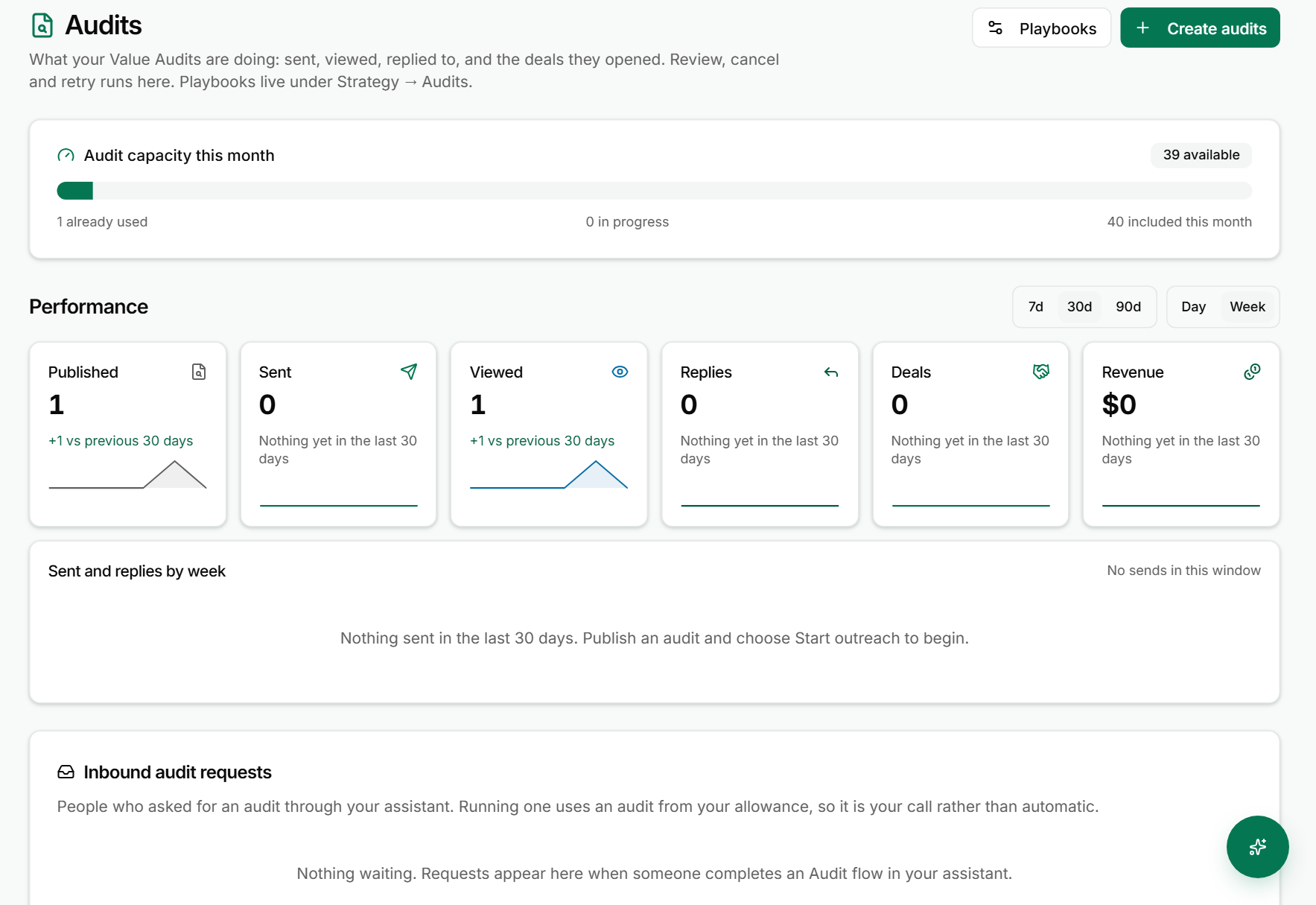
- Read the Audit capacity this month bar. It shows how many audits you have left in your allowance.
- Read the Performance tiles: Published, Sent, Viewed, Replies, Deals and Revenue. Click 7d, 30d or 90d to change the window. Click Day or Week to change the chart beneath them.
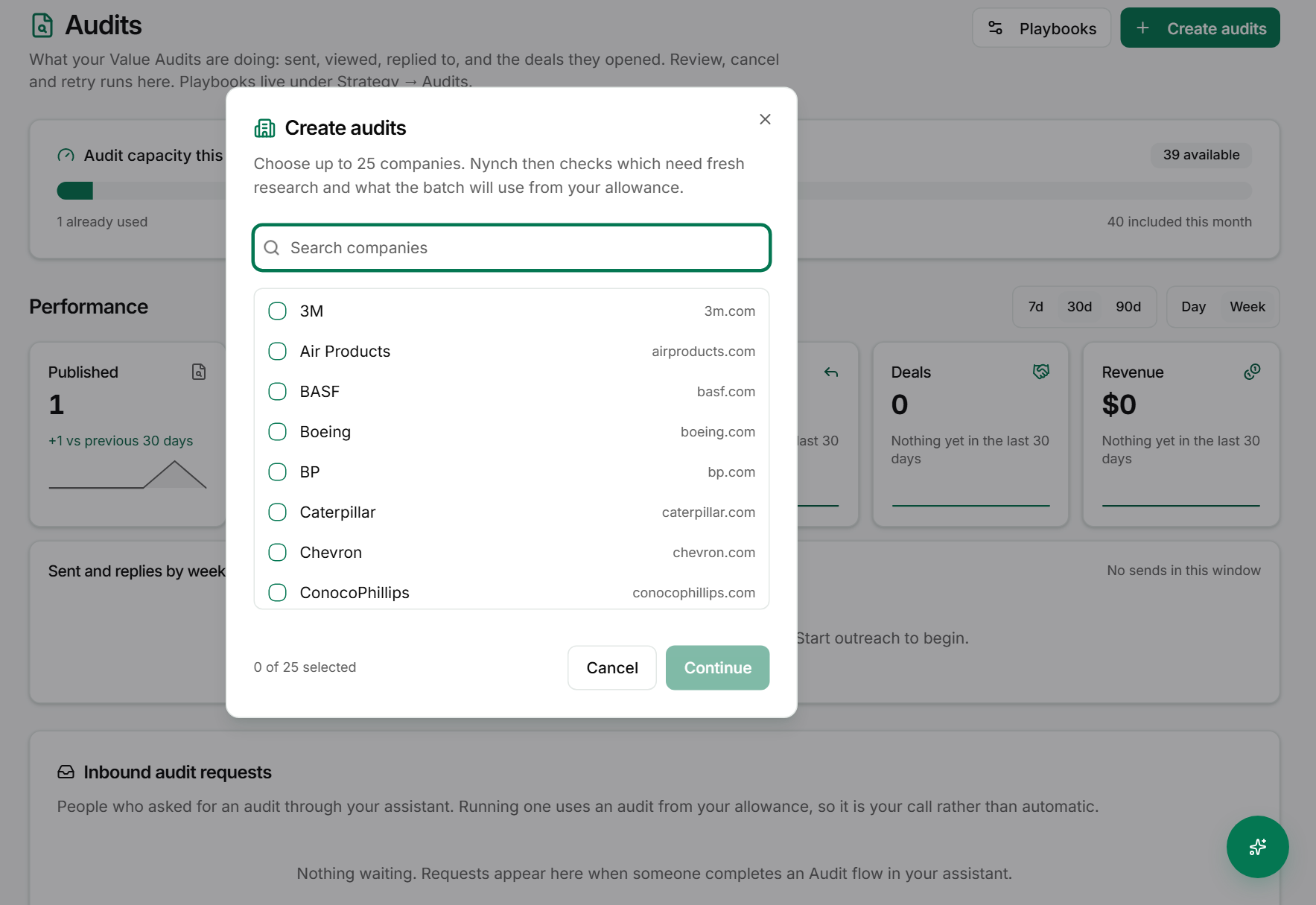
- To start a new batch, click Create audits. Pick up to 25 companies from the list, then click Continue. Nynch checks which companies need fresh research and how much of your allowance the batch will use before anything runs.
- Use Inbound audit requests to see people who asked for an audit through your assistant. Running one uses an audit from your allowance, so you decide each one. Nothing runs automatically.
- Scroll to Batches. The line under the heading counts the audits and batches. Use Search company or batch, All statuses and All batches to narrow the list. Turn on Show archived to see archived audits.
- Click Kanban to see the batch as columns: Queued, Researching, Drafting, Ready to review, Needs attention, Approved and Failed. Click List to go back to the table.
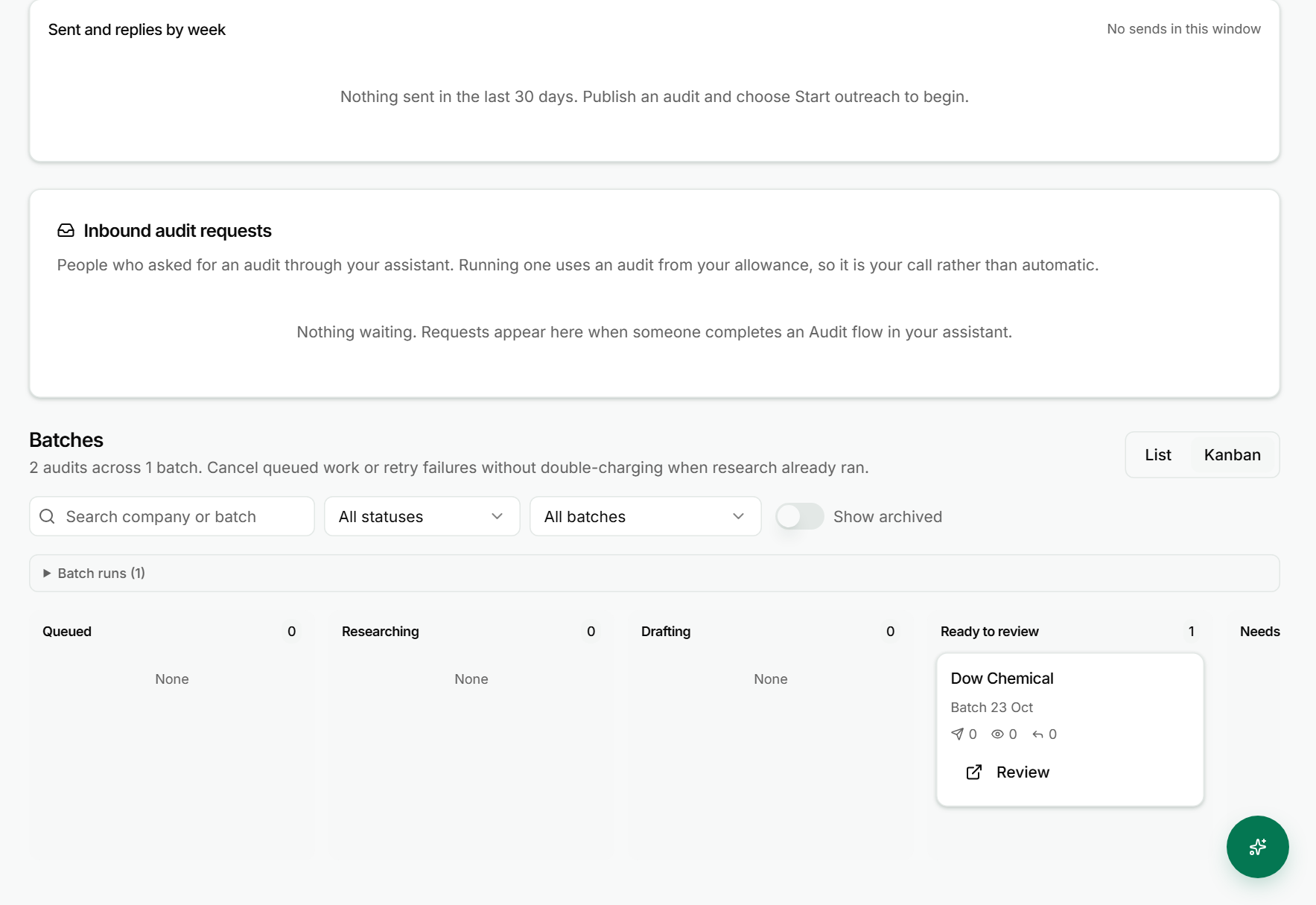
- On a card, click Review to open the audit in a new tab. Read it before you send anything.
- For a card that is still running, click the cancel control on the card, labelled Cancel audit for and the company name. For a card that failed, click Retry audit for the company. Retrying reuses research that already ran, so you are not charged for it twice.
- Tick the box beside one or more companies to use the bulk bar. It offers Archive and, where the bar shows it, deletion. If the bar says deals are credited to those audits, that credit goes with them, so check before you remove anything.
Start outreach from a published audit
- Find an audit with a Published status and click Start outreach for the company.
- The outreach dialog picks a first channel for each contact and adds the contacts to campaigns. Check the list before you confirm.
- To write introduction emails first, click Draft introduction emails for the company instead. You review the drafts before anything is sent.
What counts as an audit-initiated deal
A deal counts as audit-initiated when the audit was the first touch for that company. An automatic attribution step links the company brief to the deal. The Deals and Revenue tiles count only those deals. A deal that came in another way does not add to them, even if the company was audited later.
If something goes wrong
- Symptom: The Audits item is missing from the sidebar. → Fix: Switch to Implement mode at the bottom left, then look under Growth.
- Symptom: Create audits does nothing, or the batch will not start. → Fix: Check Audit capacity this month. A batch needs allowance left in the current month.
- Symptom: A card says Failed. → Fix: Click Retry audit for the company. If it fails again, open the card with Review, check the company website and playbook, then retry.
- Symptom: Deals stays at 0 after outreach. → Fix: Deals count only when the audit was the first touch. Check that the audit came first for that company.
FAQ
Q: Why is the Deals tile at 0 when I have replies? A reply is not a deal. A deal is only counted when it is linked to the audit as the first touch. Replies are counted on their own tile.
Q: Does an inbound audit request run by itself? No. Each one uses an audit from your allowance, so you choose when to run it.
Q: Where do I change the method an audit follows? In Strategy mode, under Growth, click Trust Builders. The playbook there sets the method..
Q: Can I see audits that I archived? Yes. Turn on Show archived above the batches list.
Related: Set up an audit playbook | Run an audit to diagnostic funnel | Define your services and pricing | Run a meeting prep session