You'll learn how to: Use the four quick actions on a deal, and find the More deal actions menu.
Time: 5 minutes.
Prereqs: The deal canvas with a deal open, and at least one person on the deal's stakeholder list.
Open a quick action
- In the left sidebar, click Revenue.
- Click a card to open the deal canvas.
- In the left column, under Quick actions, click one of the four buttons:
- Log Call (phone icon)
- Send Email (envelope icon)
- Schedule Meeting (calendar icon)
- WhatsApp (WhatsApp icon)
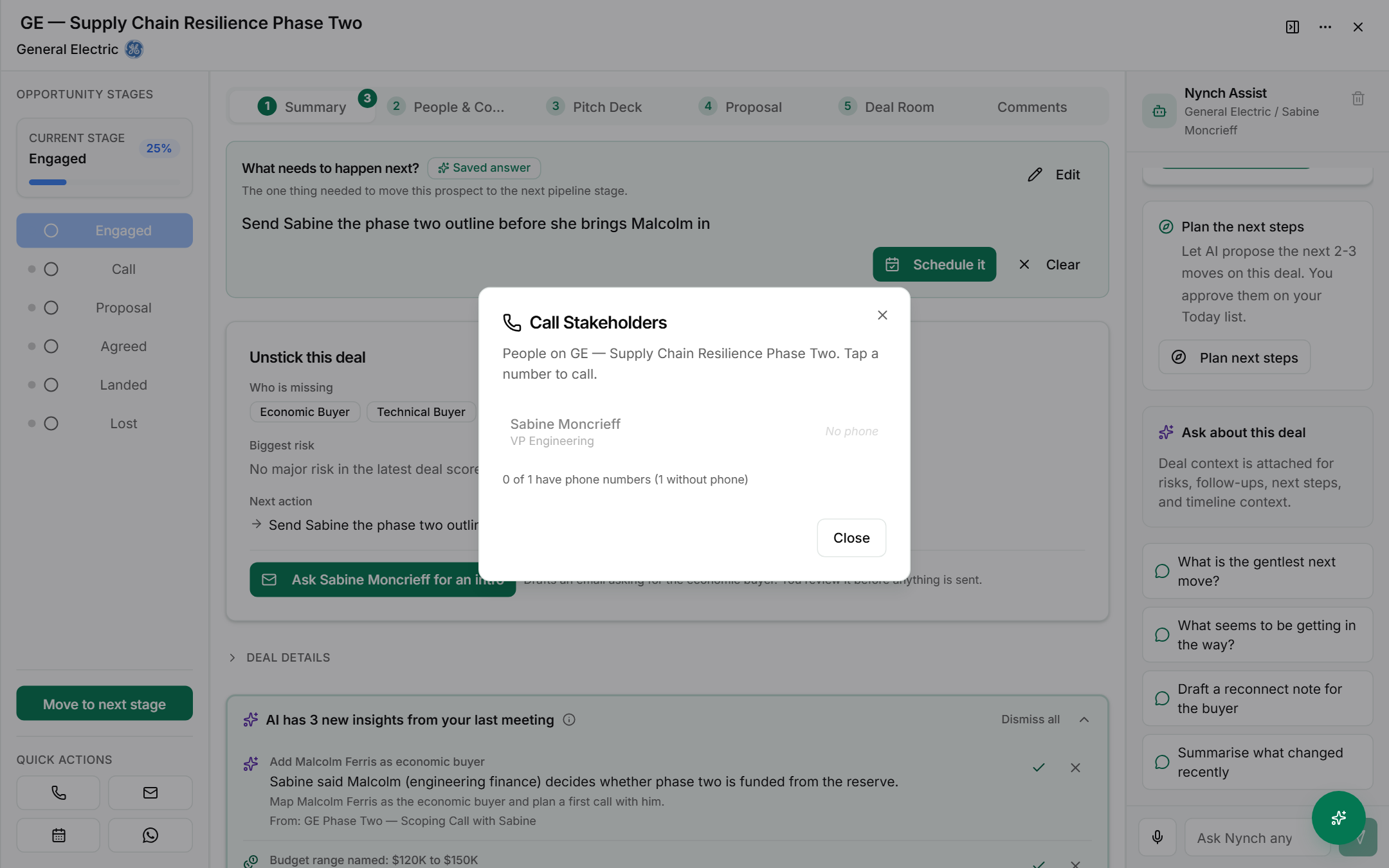
Each one opens a dialog that lists the people on the deal. Pick who you want to reach, then read the dialog's buttons before you click anything.
What each action does
- Log Call opens Call Stakeholders. It lists the people on the deal. A number appears when the person has a phone number. if not, the dialog says No phone. Tap a number to call. Close the dialog with Close.
- Send Email opens Email Stakeholders. Tick the people to email, or click Select All. Click Compose Email to write the message, or Cancel to leave without sending.
- Schedule Meeting opens Schedule Meeting. It creates a Google Calendar event and invites the stakeholders you tick. Fill in Title, Start, End and Attendees. Click Schedule to create the event, or Cancel to leave.
- WhatsApp opens WhatsApp Message. Tick the people to message, add an optional Message, then click Send. Each person opens in a separate WhatsApp conversation. People without a phone number are counted in the dialog and cannot be sent to.
Nothing is sent or scheduled until you click the final button in the dialog.
Open the More deal actions menu
- On the deal canvas, click the three dots at the top right, labelled More deal actions.
- The menu shows three items: Share with partner, Mark as not a real deal and Delete deal.
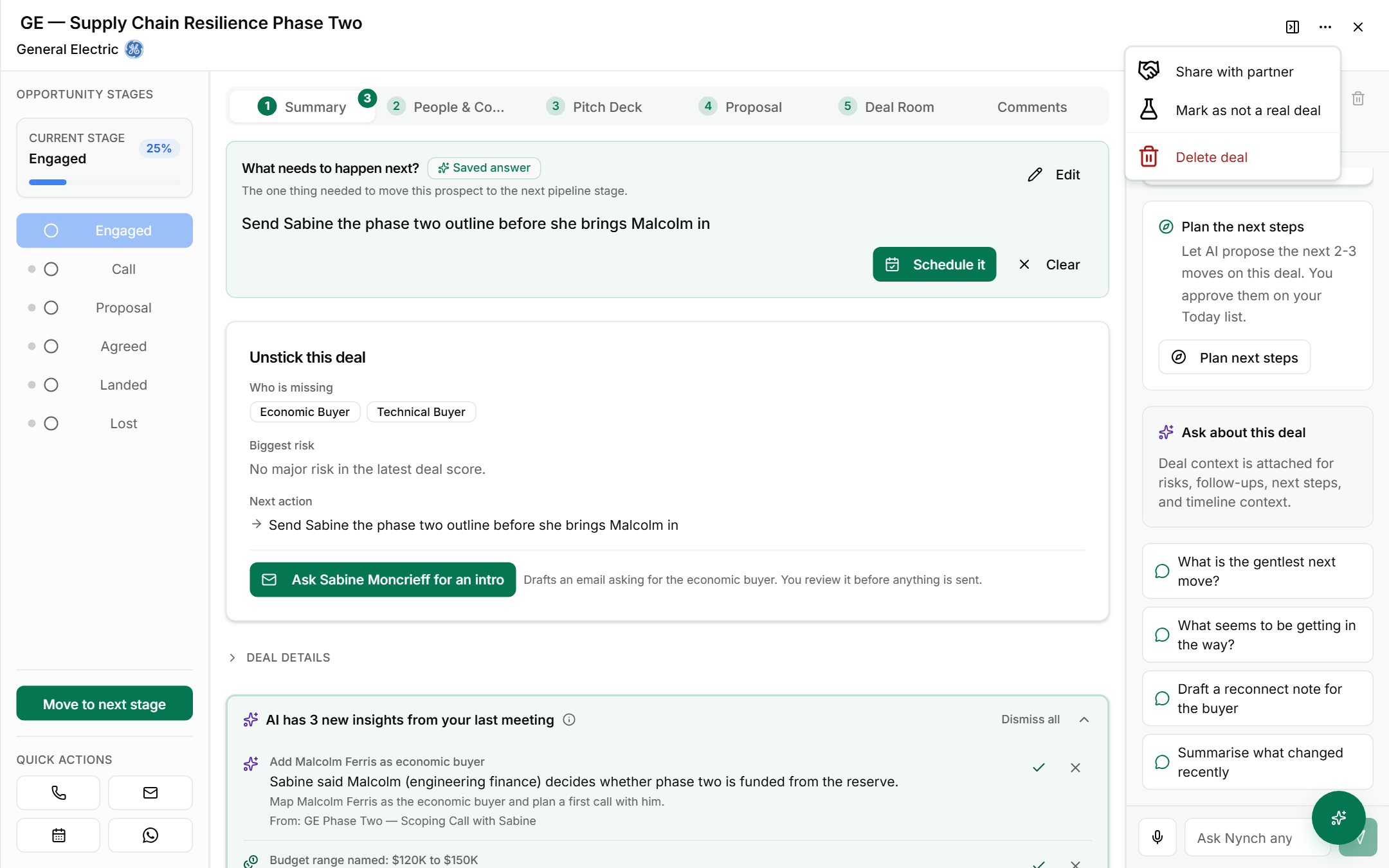
- Read each item before you click it:
- Share with partner opens Share with trusted partner. It sends a safe opportunity card: your private notes, contacts, messages and exact value stay in your account. Choose the partner, the expiry, the value band and the stage, then click Share with partner. Click Cancel to leave without sharing.
- Mark as not a real deal takes effect straight away. There is no confirm step. The deal is left out of reports and forecasts. The menu item then reads Mark as a real deal, which reverses it.
- Delete deal opens Delete this deal?. Click Cancel to keep the deal, or Delete Deal to remove it. You can undo straight away, or restore the deal from Recently deleted for 30 days.
Only the deal owner or a workspace admin can delete a deal.
FAQ
Q: Does a quick action send a message as soon as I click it? No. Each action opens a dialog first. The message, call, invite or share happens only when you click the final button in that dialog.
Q: Why can I not see Mark as not a real deal? The item only appears when you can edit the deal's fields. Ask the deal owner or a workspace admin if you need it.
Q: What is the safest way to take a deal out of the pipeline? Use Mark as not a real deal if the deal should stay on record but leave the reports. Use Delete deal only when the deal should be removed, and remember that deletion can be undone for 30 days from Recently deleted.
If something goes wrong
- Symptom: Schedule Meeting does not create the event. → Fix: Check that the Title, Start, End and Attendees fields are filled in, then click Schedule again.
- Symptom: A person is greyed out in WhatsApp Message. → Fix: They have no phone number on their record. Add one on their person record, then reopen the dialog.
- Symptom: Email Stakeholders lists no one. → Fix: Add a stakeholder to the deal first. See Add a stakeholder to a deal.
Related: The deal canvas, Deal canvas: Summary tab, Mark a deal as Lost, Add a stakeholder to a deal