You'll learn how to: Add an authenticator app so Nynch asks for a code after your password, add a backup authenticator, and know how owners can require two-step verification for the whole team.
Time: 5 minutes. You'll need an authenticator app on your phone.
Prereqs: You have a Nynch account and you've signed in. Install an authenticator app such as Google Authenticator, Microsoft Authenticator or 1Password. Read Settings, tab by tab for the full map.
What two-step verification does
After your password, Nynch asks for a six-digit code from your authenticator app. Codes change every 30 seconds. Some workspaces require it for everyone, so you may be asked to set it up when you next sign in.
Set it up for yourself
- Click your avatar (top-right of the screen), then Settings.
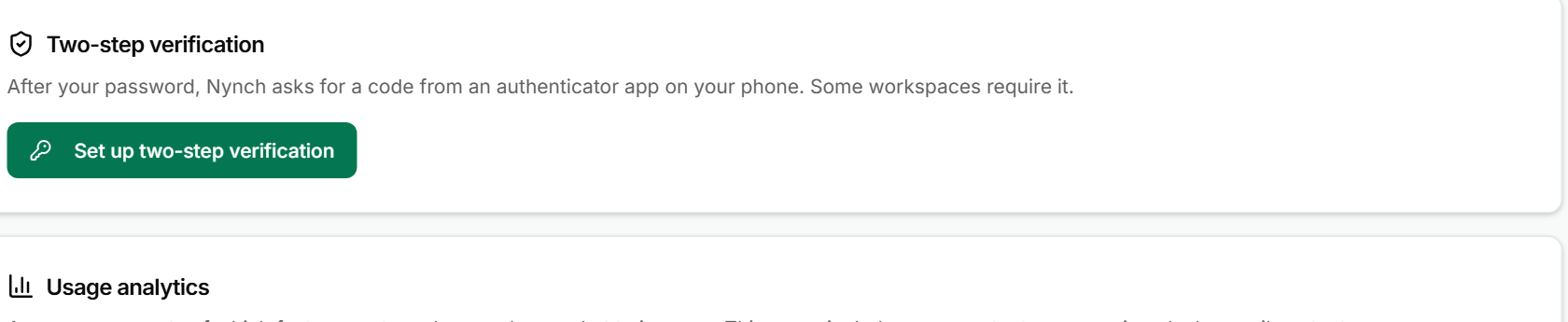
- Stay on the Account tab and find Two-step verification.
- Click Set up two-step verification.
- Open your authenticator app and scan the QR code. If you can't scan it, type the setup key shown below the code.
- Type the six-digit code your app shows into the box.
- Click Turn on.
Add a backup authenticator
Once two-step verification is on, the card lists your authenticator. Click Add a backup authenticator and follow the same steps with a second app, such as a password manager or a second phone. A backup keeps you signed in if you lose your phone.
Remove an authenticator
To change or remove an authenticator, you first need a code from one that's already set up. Enter it when the card asks. Then click the trash icon next to the authenticator you want to remove. Add a replacement authenticator before you remove your only one, so you aren't locked out.
Require it for your team (owners)
Owners see a second card, Require two-step verification, on the Team tab. Admins can see the card, but only the owner can change it.
Before an owner can switch the requirement on, they need two-step verification on their own account. This is so nobody locks themselves out.
When it's required:
- Everyone in the workspace, including admins, needs a code after their password.
- People without a code can't see or change workspace data until they set one up.
- Removing members, exports and security settings ask for a fresh code every 12 hours.
- People who sign in through your company login are covered by that company's own sign-in policy.
The same switch turns the requirement off again.
If something goes wrong
- Symptom: "My code doesn't work." → Fix: Codes change every 30 seconds. Wait for the next code and type it again. Check your phone's clock is set to automatic, because a wrong time makes every code fail.
- Symptom: "The card says settings could not be loaded." → Fix: Refresh the page. If it still fails, sign out and back in.
- Symptom: "I can't remove my authenticator." → Fix: Enter a code from an authenticator first. The trash icon stays greyed out until you do.
- Symptom: "The Team tab doesn't show the requirement card." → Fix: Only owners and admins see it. Members don't get it.
FAQ
Q: Do I need two-step verification? Only if your workspace requires it, or if you want an extra layer on your account. You can turn it on for yourself at any time.
Q: What if I lose my phone? Use your backup authenticator. If you have no backup and no access, contact support before you try anything else.
Q: Can I use a password manager as the authenticator? Yes. Any app that shows six-digit codes works. Many password managers do this.
Q: Does two-step verification also cover my team's assistant access keys? Yes. When it's required, creating an assistant access key needs a code, and keys made without one are paused until their holder confirms with a code.
Related: Settings, tab by tab | Team settings | View the audit log