You'll learn how to: Limit the Contacts table to only your records, only a teammate's records, or the whole team. Works the same way on Companies and Deals.
Time: 2 seconds.
Prereqs: You're in a multi-seat workspace. Solo workspaces don't show the Owner filter because there's only one possible owner.
Steps
- Open People and the People tab (or the Companies sidebar item, or Revenue for deals).
- Click View in the toolbar, then the Filter tab.
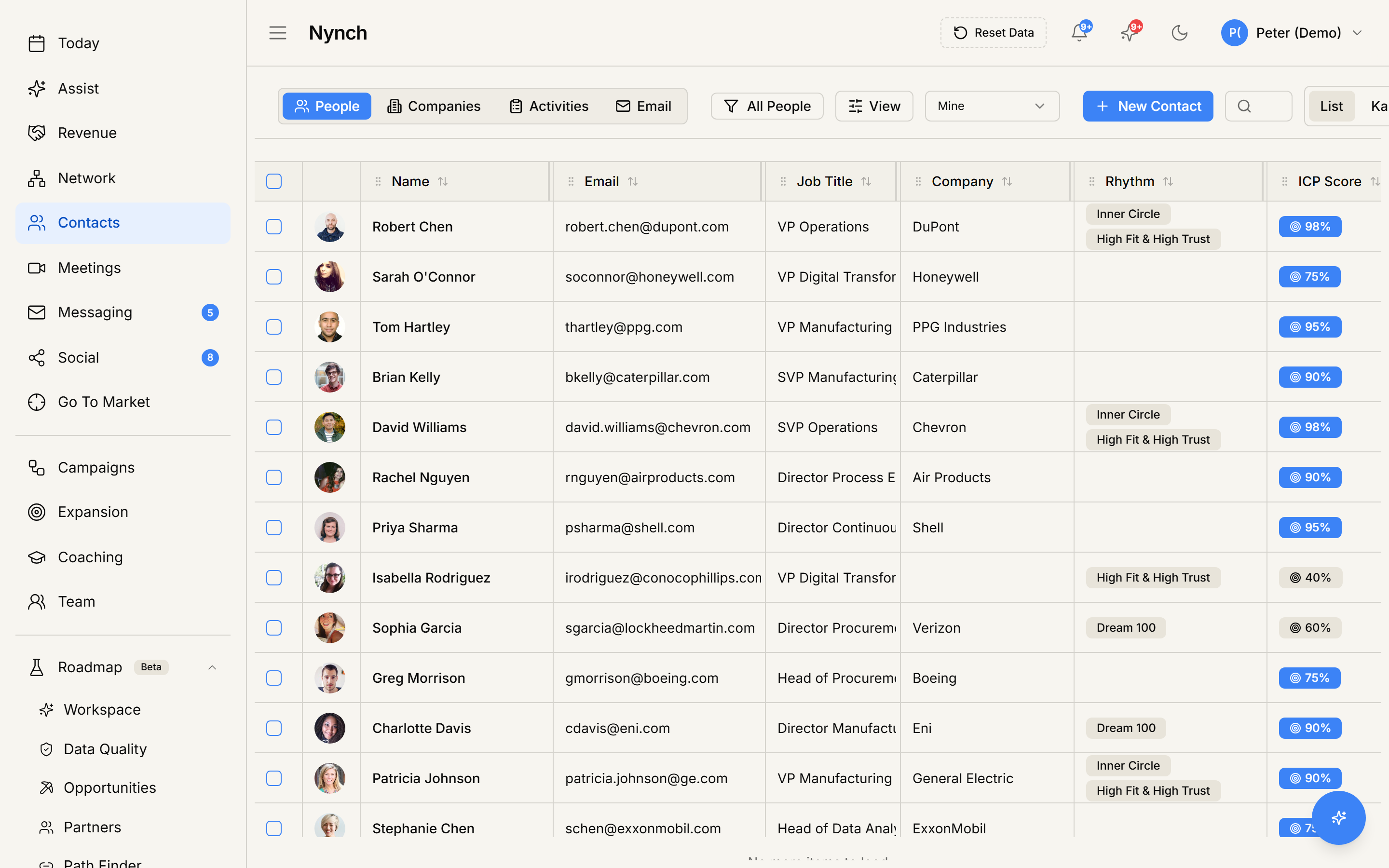
- Add a condition on the Owner field and pick the teammate (or yourself) whose records you want.
The table refreshes as you apply the filter. Save the filtered state as a view (see Save a custom view) so you can return to "just Sarah's records" with one click.
Common patterns
- Daily personal work: set to Mine by default and forget it.
- Pipeline review of a teammate: switch to their name when prepping for a 1:1 or reviewing their performance.
- Workspace-wide reporting: switch to All members for end-of-quarter / end-of-month exports.
- Comparing two teammates' approach: switch back and forth between them to see how they each filter, rhythm, and engage their networks differently.
Owner-filter is not record permission
The Owner filter changes what you see, not what you have access to. In a Team-visible sharing policy (the default), you can still SEE records owned by teammates regardless of the filter. the filter just hides them. To genuinely restrict access, change the workspace sharing policy. See Team and workspace.
If something goes wrong
- Symptom: "I can't find an Owner field to filter on." → Fix: You're likely in a solo workspace (only one user), where every record has the same owner. The Owner filter is mainly useful once you have teammates.
- Symptom: "I filtered to a teammate but still see records I don't expect." → Fix: In a Team-visible sharing policy you can still see teammates' records. the filter narrows the view but doesn't change access.
- Symptom: "I can't see a teammate to filter by." → Fix: They're either not part of your workspace yet or they've been deactivated. Check the team roster in Settings → Team.
- Symptom: "Filter resets every time I refresh." → Fix: Save the view with the filter applied to make it sticky.
FAQ
Q: How do I filter the people table by owner? Limit the Contacts table to only your records, only a teammate's records, or the whole team. Works the same way on Companies and Deals.
Q: What do I need before I start? You're in a multi-seat workspace. Solo workspaces don't show the Owner filter because there's only one possible owner.
Q: How long does this take? About 2 seconds.
Q: I can't find an Owner field to filter on? You're likely in a solo workspace (only one user), where every record has the same owner. The Owner filter is mainly useful once you have teammates.
Q: I filtered to a teammate but still see records I don't expect? In a Team-visible sharing policy you can still see teammates' records. the filter narrows the view but doesn't change access.
Related: Manage your contacts and companies | Save a custom view | Team and workspace.