You'll learn how to: Capture the current filter + sort + columns + grouping as a named view, then switch between saved views in one click.
Time: 1 minute.
Steps
- Open People (or Companies, or Revenue).
- Set the table the way you want to see it:
- Filter: View → Filter → add conditions (e.g. "ICP fit > 70 AND last activity < 30 days ago").
- Sort: View → Sort → pick a field and direction.
- Fields: View → Fields → tick the columns you want visible.
- Group (for Kanban view only): pick the grouping field.
- Click the Saved views picker (sits on the left side of the toolbar, shows the current view name).
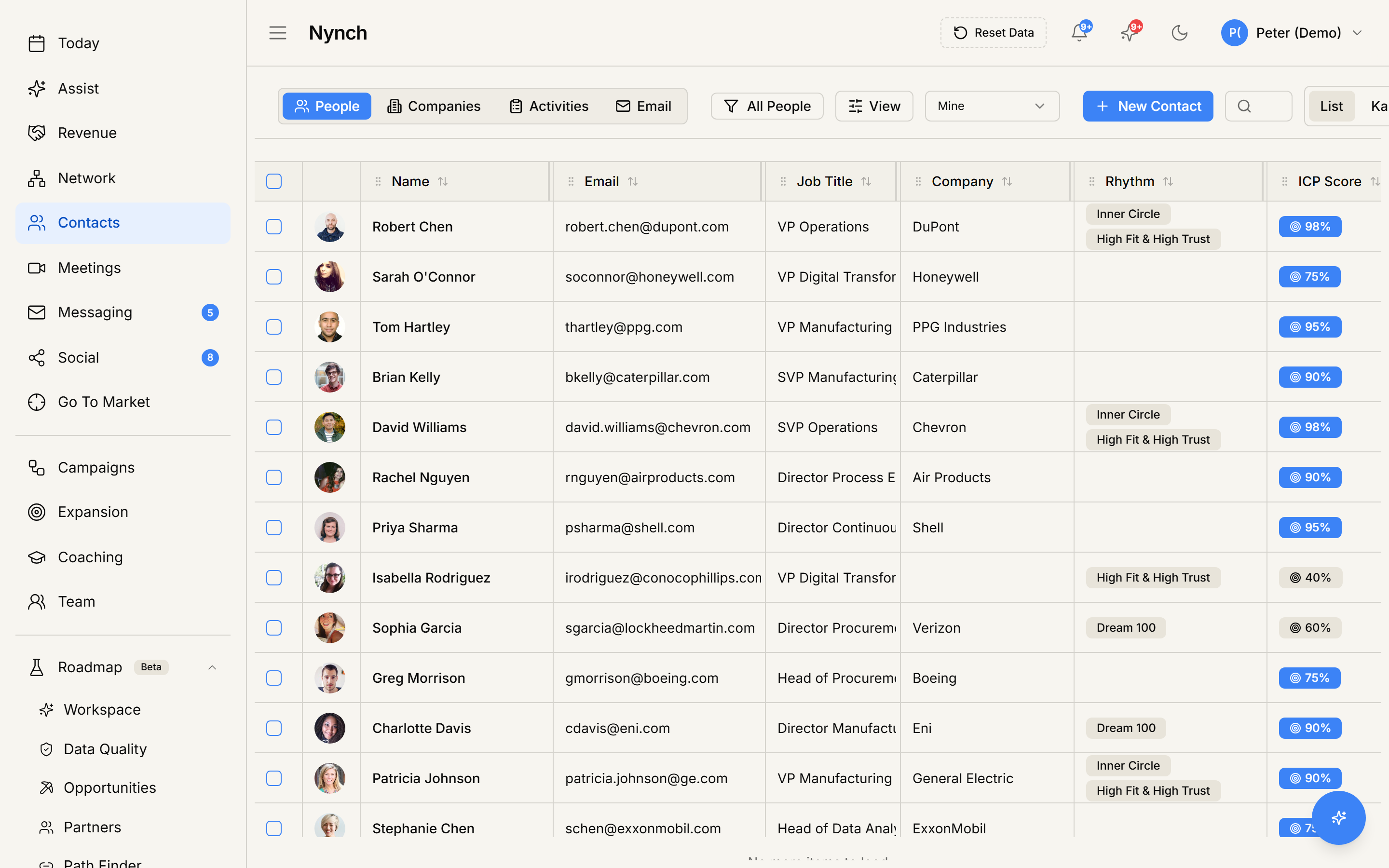
- Click Save as new view.
- Name it something descriptive: "ICP fit > 70, recent activity", "Stalled deals 14d+", "London-based VPs".
- Click Save.
The view appears in the Saved views picker. Click it any time to restore exactly that state.
Naming patterns that work
Vague names like "My view" or "Filtered" don't help future you. Better patterns:
- [Filter criteria]: "ICP 80+, no recent touch"
- [Activity I'll do with it]: "Monday outbound batch"
- [Time window]: "Closing this quarter"
- [Owner]: "Sarah's pipeline"
If you save more than five views, the descriptive names start mattering a lot.
Update an existing view
Saved views aren't auto-updating. If you tweak filters / sort / fields after loading a saved view, the changes apply to your current session but the saved view stays as it was. To overwrite the saved view with your current state:
- Make sure your filters / sort / fields are how you want them.
- Open the Saved views picker.
- With the view selected, click Update view (or the equivalent save-over option in the picker).
Delete a view
- Open Saved views picker.
- Right-click the view (or use the small more-actions icon next to it).
- Click Delete view.
- Confirm.
Sharing views with teammates
Views are personal by default. Teammates don't see your views. If your workspace plan supports shared views:
- Open the view's settings via the more-actions icon in the picker.
- Toggle Share with team.
Shared views appear in every teammate's Saved views picker with a small shared icon.
If something goes wrong
- Symptom: "Save as new view is greyed out." → Fix: Your current state matches an existing saved view exactly. Tweak something (add a filter, change a sort) and the option becomes available.
- Symptom: "I saved a view but it shows different results than when I saved it." → Fix: Saved views capture filter / sort / fields, not record state. New contacts that match the filter appear automatically. If you want a frozen snapshot, export to CSV instead.
- Symptom: "I can't find a view I saved last week." → Fix: Check the entity. Views are per-entity (a view saved on People doesn't appear on Companies). Switch to the right entity first.
- Symptom: "My teammate's shared view doesn't show up for me." → Fix: Refresh the page. If still missing, ask them to confirm they actually shared it via the more-actions menu on the view.
FAQ
Q: How do I save a custom view on the contacts table? Capture the current filter + sort + columns + grouping as a named view, then switch between saved views in one click.
Q: Where do I start in Nynch? Open People (or Companies, or Revenue).
Q: How long does this take? About 1 minute.
Q: Save as new view is greyed out? Your current state matches an existing saved view exactly. Tweak something (add a filter, change a sort) and the option becomes available.
Q: I saved a view but it shows different results than when I saved it? Saved views capture filter / sort / fields, not record state. New contacts that match the filter appear automatically. If you want a frozen snapshot, export to CSV instead.
Related: Manage your contacts and companies | Export your contacts to CSV.