You'll learn how to: Connect Telegram so Nynch can ping you on your phone without needing a separate mobile app.
Time: 3 minutes.
Prereqs: You have a Telegram account on your phone.
Why Telegram
Nynch doesn't ship a dedicated mobile app for every plan. Telegram is the workaround: connect your Telegram account, and Nynch pushes urgent notifications (your daily briefing, urgent signals, deal-status changes, agent approvals) to a Telegram chat you can read anywhere.
If you already have a mobile companion app from a higher-tier plan, you don't need Telegram. For everyone else, it's the fastest way to get Nynch on your phone.
Steps
- Open your avatar (top-right), then click Settings.
- Click the Integrations tab.
- Find the Telegram card (under Connected Apps or a dedicated row).
- Click Connect Telegram.
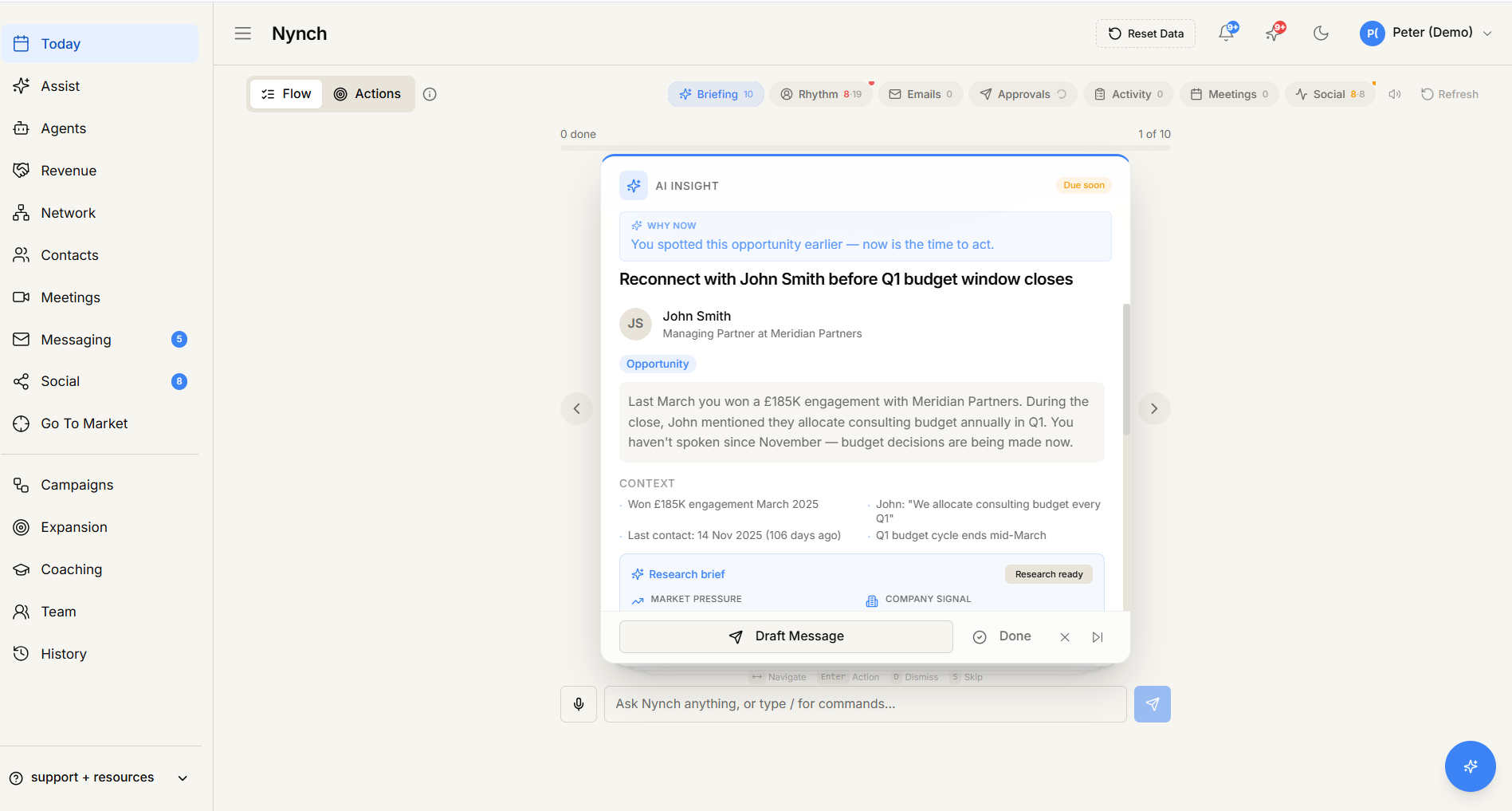
- The card shows a unique connect link or QR code.
- On your phone:
- Open Telegram.
- Scan the QR code (or tap the link if you're on the phone browser).
- Telegram opens a chat with the Nynch bot.
- Tap Start or send
/startto the bot.
- The bot confirms "Connected to your Nynch workspace as <your email>".
- The Settings card flips to showing Connected with a green badge.
You're done. Notifications start arriving immediately.
What notifications you'll receive
By default:
- Daily briefing at your configured morning time.
- Urgent signals (job changes for high-fit contacts, breaking news on key accounts).
- Agent approval requests for high-stakes actions.
- Deal status changes when a teammate moves your deal.
You can tune which categories deliver via:
- Avatar > Settings > Notifications tab.
- Scroll to Channels > Telegram.
- Tick / untick which event types should ping Telegram.
This is independent of email digest and desktop notification settings.
Test the connection
After connecting, send /ping to the Nynch bot in Telegram. The bot should reply within a few seconds confirming it's online and connected.
Disconnect
- Avatar > Settings > Integrations > Telegram card.
- Click Disconnect.
- Confirm.
The bot stays in your Telegram (you can manually delete the chat) but stops sending notifications. To reconnect later, run the connect flow again.
If something goes wrong
- Symptom: "QR code doesn't appear / errors out." → Fix: Refresh the page. The QR is regenerated each time. If it still doesn't appear, the Telegram bot service may be temporarily down. try again in a few minutes.
- Symptom: "Bot doesn't respond to /start." → Fix: Make sure you're chatting with the official Nynch bot (the connect link goes directly to it. don't search manually). Check that you've sent /start, not just opened the chat.
- Symptom: "I connected but no notifications are arriving." → Fix:
- Check your avatar > Settings > Notifications > Telegram channel to see if categories are enabled.
- Check quiet hours, since Telegram respects them.
- Send /ping to confirm the bot is still connected.
- Symptom: "I want to mute notifications temporarily." → Fix: Mute the bot chat in Telegram (per-chat mute). Nynch keeps sending. you just don't see them. Or use quiet hours for time-windowed silence.
FAQ
Q: How do I connect telegram for notifications? Connect Telegram so Nynch can ping you on your phone without needing a separate mobile app.
Q: What do I need before I start? You have a Telegram account on your phone.
Q: How long does this take? About 3 minutes.
Q: QR code doesn't appear / errors out? Refresh the page. The QR is regenerated each time. If it still doesn't appear, the Telegram bot service may be temporarily down. try again in a few minutes.
Q: Bot doesn't respond to /start? Make sure you're chatting with the official Nynch bot (the connect link goes directly to it. don't search manually). Check that you've sent /start, not just opened the chat.
Related: Settings, tab by tab | Set quiet hours for notifications | Today, your daily action feed.