Why Connect Email
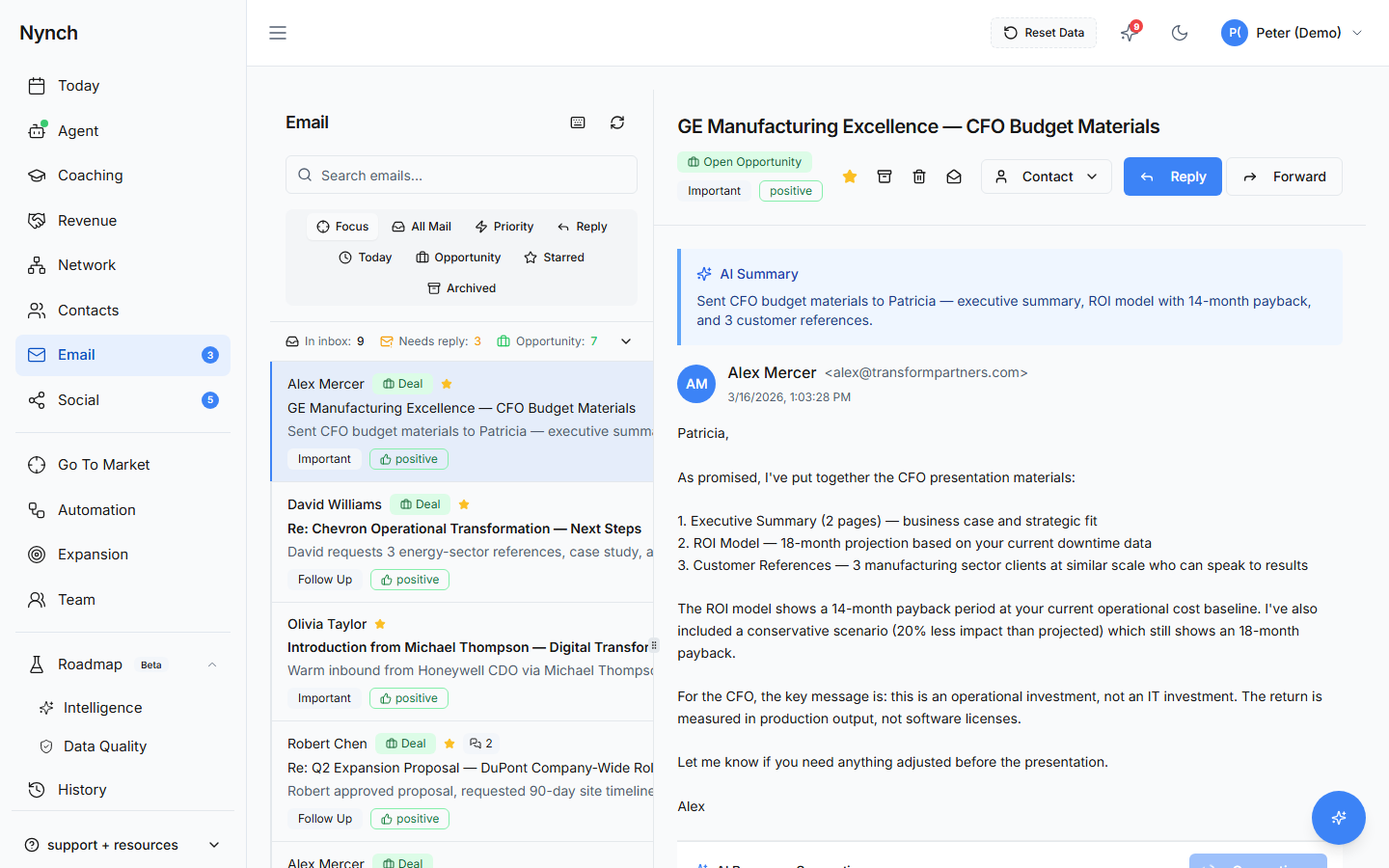
Email is where most business relationships play out. Connecting your account lets Nynch:
- Show email history on every contact's profile
- Surface important messages in your daily feed
- Power the AI Reply Coach with conversation context
- Track relationship engagement patterns over time
- Detect new contacts in your network automatically
How to Connect
- Go to Settings (gear icon in the sidebar)
- Click Integrations
- Choose Gmail or Outlook
- Sign in with your email account and grant permissions
- Nynch begins syncing immediately
For Gmail: You'll see a Google permissions screen asking to "read and send email on your behalf." Nynch uses this to sync conversations and send replies when you choose to. It never sends anything without your explicit action.
For Outlook: Microsoft may require admin consent if your organisation uses enterprise Office 365. If you see an "admin approval required" message, ask your IT team to approve the Nynch integration.
For detailed walkthroughs, see Connecting Gmail Step by Step or Connecting Outlook Step by Step.
What Gets Synced
- Sender and recipient, who sent what to whom
- Date and subject line, when emails were sent
- Thread structure, which emails are part of the same conversation
- Labels/folders, your Gmail labels or Outlook folders
What Nynch does NOT do:
- It does not read or store the full body of every email in the background
- It does not send emails on your behalf without your explicit action
- It does not share your email data with other users in your workspace
Configuring Sync Preferences
After connecting, you can fine-tune what gets imported:
- Label filtering (Gmail), choose specific labels to include or exclude
- Blocked patterns, exclude emails from certain domains (e.g., noreply@ addresses)
- Auto-create contacts, automatically add new email senders to your contact list
- Daily Relationship Review enrollment, send new auto-created contacts to the Daily Relationship Review for sorting
Find these in Settings → Integrations → Sync Preferences.
Importing Email History
Connecting your email starts syncing from today forward. To import historical conversations, see Importing Your Gmail History.
The Unified Inbox
Once connected, the Email section in the sidebar shows a filtered inbox, only emails from people in your contacts. This cuts through the noise and shows you the conversations that matter for your business.
Multiple Accounts
You can connect more than one email account. All conversations merge into a single view, organised by contact. You can also send from different email addresses when composing.
Disconnecting
To disconnect an email account, go to Settings → Integrations and click the disconnect button. Historical sync data remains in your contact profiles unless you explicitly delete it.
Next: Importing Your Gmail History | The Unified Inbox