You'll learn how to: Keep sister brands and competitors out of your recommendations, and limit how many automated emails one person can get in a day or week.
Time: 5 minutes.
Prereqs: You have a Nynch account and you've signed in. To change either setting you need to be a workspace owner or admin. Members can read both cards. Read Settings, tab by tab for the full map.
Exclude domains
Use Domains to exclude for sister brands or competitors you never want Nynch to treat as prospects. Excluded domains don't appear in recommendations, don't get contacts or companies created for them automatically, and aren't used as company context for Superbrain.
Saving also removes those domains from your current Focus lists and clears their pending review tasks.
- Click your avatar (top-right of the screen), then Settings.
- Stay on the Account tab and find Domains to exclude.
- To add one domain, type it in the box and click Add. Enter the domain, such as
competitor.io, or paste a URL. Nynch removes any path andwww. - To add several at once, paste them into Paste several at once, one per line, then click Save excluded domains.
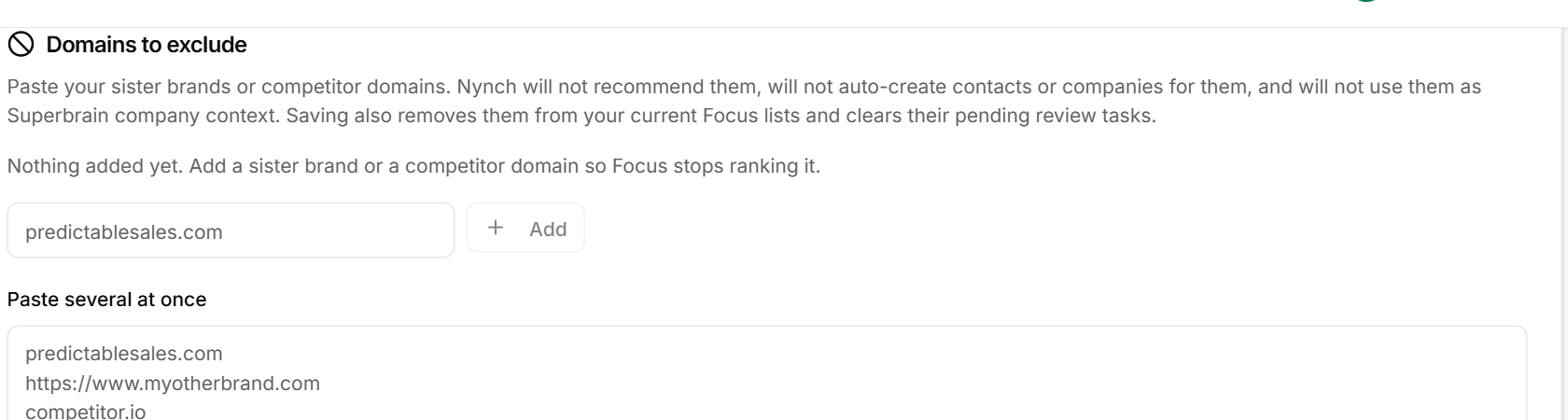
Your own company's domain is listed above the box under Your own company. It's excluded automatically and locked, so you can't remove it here. It comes from the company website set in your company branding on the Profile tab.
To remove a domain, click the x on its tag and save.
Set a Contact guard limit
Contact guard stops any one person from getting too many automated emails, even when they're in several campaigns. It covers campaigns, bulk email and agent auto-send. Emails over the limit wait for the next free slot. Nothing is dropped. Emails you write and send yourself are never held back.
- On the Account tab, find Contact guard.
- Turn on Limit automated emails per person.
- Set Most per day (up to 50) and Most per week (up to 200).
- Set Quiet from and Quiet until as hours from 0 to 23. The card shows the window and your workspace time zone.
- Click Save contact guard. The button is only active once you've changed something and the values are valid.
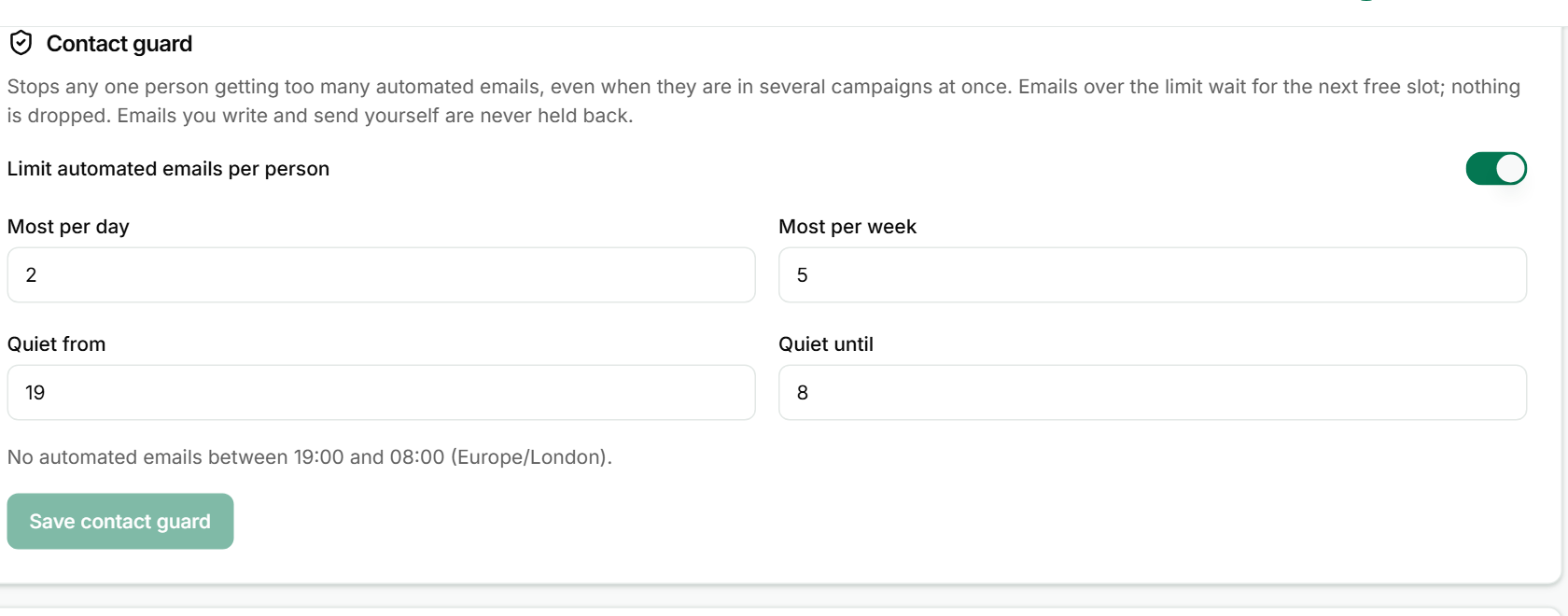
To turn the limit off, switch off Limit automated emails per person and save. The daily, weekly and hour fields grey out while it's off.
If something goes wrong
- Symptom: "I can't see the box to add domains." → Fix: Only owners and admins can edit this list. Members see the current list only.
- Symptom: "My excluded domain still shows up in Focus." → Fix: Make sure you clicked Add or Save excluded domains. Saving is what clears the Focus lists. If it still shows, refresh the page.
- Symptom: "Save contact guard is greyed out." → Fix: Nothing has changed, or a value is out of range. The red message under the fields says which one.
- Symptom: "A campaign email arrived later than I expected." → Fix: That's Contact guard holding it for the next free slot. It sends later, not never.
FAQ
Q: Will excluding a domain delete my contacts? No. The card describes stopping new contacts and companies from being created for that domain, stopping recommendations, and clearing items from your Focus lists. It doesn't describe deleting anything.
Q: Can my teammates change these settings? Only owners and admins can edit either card. Other members can see them.
Q: Does Contact guard apply to emails I write myself? No. Emails you write and send yourself are never held back.
Q: What happens to an email that goes over the limit? It waits for the next free slot. Nothing is dropped.
Related: Settings, tab by tab | Team settings | Set quiet hours