You'll learn how to: Send a one-off LinkedIn DM to a contact without leaving Nynch's flow.
Time: 1 minute.
Prereqs: The Chrome extension is installed (see Install the Nynch Chrome extension). The contact has a LinkedIn URL on file.
Why this is two-step (and why that's fine)
LinkedIn doesn't expose a public API for sending messages. Nynch can't send DMs directly. What it CAN do is jump you to the right LinkedIn conversation with one click, and the Chrome extension's sidebar gives you the contact's full Nynch context while you write.
If you've been bouncing between Nynch and LinkedIn manually, this saves the navigation tax.
Steps
- In the People section, People tab, open the contact's profile (click their avatar).
- Find the LinkedIn or Message button on the profile.
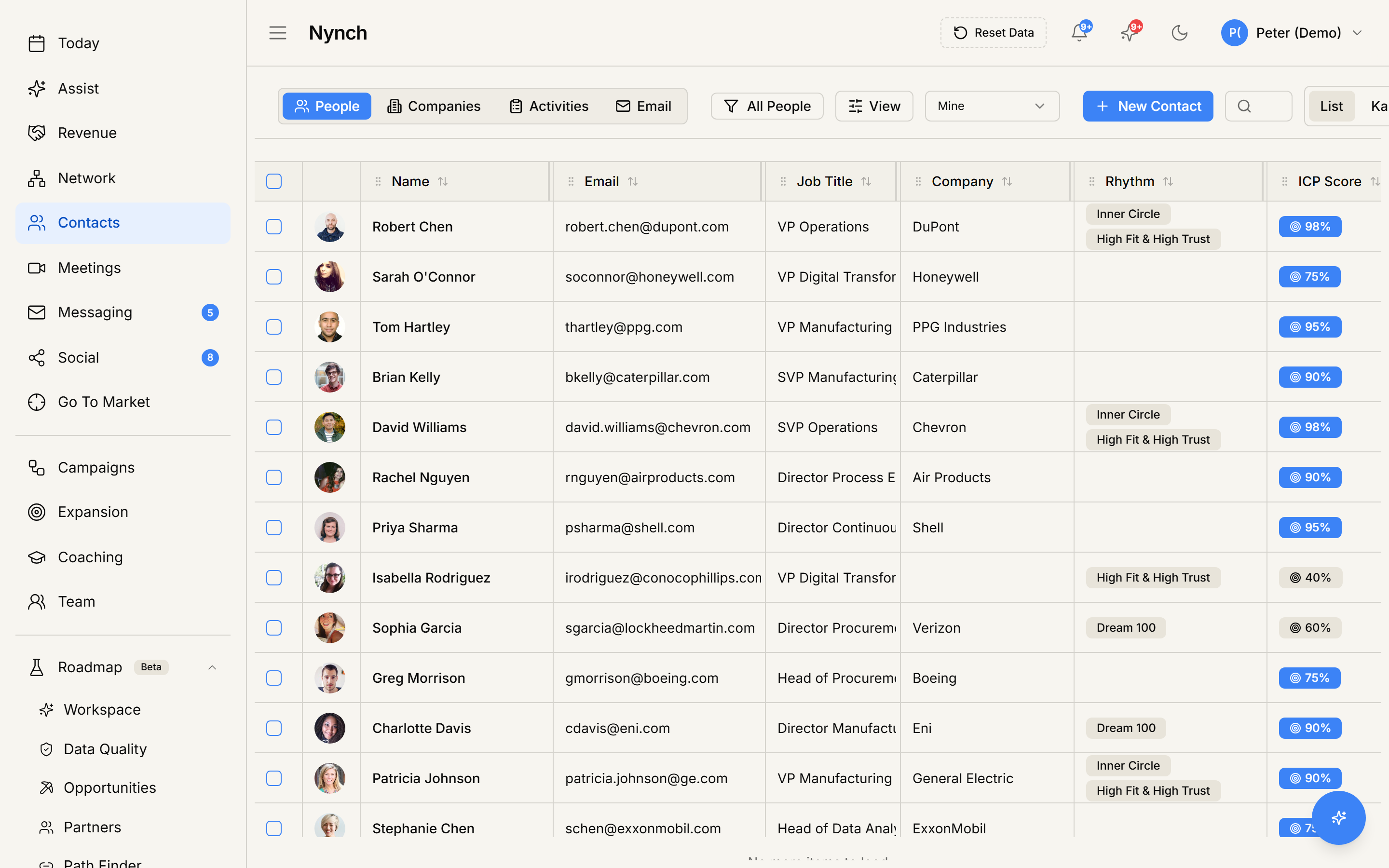
- Click it.
- A new tab opens to the contact's LinkedIn profile with the message panel ready.
- The Nynch Chrome extension sidebar shows the contact's full Nynch context on the right (rhythm, ICP score, deal history, recent activity).
- Write your DM in LinkedIn's compose panel.
- Send through LinkedIn.
After sending
The Chrome extension auto-detects the DM and logs it back to Nynch:
- The message lands on the contact's activity timeline.
- The contact's last-touched date updates.
- If the contact is in a rhythm, the rhythm cadence resets.
- If there's an active campaign with a LinkedIn step pending, that step is marked complete.
The detection happens within a minute or two of sending. Refresh the contact profile in Nynch to see it appear.
Use the Reply Coach for the draft
While you're writing in the LinkedIn compose panel, the Nynch extension sidebar offers Reply Coach suggestions. Click a suggestion to copy it into the LinkedIn message. tweak from there.
This is how the Reply Coach works for LinkedIn vs email: email has it inline in the Nynch composer. LinkedIn has it as a side-by-side suggestion you copy across.
Engage mode for batches
If you want to message 5-20 people in sequence:
- Open the Engage section (left sidebar).
- Pick a rhythm or campaign as the source queue.
- The extension walks you through each contact one at a time:
- Opens their LinkedIn profile.
- Shows the suggested message.
- You send.
- Move to next.
Much faster than navigating manually. See Capture LinkedIn contacts with the Chrome extension for the Engage flow details.
If something goes wrong
- Symptom: "Send LinkedIn message action isn't there." → Fix: Either the contact has no LinkedIn URL, or the Chrome extension isn't installed. Add the URL and / or install the extension.
- Symptom: "New tab opens but the message panel doesn't appear." → Fix: LinkedIn's UI sometimes routes profiles to different layouts. Manually click the Message button on their LinkedIn profile.
- Symptom: "Sent the DM but it didn't appear on the Nynch timeline." → Fix:
- The extension can take 1-2 minutes to detect.
- Make sure the Nynch tab is still signed in.
- If still missing after 5 minutes, mark as touched manually on the Nynch contact profile.
- Symptom: "I'm not connected to them on LinkedIn so messaging is limited." → Fix: LinkedIn limits non-connection messaging (InMail credits, connection requests). The Nynch extension can't bypass this. Either send a connection request first, or use email instead.
FAQ
Q: How do I send a linkedin message from inside nynch? Send a one-off LinkedIn DM to a contact without leaving Nynch's flow.
Q: What do I need before I start? The Chrome extension is installed (see Install the Nynch Chrome extension). The contact has a LinkedIn URL on file.
Q: How long does this take? About 1 minute.
Q: Send LinkedIn message action isn't there? Either the contact has no LinkedIn URL, or the Chrome extension isn't installed. Add the URL and / or install the extension.
Q: New tab opens but the message panel doesn't appear? LinkedIn's UI sometimes routes profiles to different layouts. Manually click the Message button on their LinkedIn profile.
Related: Capture LinkedIn contacts with the Chrome extension | Install the Nynch Chrome extension | Use the Reply Coach | Send a one-off email from a contact profile.