You'll learn how to: Recognise every area in Nynch by name, understand the two modes the app switches between, and know which screen to open for any task you're about to do.
Time: 10 minutes. Skim once now, then come back when you need to find something specific.
Prereqs: A Nynch account. You've signed in at least once.
The one idea that makes Nynch click: two modes
Nynch runs in two modes, and the left sidebar changes depending on which one you're in. You switch between them with the Implement / Strategy toggle at the bottom-left of the sidebar.
- Implement (the toggle calls it "Daily workflows"): your day-to-day operating screens. This is where you spend almost all your time: working your list, your people, your pipeline, your messages.
- Strategy: your foundations. Who you help, what you sell, how you position yourself. You set these up once, then revisit them occasionally.
If a screen you remember has "disappeared", you're almost always just in the other mode. Flip the toggle and it comes back.
The left sidebar never moves. The centre of the screen updates as you handle. The right side is reserved for context: the person or deal you've opened, or a chat with Assist.
Implement mode, item by item
This is the default sidebar you see when you sign in.
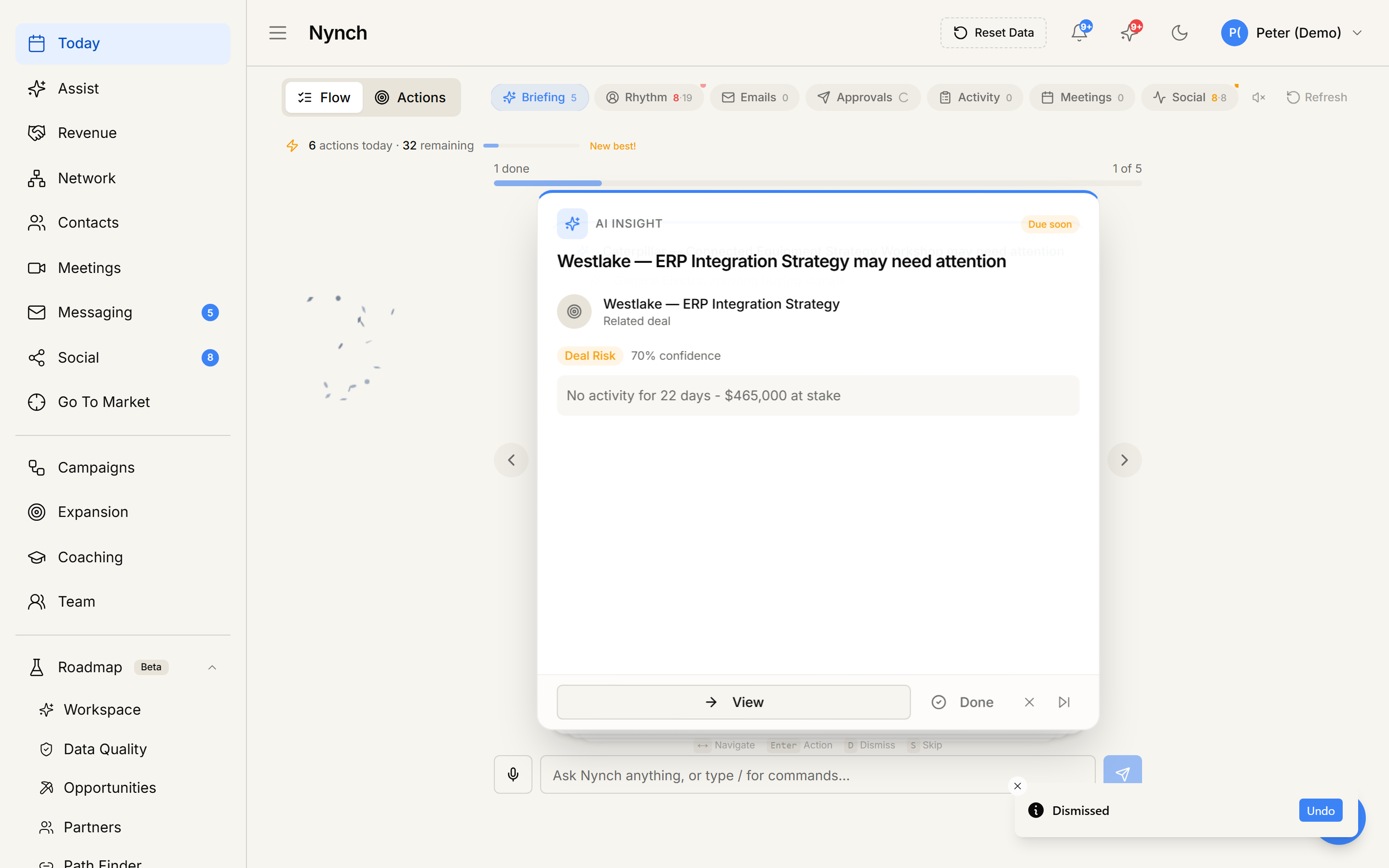
Today
Nynch's home screen. It opens automatically when you sign in. Two views across the top:
- Flow: a card-by-card feed of the people, meetings, and signals that need your attention right now. Think "what should I do today".
- Actions: your weekly activity grid for setting targets and logging what you did.
Filter chips across the top (Next Steps, Leads, Rhythm, Approvals, Activity, Meetings) narrow the feed to one type of work.
Revenue
Your opportunity pipeline. Every active deal lives here as a card on a kanban board, organised into stages (Engaged, Call, Proposal, Agreed). Click a card to open its full canvas (stakeholders, fit, proposal, AI predictions). You can also switch pipelines, open Reporting, or flip to Orbit View. Add a new deal with + New Opportunity.
People
Your relationship base: everyone Nynch knows about, plus every conversation you've had with them. Tabs across the top:
- People: the working table of every contact. This is the default tab. This is where you bulk-edit, merge duplicates, fill profile details, and assign people to rhythms or campaigns. Tick two or more rows and a bulk-action toolbar slides up from the bottom. Open the Tasks view from the saved-views picker when you want to see the people you owe an open task or promise. It is not the default, and it is not a second task board.
- Email: your email inbox. Group sends and Templates are tools on this tab.
- LinkedIn: your LinkedIn inbox.
- Meetings: every meeting Nynch captured from your calendar, with prep notes and AI briefings.
Choose Rhythm beside List/Kanban to open the People Kanban grouped by relationship rhythm. The Network Activity Planner shows touchpoints due over the next 30, 60, or 90 days. each column's settings let you edit its cadence and monitoring.
Companies is not a People tab. Open the Companies sidebar item for organisations. Recorded touches live on the person, not on a global Activities tab.
Companies
The organisations table. Open it from the Companies sidebar item. Browse, edit, and open companies here. It is not a tab under People.
Campaigns
Manage and review the campaigns connected to your relationships. Open Campaigns directly from the sidebar.
Prospect
Open New → Prospect in the Implement sidebar. There are two tabs:
Prospect: where you start new relationships. Nynch keeps one queue of high-fit people ready, drawn from your Ideal Client Profile, which you work from the Chrome extension. Inside this tab: Queue, Partners, New Opportunity. This is the place to review accepted and inbound connections before routing them into Nurture. Prospect has one numbered bar: 1 New connections, 2 Warm paths, and 3 Value Audits. Product-owner accounts also see 4 Partners.
Value Audits: live status for multi-company Value Audit runs. Open New → Prospect → Value Audits to review, cancel, and retry. Playbook setup stays under Strategy → Audits.
Visibility
Your LinkedIn engagement screen. It surfaces people going quiet, posts worth reacting to, and engagement signals across your network. Tabs: Engage (react to what's happening) and Write (draft your own posts).
Assist
Your AI co-pilot. Ask it natural-language questions about your network, get email and LinkedIn drafts, run a workflow (Build A Deck, Map Key Account, Plan An Outreach, and more), or type / for commands. Assist has full access to your data and learns what you want over time. If you can't find something in Nynch, ask Assist first.
Documents
The workspace's own reference material, and the durable home for what Assist has read.
Academy
Guided training: courses and a community feed for getting more out of Nynch. Tabs: Courses, Community, Calendar, Manage. This is content, not tooling. Academy is Implement-only.
Some accounts also see an Agents row between Documents and Academy. It is an add-on, so it only appears on workspaces that have it. Most accounts will not see it.
Strategy mode, item by item
Flip the bottom-left toggle to Strategy. The sidebar changes to your foundations, grouped as four jobs in the order you do them. Every step has its own address, so you can bookmark it or send the link to a colleague.
Start
- Overview: where Strategy opens. It lists the six steps, shows which are done, names the one to do next and says where the rest of Nynch uses each of them.
- Strategy Coach: describe your business in plain language and the coach turns it into a Strategy Map you can approve into the steps below.
Foundations
- What problem do you solve?: your core problem statement and the buyer evidence behind it.
- Ideal Client Profile: define who you sell to. These ICPs drive scoring on every contact and feed the Prospect queue.
- Services & Pricing: what you sell and for how much. Feeds the deal-creation form.
Point of View
- Manifesto: your point of view in writing. Shows up in AI-drafted outreach, proposals, and shared rooms.
- Point of View Model: the same point of view on one slide: one goal, the three outcomes behind it, and the symptom, promise and service features for each. Export it as a slide or a step-by-step deck.
Growth
- Launch Kit: a 30-day sprint and 12-month map made from your Manifesto, and a webinar kit and executive briefing made from your Point of View Model.
- Audits: playbook setup for Value Audits. Live runs are reviewed under Implement → New → Prospect → Value Audits.
Guidance
- Assist: the same AI co-pilot as in Implement. Click Start a working session there for the 12 guided canvases (pipeline review, meeting prep, win-loss, and more).
- Documents: the same reference library as in Implement.
Assist and Documents appear in both modes. Academy is Implement-only. Power-plan accounts also see Focus companies on Companies and Offer Creator under Growth, next to Audits. In Settings → Integrations they can connect AI hosts to Nynch (inbound MCP). Solo add-on holders who already bought the Growth Agent keep that access.
Settings and the top bar
Settings lives behind your avatar (top-right). Click your name, then Settings. The tabs cover everything that isn't day-to-day work: Account (subscription, restart onboarding), Profile, Skills, Superbrain, Sales, Notifications, Integrations (Chrome extension, Zapier, webhooks), Email & Calendar, Tracking, and more. Workspace admin for a team also lives here, not as a sidebar row.
The same avatar menu also has Get Paid and Sign Out.
Other top-bar icons: a sparkle for What's New, a bug icon to report an issue, and a moon/sun to switch light and dark theme. The floating green sparkle button in the bottom-right corner opens Assist from anywhere.
Where to start when you're new
In rough order of payoff:
- Finish onboarding. If you skipped it, open your avatar → Settings → Account → Restart Onboarding.
- Connect email and calendar. Settings → Email & Calendar. This is the single biggest thing you can do to make Nynch useful, because most of its intelligence comes from your real interactions. See Connecting Gmail step by step.
- Install the Chrome extension. Settings → Integrations. Capture LinkedIn people in one click. See Installing the Chrome extension.
- Import your network. From a CSV or via the extension. See Importing your network.
- Set your foundations. Flip to Strategy mode and define at least one Ideal Client Profile. This enables scoring, research, and personalised drafting everywhere else.
- Sort your network into rhythms. Use Nurture → Sort to place people into a cadence.
- Open Today every morning. Once Nynch has seen a week or two of your activity, the Flow view starts surfacing the right people at the right time.
You don't have to do all of this on day one. The minimum to get value: finish onboarding, connect email, define one ICP, and set one rhythm. Everything else compounds from there.
Where to look when you don't know where to look
- Add a single contact → People → People tab → + New Contact.
- Merge two contacts → People → People tab → tick checkboxes → bulk toolbar → More → Merge Contacts. (details)
- Send a one-off email → open the contact, or People → Email.
- Send a sequenced campaign → Nurture → Campaigns.
- Add a deal → Revenue → + New Opportunity.
- Move a deal between stages → Revenue → drag the card on the board.
- Ask Nynch a question → Assist.
- Triage your daily list → Today → Flow.
- Track weekly activity → Today → Actions.
- Find new people to reach → Prospect.
- Configure an ICP → Strategy mode → Ideal Client Profile.
- Connect Gmail / Outlook / calendar → avatar → Settings → Email & Calendar.
- Install the Chrome extension → avatar → Settings → Integrations.
FAQ
Q: What is Nynch? Nynch is the AI CRM for consultants and fractional executives who win on relationships, not spray-and-pray outbound. It reads email, calendar, LinkedIn and meetings, then shows who to talk to today, why, and what to say.
Q: How is Nynch organised? Two modes. Implement is daily work (Today, Revenue, People, Companies, Campaigns, Prospect, Visibility, Assist). Strategy is GTM foundations (ICP, services, manifesto). Switch them with the Implement / Strategy toggle at the bottom-left of the sidebar.
Q: Does Nynch have a free trial? No. There is no free trial and no 90-day pilot. Solo is $79 a month, billed once a year at $950. Implementer is $399 a month, billed once a year at $4,788, and adds 8 group coaching calls a month with Nynch set up for you. Book a 30-minute call with the founder to see it on your real data.
Related: Set up your account | Importing your network | Installing the Chrome extension.