You'll learn how to: Add a free-form note to any contact or deal so it stays on the timeline and is searchable forever.
Time: 30 seconds.
When to add a note vs use a field
Use a field when the data is structured and repeated (every deal has a "value", every contact has a "title"). Use a note when it's context that doesn't fit a column: a quick observation from a call, a strategic insight, a reason for a decision.
Good note examples:
- "On the call she mentioned the CFO is the real budget owner, not the VP Marketing."
- "They're consolidating tools in Q4. Mentioned us alongside ToolX."
- "Decided to pause until next year. Re-engage in January."
Bad note examples:
- "Title: VP Marketing" (use the Title field).
- "Closed $25k" (set Stage = Won and Value = 25000).
Steps
On a contact
- Open the People section, People tab. Click a contact's avatar to open their profile overlay.
- Find the Add Note action (typically via the Action button in the profile header).
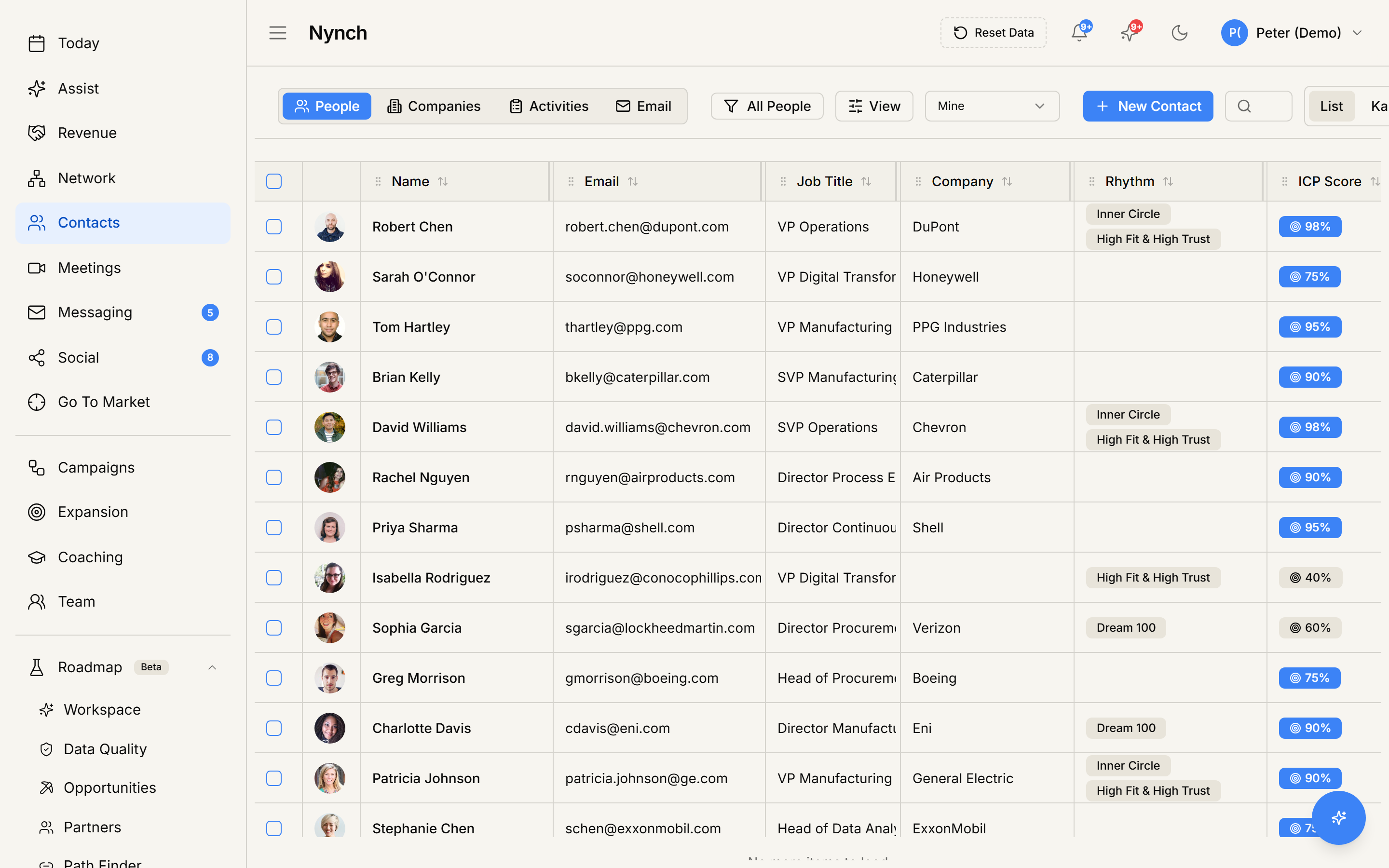
- Click it.
- A note composer opens.
- Write the note. Some workspaces support basic markdown (bold, lists, links).
- (Optional) Pin the note so it stays at the top of the timeline.
- Click Save.
On a deal
- Open the deal canvas.
- Find the activity timeline section.
- Click Add Note (or + Note).
- Same composer, same options.
- Save.
The note appears on the timeline immediately with your name and a timestamp.
What notes flow into
- The contact's / deal's activity timeline.
- The Superbrain corpus (so AI grounding picks up the context for future drafts and coaching).
- Search results when searching that contact / deal.
- Meeting prep briefings for upcoming calls with the contact.
Pin a note
Pinned notes float to the top of the timeline so they're always visible. Use pins for context you want to see every time you open the contact: "Champion. Recommended us to two other firms." A pin is more useful than a tag for narrative context.
To pin / unpin an existing note, hover the note and click the pin icon, or use the more-actions menu on the note.
Edit or delete a note
Hover the note. The more-actions menu offers Edit and Delete. Edits show a "(edited)" marker with the new timestamp. Deletions are permanent (no undo).
If something goes wrong
- Symptom: "Add Note action isn't there." → Fix: Some profile templates hide it by default. Try the timeline area directly. the + button usually surfaces it. Or open the contact's more-actions menu.
- Symptom: "Note saved but isn't on the timeline." → Fix: Refresh once. The timeline updates on next data load. If still missing, the note might be on a different entity than you thought. check the activity feed of the related deal / company.
- Symptom: "I want a note that's visible to my team but not to the buyer." → Fix: Notes are internal-only by default. They never appear on shared deal rooms. To share with a teammate but mark sensitive, just write the note normally. the deal room view filters them out.
- Symptom: "Pin icon doesn't do anything." → Fix: Pinning may require a higher role on some plans. Check with an owner. otherwise the note is unpinned but still visible chronologically.
FAQ
Q: How do I add a note to a contact or deal? Add a free-form note to any contact or deal so it stays on the timeline and is searchable forever.
Q: Where do I start in Nynch? Open the People section, People tab. Click a contact's avatar to open their profile overlay.
Q: How long does this take? About 30 seconds.
Q: Add Note action isn't there? Some profile templates hide it by default. Try the timeline area directly. the + button usually surfaces it. Or open the contact's more-actions menu.
Q: Note saved but isn't on the timeline? Refresh once. The timeline updates on next data load. If still missing, the note might be on a different entity than you thought. check the activity feed of the related deal / company.
Related: Manage your contacts | The deal canvas | Add an action item.