You'll learn how to: Open the Content library, see which pieces are approved, and find Save as Template on a campaign.
Time: 3 minutes.
Prereqs: You have at least one campaign. See Create a new outreach campaign.
Steps
- Click Campaigns in the left sidebar.
- Click Content library at the top right, beside New campaign.
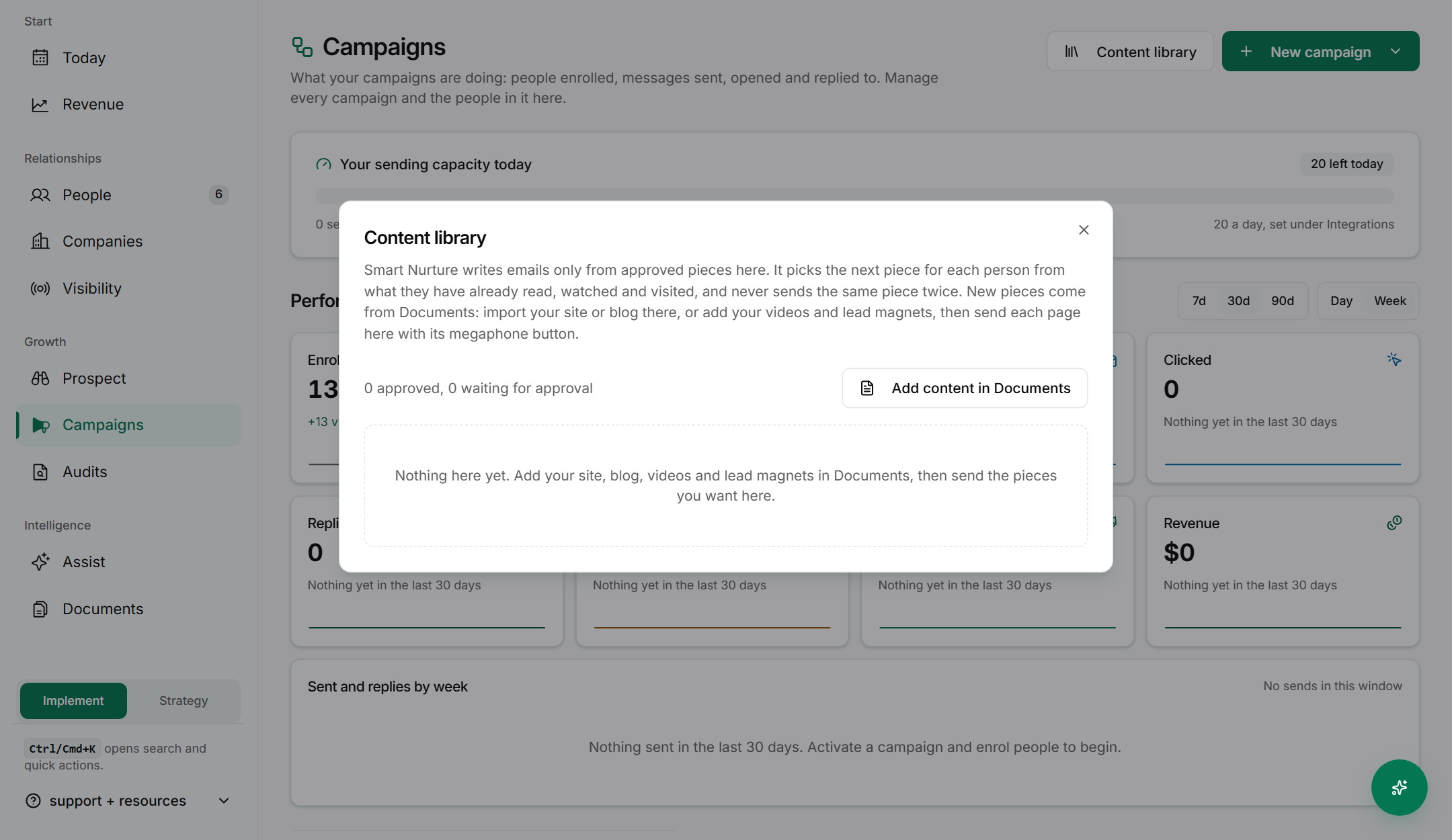
- Read the summary line. It shows how many pieces are approved and how many are waiting for approval. Smart Nurture only writes emails from approved pieces.
- To add pieces, click Add content in Assets. Import your site or blog there, or add your videos and lead magnets. Then send each page to the library with its megaphone button.
- Click Close when you are done.
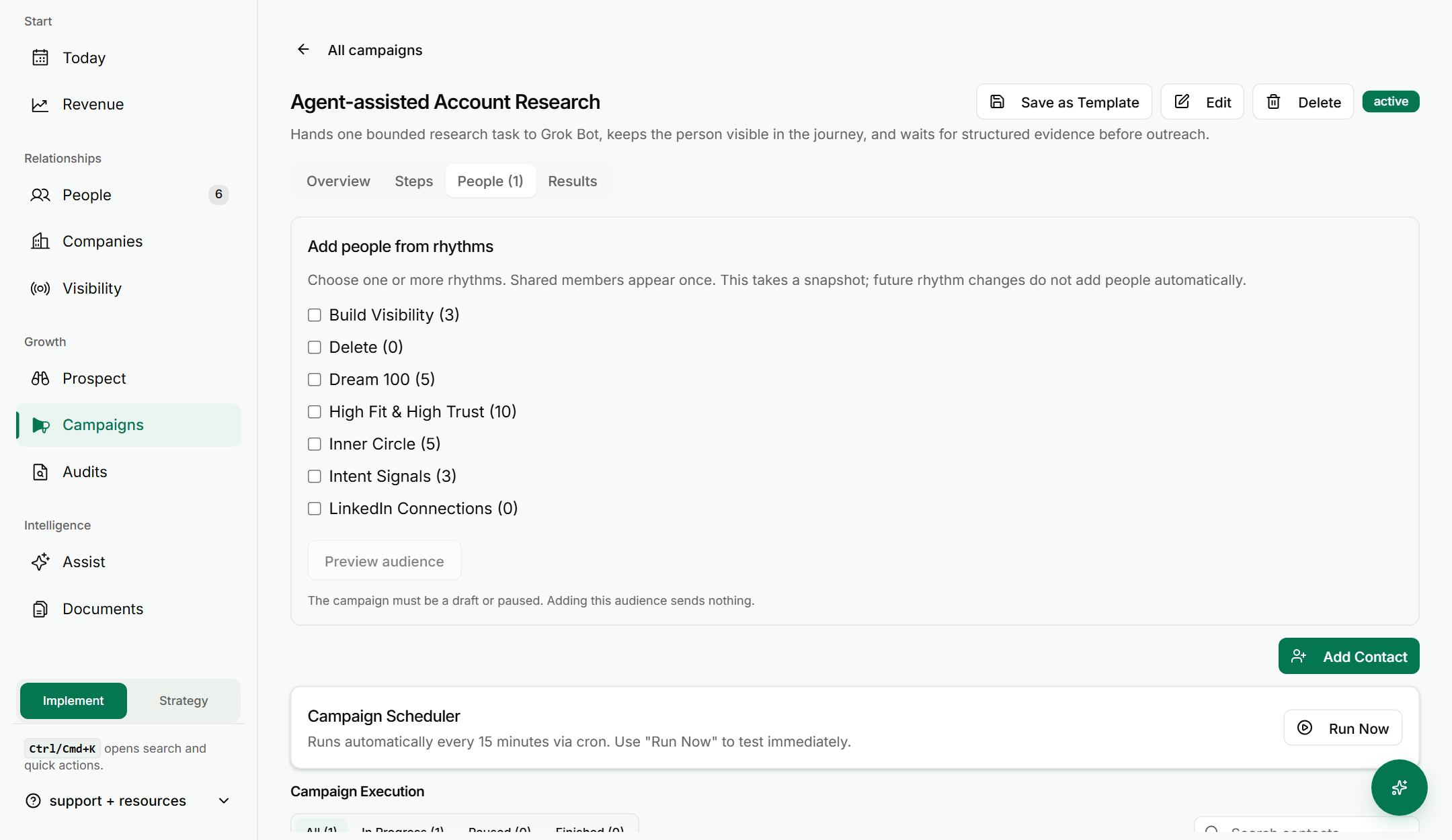
- To save a campaign as a template, open the campaign from the Campaigns list. Click Save as Template in the header, beside Edit and Delete.
If something goes wrong
- Symptom: "The Content library is empty." → Fix: Nothing has been sent to it yet. Add pages in Assets, then send each one to the library with its megaphone button.
- Symptom: "Pieces show as waiting for approval." → Fix: Approve them. Smart Nurture will not use a piece until it is approved.
- Symptom: "I cannot find Save as Template." → Fix: Open the campaign itself, not the Campaigns list. The button is in the campaign header.
FAQ
Q: What is the Content library for? It holds the approved pieces, such as blog posts, videos and lead magnets, that Smart Nurture can draw on when it writes emails. It only uses pieces that are approved.
Q: Where do new pieces come from? From Assets. Click Add content in Assets in the Content library to go there.
Q: What does Save as Template do? It saves the campaign as a template you can reuse. Click it from the campaign's own page.
Q: Does the Content library send anything by itself? No. It supplies approved content to campaigns. People only receive messages from campaigns that are running.
Related: Create a new outreach campaign | View campaign analytics | Pause or cancel a campaign mid-run