You'll learn how to: Combine two or more contact records into one, keeping every email, note, meeting, and deal that belonged to either side.
Time: 3 minutes from selecting the contacts to confirming the merge.
Prereqs: You have at least two contacts that are the same person.
Recommended: Possible duplicates inbox
- Open Record checks → Possible duplicates, or go to
/possible-duplicates. - Click Run scan if you have never scanned (or after a big import).
- On a pair, click Review merge.
- In the three-column review, pick which record survives and which values win on conflicts, then confirm.
Exact LinkedIn/email clashes can also appear when you save a contact, use Review and merge on that panel for the same three-column review.
Bulk way: select on the People table
The merge action also lives in the bulk-action toolbar when you have two or more rows selected.
Step 1: Open the People table
- In the left sidebar, click People.
- The full list of people in your network loads.
- If you are looking at a filtered view (a saved view, a rhythm, a campaign), the merge still works. The toolbar only sees the rows you tick, not the rows that are showing.
Step 2: Select two to ten contacts
- Each row has a checkbox on the far left. Tick the checkbox for each contact you want to merge.
- You must select at least two and no more than ten. The Merge Contacts menu item is disabled outside that range.
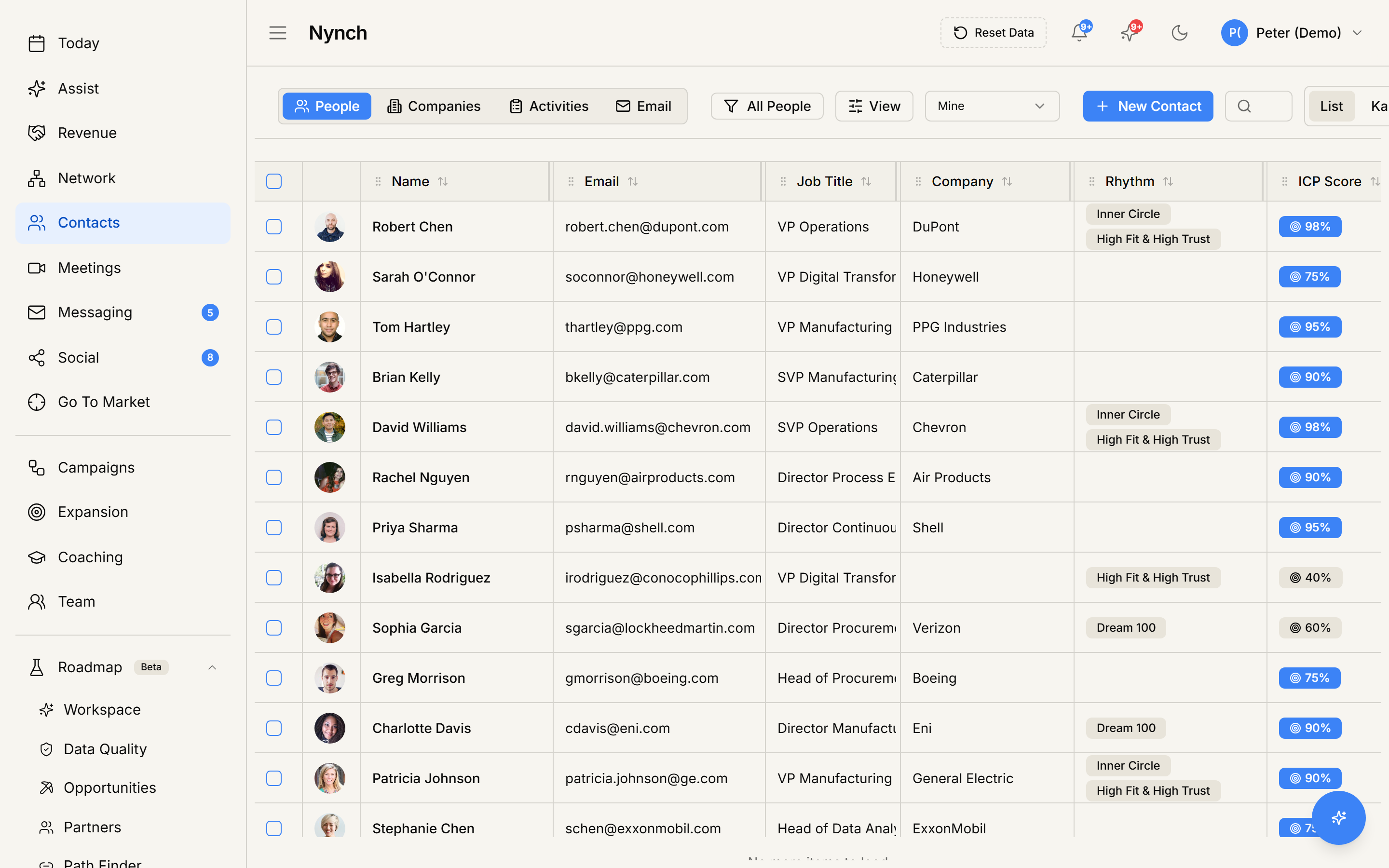
- The "select all matching rows" mode does not allow merge. Select rows individually.
As soon as you tick the second contact, a floating toolbar slides up from the bottom of the screen. The toolbar shows the count on the left ("2 selected", "3 selected", etc.) and a small X icon to clear the selection.
Step 3: Open the More menu and choose Merge Contacts
The bulk toolbar exposes a few high-frequency actions directly:
- Edit Fields for bulk-editing a single column.
- Assign to Rhythm (or just Rhythm on small screens) for moving them into an engagement cadence.
- Delete on the far right.
Everything else lives behind the More button (three horizontal dots). Click More and pick Merge Contacts from the dropdown. It is the top item in the menu.
If Merge Contacts is greyed out, you have either selected fewer than 2 contacts, more than 10, or used "select all matching" mode. Adjust your selection and try again.
Step 4: Review the merge
When you selected exactly two people, Nynch opens the three-column review (Record A | Record B | Final). Choose the survivor, pick conflicting field values, confirm, then merge.
When you selected three to ten people, the multi-step merge wizard opens:
Step 1. Select the primary record. A radio button next to each selected contact. The primary is the record that survives. Every other record is merged into it. A recommended primary may appear based on completeness.
Step 2. Choose the value for each field. For each of these fields, every non-empty value from the selected contacts is shown as a radio option, labelled "From: <source contact name>":
- Name
- Primary email
- Primary phone
- Title
- LinkedIn URL
- Location
- Website
- Bio
The pre-selected value comes from the primary record. The AI may suggest a different value with a small AI: X% confident badge and a one-line reason. Pick the best value per field, then click Next.
You don't have to change anything on this step. If the primary's data is already correct everywhere, just click Next.
Step 3 of 3. Confirm the preview. This screen shows:
- A yellow warning box: "This action will merge X contact(s) into "<name>". All activities, notes, and relationships will be transferred. The merged contacts will be soft-deleted."
- A preview card showing the final contact's avatar, name, email, phone, title, and location.
- If the AI flagged anything risky during analysis, a red AI Warnings list (different LinkedIn URLs, very different titles, etc.). Take these seriously.
You must tick the confirmation checkbox "I understand this action cannot be undone and want to proceed with merging these contacts" before the Merge Contacts button at the bottom of the dialog becomes clickable.
Click Merge Contacts.
Step 5: Wait for the success toast
A loading spinner replaces the button text. When the merge completes, the dialog closes and a toast appears in the bottom-right corner: "Contacts merged successfully. X contact(s) merged into primary contact".
The Contacts table refreshes automatically. The merged-away contacts are soft-deleted, so they don't appear in the list. Their data lives on inside the primary contact.
What carries over
The merge is additive on history and selective on fields:
- Emails and email threads from all merged contacts now show on the primary contact's timeline.
- Notes from all sides combine in one feed.
- Meetings are reattached to the primary.
- Deals the merged contacts were part of stay attached to those deals, but the merged contact records inside those deals point to the primary.
- Rhythm and bucket memberships of the primary win. The merged contacts are removed from any rhythms they were in.
- Tags are unioned: any tag from any merged record stays on the primary.
- Pending nudges and tasks assigned to merged contacts are reassigned to the primary.
For each editable field on the contact (name, email, phone, title, etc.) only the value you picked in Step 2 is kept. The other values are gone.
Merging companies works the same way
Open Companies in the left sidebar. Select 2-10 companies. The toolbar shows a direct Merge button (no More menu, because companies have fewer bulk actions, so Merge is promoted). The wizard is the same three-step pattern with a slightly different field list.
Finding duplicates you didn't know about
Nynch flags likely duplicates in a couple of ways.
Inline detection is the most common entry point. When you create a new contact or company by hand, or capture one from a LinkedIn profile via the Chrome extension, Nynch checks the email and LinkedIn URL against your network. If it spots a likely match, a dialog appears before the new record is saved, showing the existing record and a Merge option. Accepting it runs the same wizard described above.
Detection during CSV import. The CSV import wizard has a stage called Dupes that surfaces every potential duplicate before any rows are committed. You can choose Skip, Merge into existing, or Create new for each match.
The Possible Duplicates page is a power-user sweep tool that lists every pair Nynch's background dedupe job has flagged across your whole network. It currently has no sidebar entry. To open it, paste this URL into your browser while you are signed in to Nynch:
https://app.nynch.com/possible-duplicates
From there, each pair has a Merge button (which opens the same wizard) and a Dismiss button (which permanently silences that pair).
If something goes wrong
- Symptom: "I selected two contacts but no toolbar appeared." → Fix: Make sure both checkboxes are actually ticked. The toolbar only renders when at least one contact is selected. If you are viewing the contacts in a Kanban view, switch back to list view via the List toggle at the top of the page.
- Symptom: "Merge Contacts is greyed out in the More menu." → Fix: You have either fewer than 2 selected, more than 10 selected, or you used the "select all matching" mode. The wizard supports 2-10 contacts selected individually.
- Symptom: "The wizard opens but I cannot pick a primary." → Fix: Click directly on the radio button next to a contact's name, not just the card. The Next button stays disabled until a primary is chosen.
- Symptom: "I clicked Merge Contacts on Step 3 but nothing happened." → Fix: The checkbox below the preview must be ticked first. Look for "I understand this action cannot be undone and want to proceed with merging these contacts".
- Symptom: "Merge failed with an error." → Fix: The full error message appears in a toast. Common causes: a different teammate edited one of the contacts mid-merge (refresh and try again), or your role lacks delete permission. Admins and owners can always merge. members may need to be granted the permission.
- Symptom: "I merged the wrong two contacts." → Fix: Merges are soft-deletes, not hard deletes. The merged-away contact records are still in the database with
deleted_atset. Contact support within 24 hours and they can restore the deleted side. - Symptom: "I keep seeing the same false-positive duplicate pair on the Possible Duplicates page." → Fix: Click Dismiss on that pair. Dismissal is permanent for that exact pair, so review carefully before clicking.
How to stop duplicates from coming back
- Always include an email address or LinkedIn URL when adding a contact manually. Those are the deduplication keys Nynch trusts most.
- Use the Nynch Chrome extension to capture LinkedIn contacts. It dedupes by LinkedIn URL automatically.
- When importing a CSV, treat the Dupes stage seriously. Choose Merge into existing rather than Create new for any flagged row that looks like the same person.
- If a teammate is also importing their own list, run a quick duplicate sweep right after the import finishes. Don't let two lists grow in parallel.
FAQ
Q: How do I merge duplicate contacts? Combine two or more contact records into one, keeping every email, note, meeting, and deal that belonged to either side.
Q: What do I need before I start? You have at least two contacts that are the same person.
Q: How long does this take? About 3 minutes from selecting the contacts to confirming the merge.
Q: I selected two contacts but no toolbar appeared? Make sure both checkboxes are actually ticked. The toolbar only renders when at least one contact is selected. If you are viewing the contacts in a Kanban view, switch back to list view via the List toggle at the top of the page.
Q: Merge Contacts is greyed out in the More menu? You have either fewer than 2 selected, more than 10 selected, or you used the "select all matching" mode. The wizard supports 2-10 contacts selected individually.
Related: CSV import step by step | Managing your contacts | Using the Chrome extension.