You'll learn how to: Download active People, Companies or Deals records from the workspace you currently have open.
Time: 30 seconds for small lists. Large lists are downloaded in batches and can take longer.
Steps
- In the left sidebar, open People.
- Choose People or Companies at the top of the page.
- On the toolbar's far right, click the … menu (three horizontal dots).
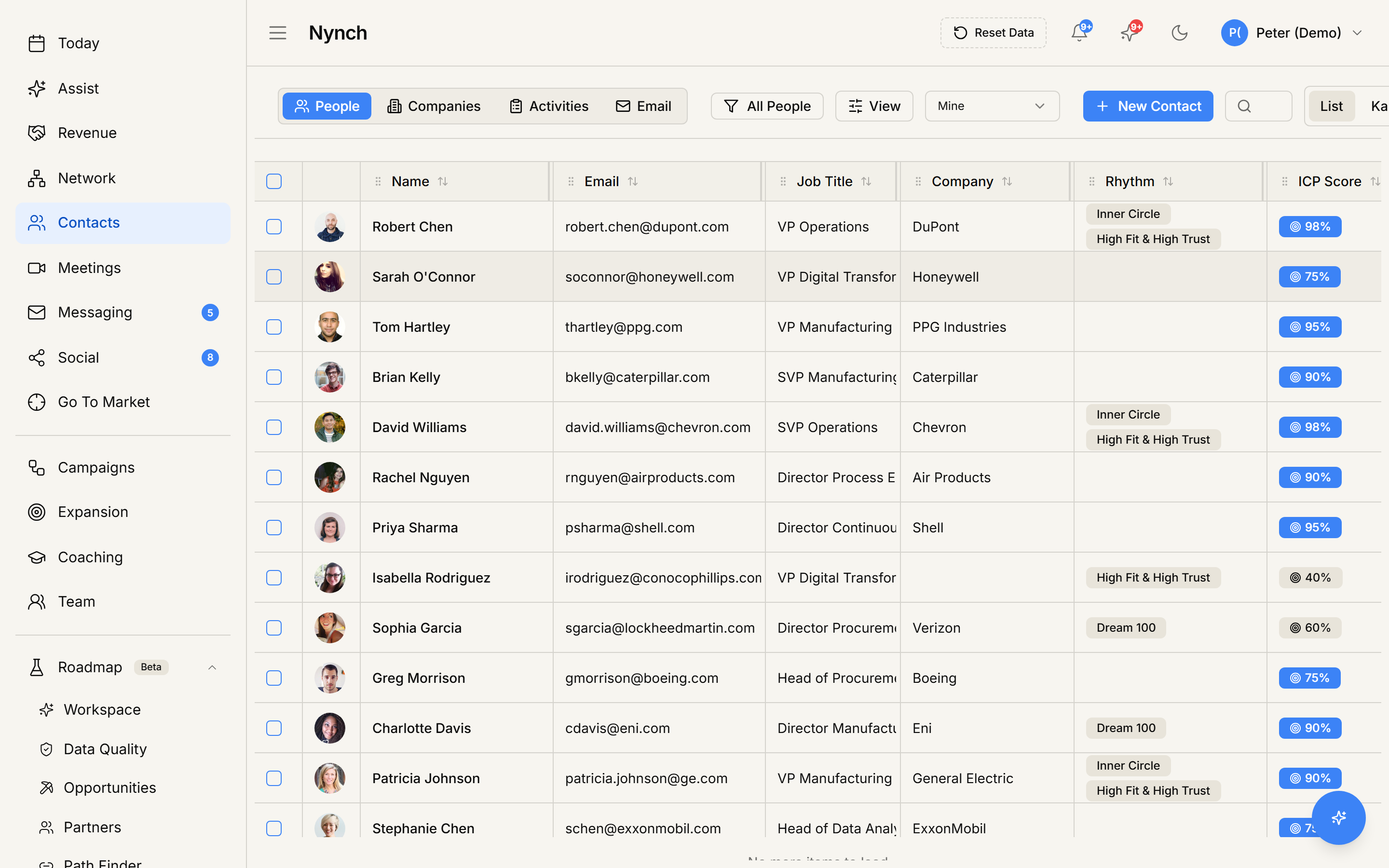
- Click Export People CSV or Export Companies CSV.
- Your browser downloads a
.csvfile named after the record type and the current date.
To export Deals, open Revenue in the sidebar and use its … menu.
The CSV opens in Excel, Google Sheets, Numbers or any text editor.
What's in the file
The file contains a stable set of useful fields for that record type. People exports include names, contact details, company details, relationship context, next actions, tags and timestamps. Company and Deal exports use their own relevant columns.
The export includes every active, non-deleted record in the workspace you currently have open. Merged-away People and Companies are excluded. It does not follow the current table filters, sort order or visible-column settings.
This is a record export, not a complete workspace backup. Activities, notes, messages, meetings, custom fields and other owned data are not included yet.
Use cases
- Personal record backup. Keep a copy of your active People, Companies or Deals outside Nynch.
- Work with records elsewhere. Open the file in a spreadsheet to filter or share the rows you need.
- Re-import into another tool. Use the standard fields as a starting point for another system.
- Reporting. Analyse your core records in a spreadsheet or reporting tool.
If something goes wrong
- Symptom: "Export menu item is missing." → Fix: Switch back to the People, Companies or Deals records view.
- Symptom: "There are no active records to export." → Fix: Check that you have the intended workspace open and that it contains active records.
- Symptom: "Export is missing data I expect." → Fix: This export contains standard record fields. It does not yet include custom fields, activities, notes, messages or deleted records.
- Symptom: "Export failed." → Fix: The app will show the database error. Check your connection and try again. no partial file is downloaded.
FAQ
Q: How do I export people, companies or deals to csv? Download active People, Companies or Deals records from the workspace you currently have open.
Q: Where do I start in Nynch? In the left sidebar, open People.
Q: How long does this take? About 30 seconds for small lists. Large lists are downloaded in batches and can take longer.
Q: Export menu item is missing? Switch back to the People, Companies or Deals records view.
Q: There are no active records to export? Check that you have the intended workspace open and that it contains active records.
Related: Import contacts from a CSV | Manage your contacts.