You'll learn how to: Browse your saved email templates, create a new one, and use a template in a new email.
Time: 5 minutes.
Prereqs: A mailbox is connected under Settings > Email & Calendar. See Connect Gmail to Nynch.
Steps
- Click People in the left sidebar.
- Click the Email tab at the top right.
- Click Templates at the top of the page. Make sure the Email sub-tab is selected.
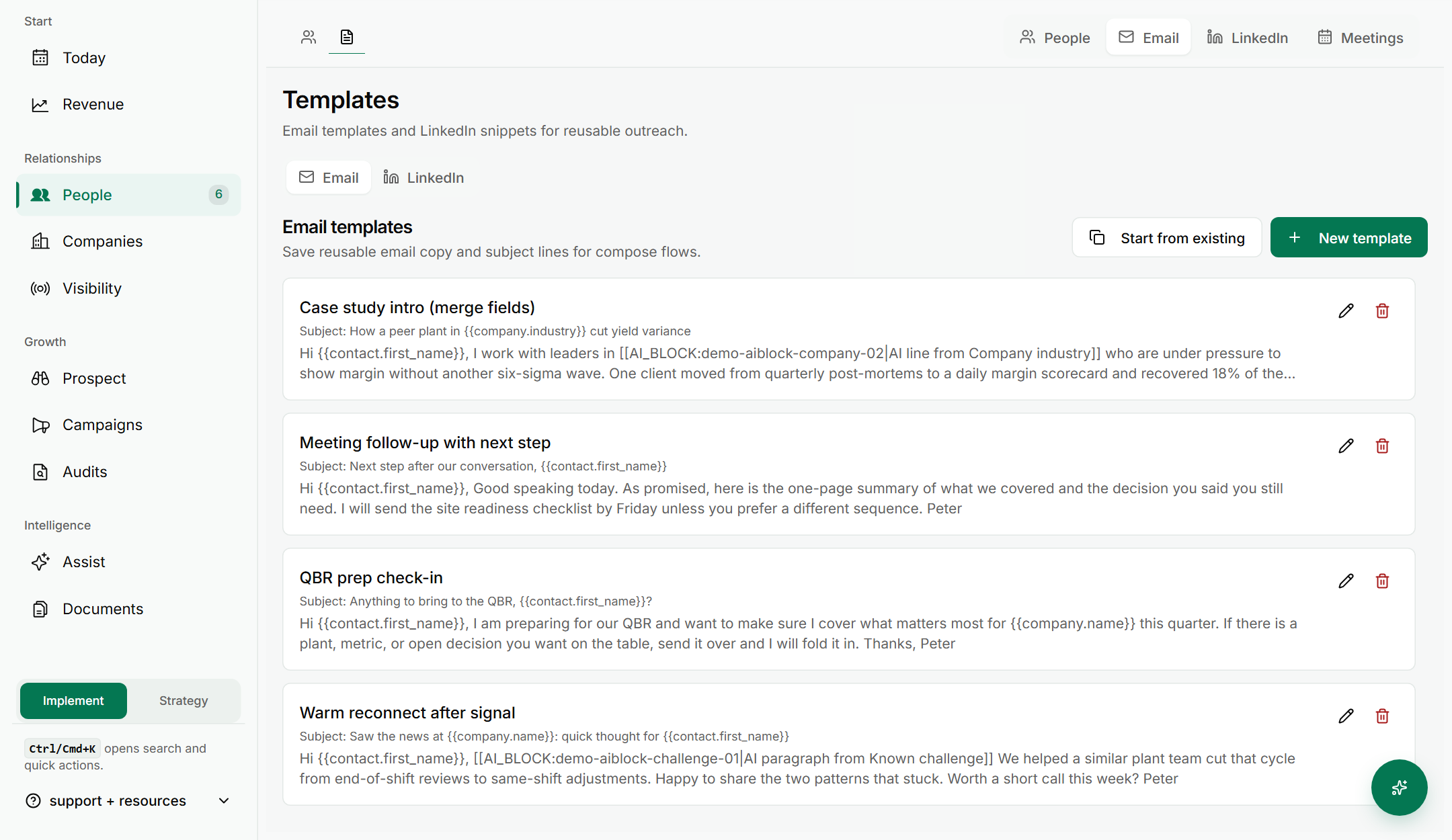
- Browse the list. Each template shows its name, its Subject and the start of its body. Click the pencil icon to edit one, or the bin icon to delete it.
- To create one, click New template. Type a Name and a Subject, then write the body. Use Merge field to add a person's details, such as their first name.
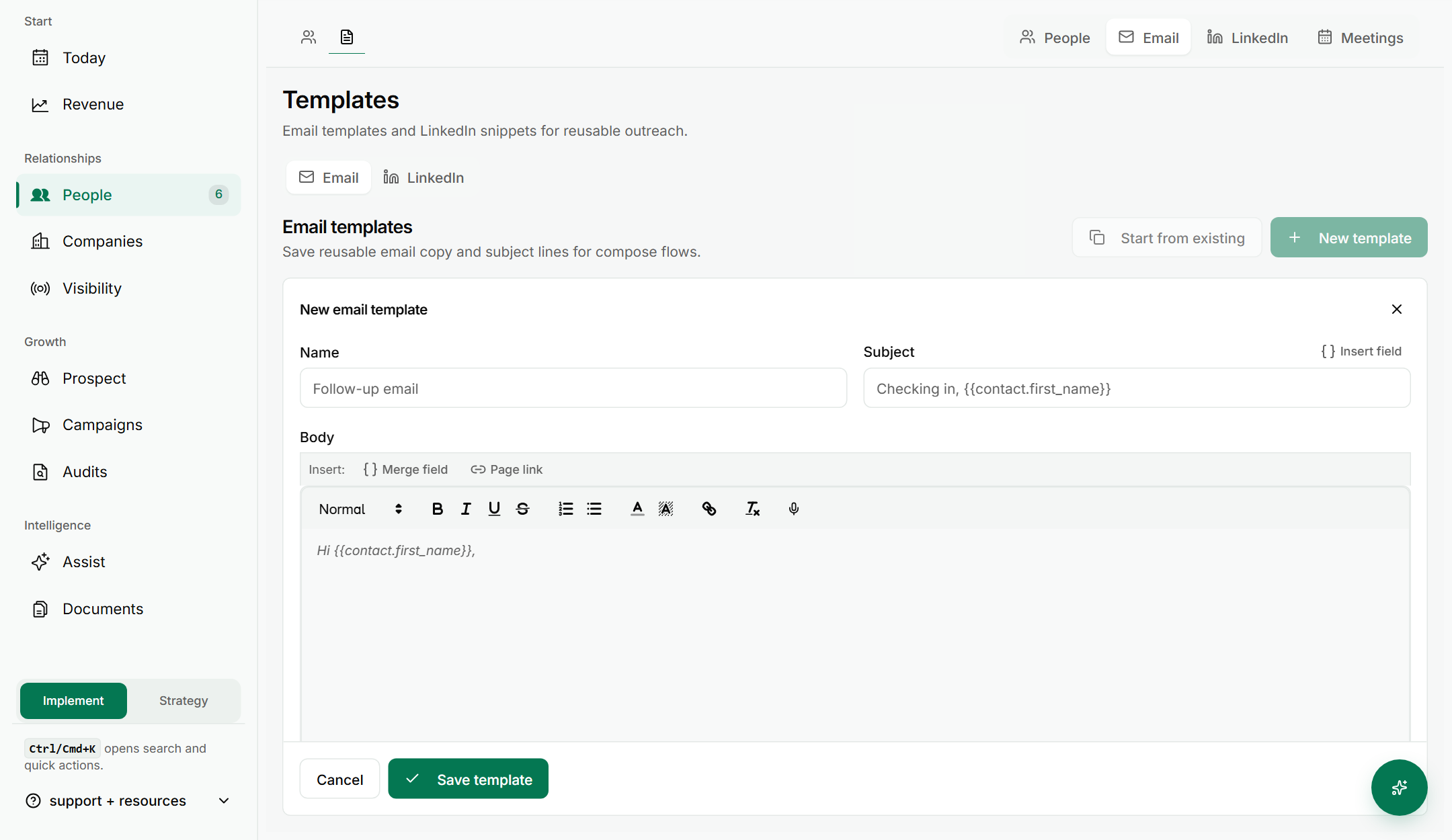
- Click Save template when it is ready. To leave without saving, click Cancel.
- To base a new template on an existing one, click Start from existing in the list. Pick a saved template or one from Guided Frameworks, or click Create New Template.
- To use a template in a new email, go back to People > Email and click New email.
- Click Use a template in the email window. Pick a template from the Saved list. It fills in the Subject and body.
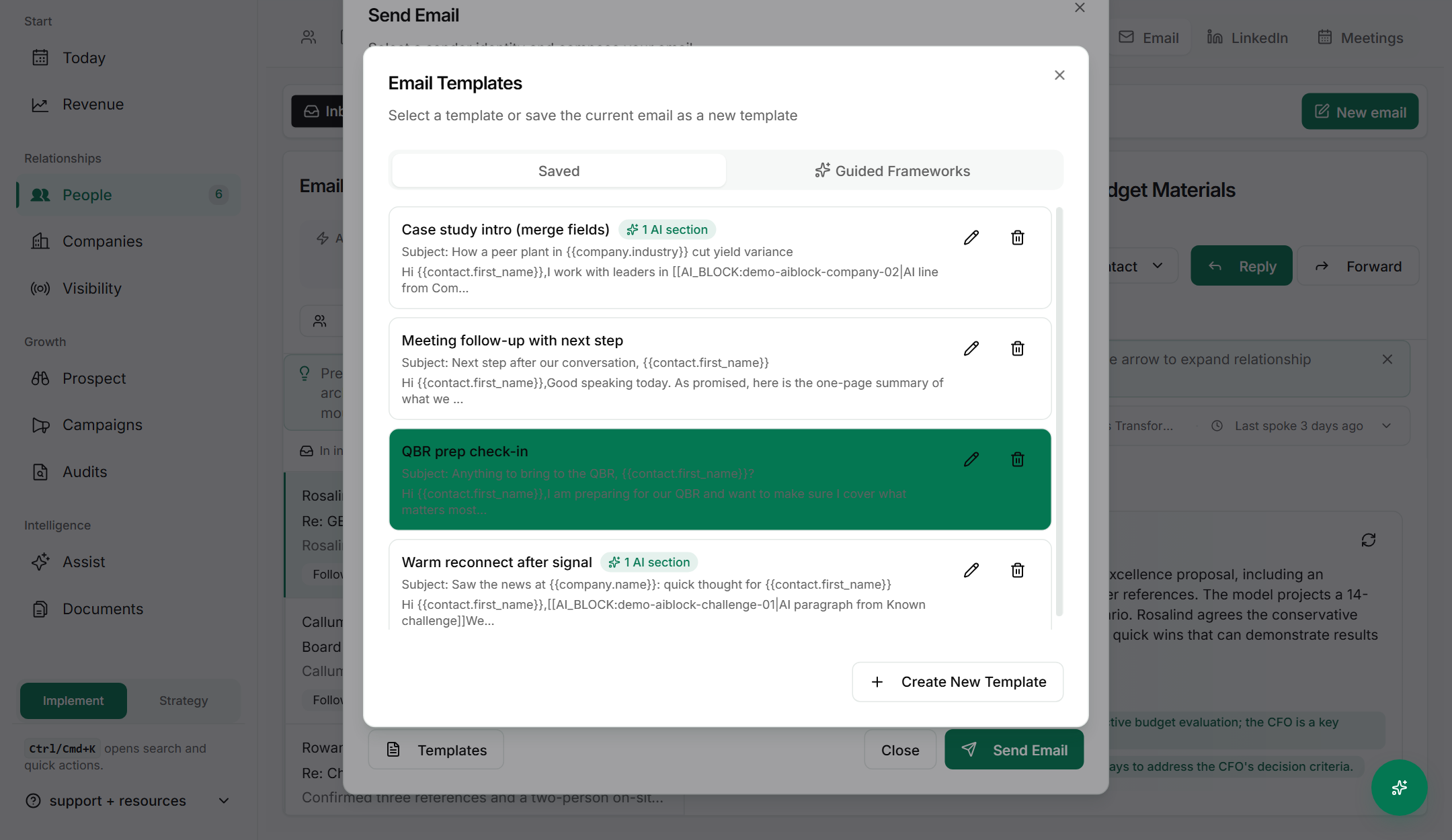
- Edit the text if you need to. Click Send Email only when you are sure.
If something goes wrong
- Symptom: "Start from existing is greyed out." → Fix: Close the template form first. The button is only available from the template list.
- Symptom: "A merge field shows up as text in the email." → Fix: The person's record is missing that detail. Add it on their contact record, then send again.
- Symptom: "My template is not in the list." → Fix: Check that you clicked Save template. A template is only kept once it is saved.
FAQ
Q: Where are my email templates? Click People, then Email, then Templates.
Q: What is a merge field? A placeholder such as the person's first name or company. Nynch fills it in for each person when the email is sent.
Q: Can I use a template for a group email? Yes. In the group email window, click Use a template. See Send a group email.
Q: Do templates change emails I already sent? No. Editing or deleting a template does not change emails that have already gone out.
Related: Send a group email | Bulk email selected people | Send an email from a contact's profile