You'll learn how to: Open Today every morning, work through one ordered action queue, and use the Actions tab for weekly tracking.
Time: 10 minutes the first time. 5-15 minutes per day once you have a real network in Nynch.
Prereqs: You're signed in. Connecting your email and calendar gives Nynch the context it needs for stronger Next Steps and meeting prep.
Where Today lives
In the left sidebar, the first item is Today. It loads automatically when you sign in. The route is /.
The page has two tabs across the top:
- Flow: the default card-based daily queue.
- Actions: the weekly activity grid for targets and time-blocking.
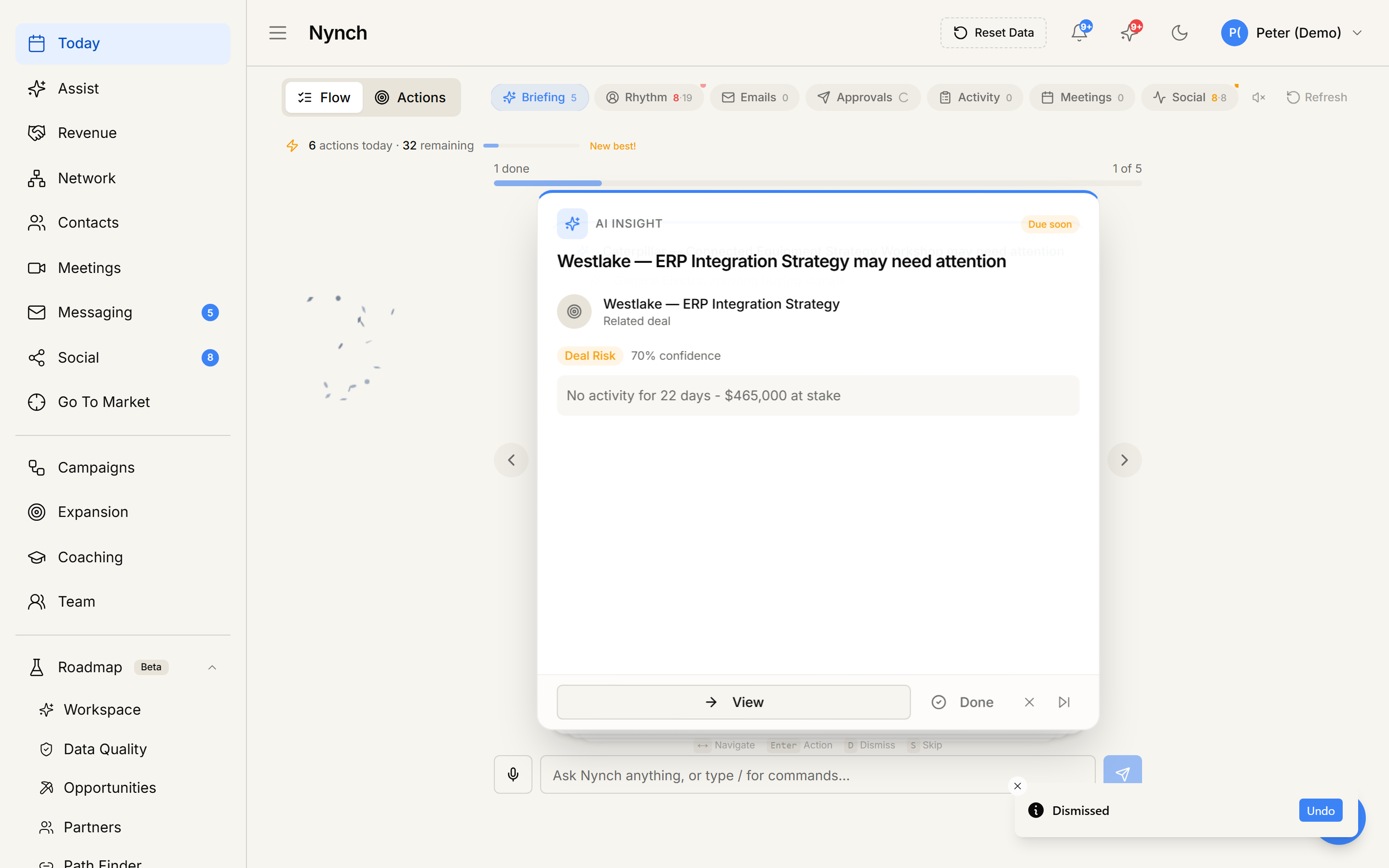
Most days you live in Flow. Open Actions when you are planning or reviewing a week.
Flow: the filter chips
Flow uses a small set of filters to separate work you can do now from meetings:
- Next Steps
- Leads (only when the Growth Agent add-on is enabled)
- Meetings
Each filter shows a card count and a spinner while its main data is loading. The Next Steps count is the morning list, not every overdue cadence in your book. Use the arrow keys to move through the cards.
Next Steps
Next Steps is the one ordered queue for everything you can act on today. Cards are sorted by urgency and combine:
- AI suggestions and a summary of what changed in your network.
- Up to seven people: rhythm contacts due now, plus leftover promises. Anyone beyond that lives in the Tasks view on People.
- One Approvals card listing every sign-off due today or overdue.
- Person follow-up cards for people you owe a real promise today, capped so the morning stays a working list.
- High-value relationship signals, including relevant social moments.
Future-dated approvals and activities stay hidden until their due date. Undated work remains visible so it cannot disappear forever.
Rhythm contact cards keep the normal Write Message, done, and snooze controls. The Approvals card opens into a row-by-row list: approve or skip each sign-off. Follow-up cards are one person each: Write Message first, then done for that person's promise. A person never appears as both a rhythm card and a follow-up. the promise wins.
AI suggestion cards have a Mark handled action. Use it when you are done so old guidance does not pile up.
Rhythm cards inside Next Steps
Rhythm cards show contacts who are due or overdue for their next touch, based on the rhythms you set. Each card includes:
- The contact, company, and relationship context.
- How long ago you last spoke.
- A clear due or overdue status.
- Recommended next actions.
After you act, the card leaves Next Steps and the next priority comes forward.
The Approvals card
The daily Approvals card contains outward or irreversible actions waiting for your green light, such as email drafts and campaign steps. Every row shows:
- The contact and campaign.
- What Nynch proposes.
- Approve and Skip controls.
Use Approve all only when you are comfortable with every row. If an action fails or is held by a sending limit, it stays visible instead of being shown as complete.
Follow-up cards
Today shows one card per person who is owed a real follow-up: a meeting send, a call, a reply. Company "Review …" chores stay off this list. Weekly Actions activity-commitments stay off this list. The morning set is seven people.
Cards are ordered as a working list, not an archaeology dump: due today first, then recently overdue (quiet last-touch before someone you just mailed), then undated, then 15+ day overdue only if a slot is left. One promise owns the title, due date, and why-now line. Undated work says it has no due date, it never says “due today.” Date-only dues show a weekday and date, not a fake clock.
Each card shows why now, last touch when Nynch knows it, and the open promise. If last touch is unknown, that line is omitted. Write Message opens a draft. Done closes that person's due promise. Completing without contacting is the failure mode.
When more than seven people qualify, Today shows how many more are waiting. That link opens the Tasks view on the People list. That view is for inspection, not a second task board.
Leads
Leads appears only when the Growth Agent add-on is enabled. New form submissions stay separate from the action queue so they can be reviewed as incoming contacts.
Meetings
Meetings stays separate. It shows upcoming calendar events and any AI-generated prep that is ready. Open a meeting to review attendees, context, and the prep brief.
If you do not see meetings, check Settings → Email & Calendar and confirm your calendar is connected.
Social signals
Social signals are not a separate filter. When a signal is tied to a valuable contact, it appears in Next Steps as a relationship action. Lower-value raw social activity stays out of Flow so Today does not become a noisy queue.
The Social view in the sidebar remains the fuller social workspace and history.
A simple daily pass
- Work through Next Steps. The most urgent card is already first. Process Approvals, then write the person follow-ups.
- Check Leads if the add-on is enabled and new submissions are waiting.
- Open Meetings. Review what is coming up and use Prep before the conversation.
Today is meant to remove the "where do I start?" decision. You should not need to hunt through six filters to find the work that matters.
Actions tab
Click the Actions tab at the top of Today to see the weekly grid:
- Automatically tracked rows (filled from recorded evidence, not blank sheet cells):
- Relationship Rhythm, completed follow-up touches
- LinkedIn requests initiated, connection invitations you sent (extension or sprint)
- F2F conversations, meetings with real external participants, or meetings you logged explicitly
- Manual rows, custom activities you add (for example content posts or time blocks). You enter those counts yourself.
- Columns are days of the week.
- Weekly targets sit beside the running total. Completed past weeks stay locked so the final score cannot drift.
Emails, calls, and DMs can still appear on a person's timeline when you log them or when integrations capture them. They do not auto-count as separate Actions rows.
Due personal promises appear as that person's follow-up card inside Next Steps.
If something goes wrong
- Today is empty: New workspaces can take a little time to build useful context. Connect Gmail or Outlook, import contacts, and assign important people to rhythms.
- A filter spins for more than 10 minutes: Refresh the page and check the connected integrations in Settings.
- The Approvals card keeps refilling: Open Settings → Growth Assistant and narrow what the agent can propose, or switch it to manual drafting.
- An approval fails: The row remains in the card. Read the error, correct the sending or campaign issue, and retry it.
- You cannot edit the Actions grid: Only the current and previous week are editable. Use the week selector to return to an editable week.
Tips
- The Next Steps count is a card count. Approvals can contain several rows. Follow-ups are one person per card.
- The Actions tab is for weekly planning and review, not a second daily queue.
- Snooze rhythm contacts when the timing is wrong. do not dismiss them just to clear the number.
FAQ
Q: What is Today: your daily action feed? Open Today every morning, work through one ordered action queue, and use the Actions tab for weekly tracking.
Q: What do I need before I start? You're signed in. Connecting your email and calendar gives Nynch the context it needs for stronger Next Steps and meeting prep.
Q: How long does this take? About 10 minutes the first time. 5-15 minutes per day once you have a real network in Nynch.
Q: What should I know about flow: the filter chips?
- Flow: the default card-based daily queue. - Actions: the weekly activity grid for targets and time-blocking.
Related: Welcome to Nynch | Your Pipelines board | Relationship rhythms.