You'll learn how to: Prevent a specific person from being re-imported into Nynch via CSV or auto-created from incoming email.
Time: 30 seconds.
When to use
- An ex-client / awkward contact you deleted but who keeps reappearing because someone keeps importing CSVs that contain them.
- A do-not-contact request from someone in your network.
- A spammer or sender whose emails keep auto-creating a contact record.
- Someone you're keeping at arm's length but don't want to manually delete each time they show up.
Two ways someone ends up on the blacklist
Automatically, when you delete
When you delete a contact (single or bulk), Nynch adds their email and LinkedIn URL to the blacklist automatically with the reason "Deleted from contacts". This means re-running a CSV that includes them won't re-import the row.
Manually, without deleting
To block someone without first deleting the existing record:
- Open the People section, People tab. Click a contact's avatar to open their profile overlay.
- Find the Action button in the profile header.
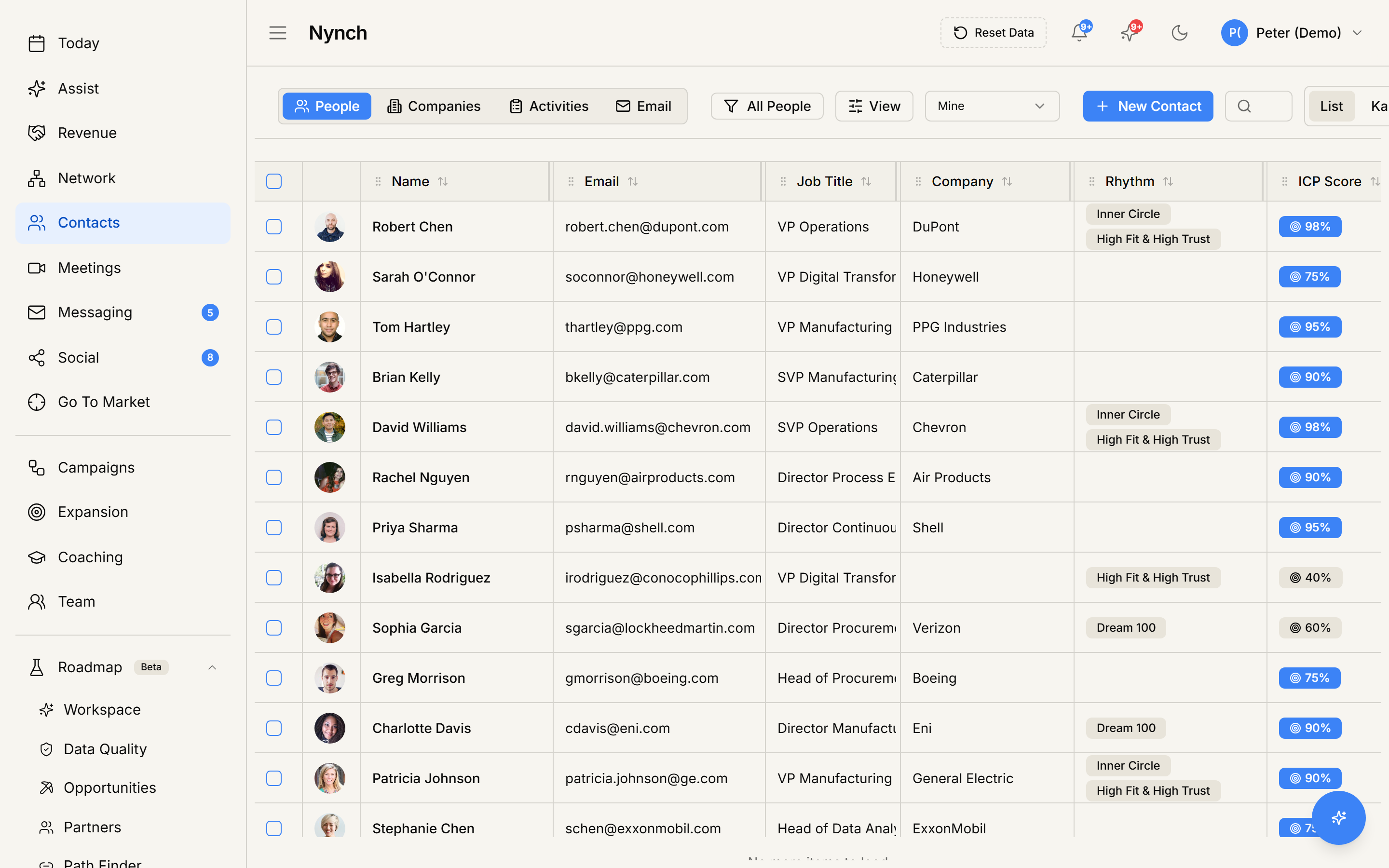
- Click Block or Add to do-not-contact list.
- The contact stays in your network but is now on the blacklist.
- Future CSV imports that include their email or LinkedIn URL skip the row.
Manage the blacklist
Open your avatar (top-right), click Settings, then look for the Blocklist or Do-not-contact section (under Account or a dedicated panel). You see:
- Every entry with the email / LinkedIn URL.
- The reason (auto from delete, or manually added).
- When it was added.
- A Remove from blocklist action per entry.
Removing from the blocklist lets that email / LinkedIn URL be imported again in future runs.
What block does NOT do
- It does NOT delete an existing contact. Existing records stay unless you also delete them.
- It does NOT stop emails from being received. Block is import-only. the inbox still receives mail.
- It does NOT prevent you from manually adding them later (manual creation overrides the blocklist).
- It does NOT block them from creating an account on Nynch themselves.
If something goes wrong
- Symptom: "Block action isn't on the profile." → Fix: Some workspaces hide it by default. Check the more-actions menu. If still missing, go to Settings > Blocklist and add the email / LinkedIn URL manually.
- Symptom: "I blocked someone but they got auto-created from email again." → Fix: Auto-creation from email uses a different rule set in some configurations. Check Settings > Email & Calendar > auto-create preferences. You may need to turn off auto-create for senders matching the blocked email.
- Symptom: "I want to bulk-block 50 contacts." → Fix: Easiest way: bulk-select on the Contacts table and Delete. The deletion auto-adds them all to the blocklist with the "Deleted from contacts" reason.
- Symptom: "I removed someone from the blocklist but they're still not re-importing." → Fix: The CSV row may have changed (different email or LinkedIn URL than when they were blocked). Verify the CSV identifier matches what's on the blocklist.
FAQ
Q: How do I block a contact from being re-imported? Prevent a specific person from being re-imported into Nynch via CSV or auto-created from incoming email.
Q: Where do I start in Nynch? Open the People section, People tab. Click a contact's avatar to open their profile overlay.
Q: How long does this take? About 30 seconds.
Q: Block action isn't on the profile? Some workspaces hide it by default. Check the more-actions menu. If still missing, go to Settings > Blocklist and add the email / LinkedIn URL manually.
Q: I blocked someone but they got auto-created from email again? Auto-creation from email uses a different rule set in some configurations. Check Settings > Email & Calendar > auto-create preferences. You may need to turn off auto-create for senders matching the blocked email.
Related: Bulk-delete contacts | CSV import step by step | Manage your contacts and companies.