You'll learn how to: Run a previously-saved AI skill on a contact, deal, or freeform prompt without having to retype the underlying instructions.
Time: 15 seconds per invocation.
Prereqs: You have at least one skill defined in avatar (top-right) > Settings > Skills.
What a skill is
A skill is a saved prompt + behaviour bundle. Examples:
- "Draft a UK-style follow-up email" (sets tone, locale, signature pattern).
- "Brief me on this account in 3 bullets" (compresses dossier into 3 lines).
- "Find one differentiator we have vs each competitor in this deal" (specific analysis).
Defining a skill once means you don't have to re-explain the same intent to the AI every time.
Skill creation lives in Settings
To create / edit skills:
- Open your avatar (top-right), then click Settings.
- Click the Skills tab.
- Click + New skill (or edit an existing one).
- Name, description, prompt body, optional parameters.
- Save.
This article assumes the skill already exists. Skill creation is a separate workflow.
Run a skill: three entry points
From Assist
- Open Assist in the sidebar.
- Click the Skills picker in the chat input.
- The list of your skills appears.
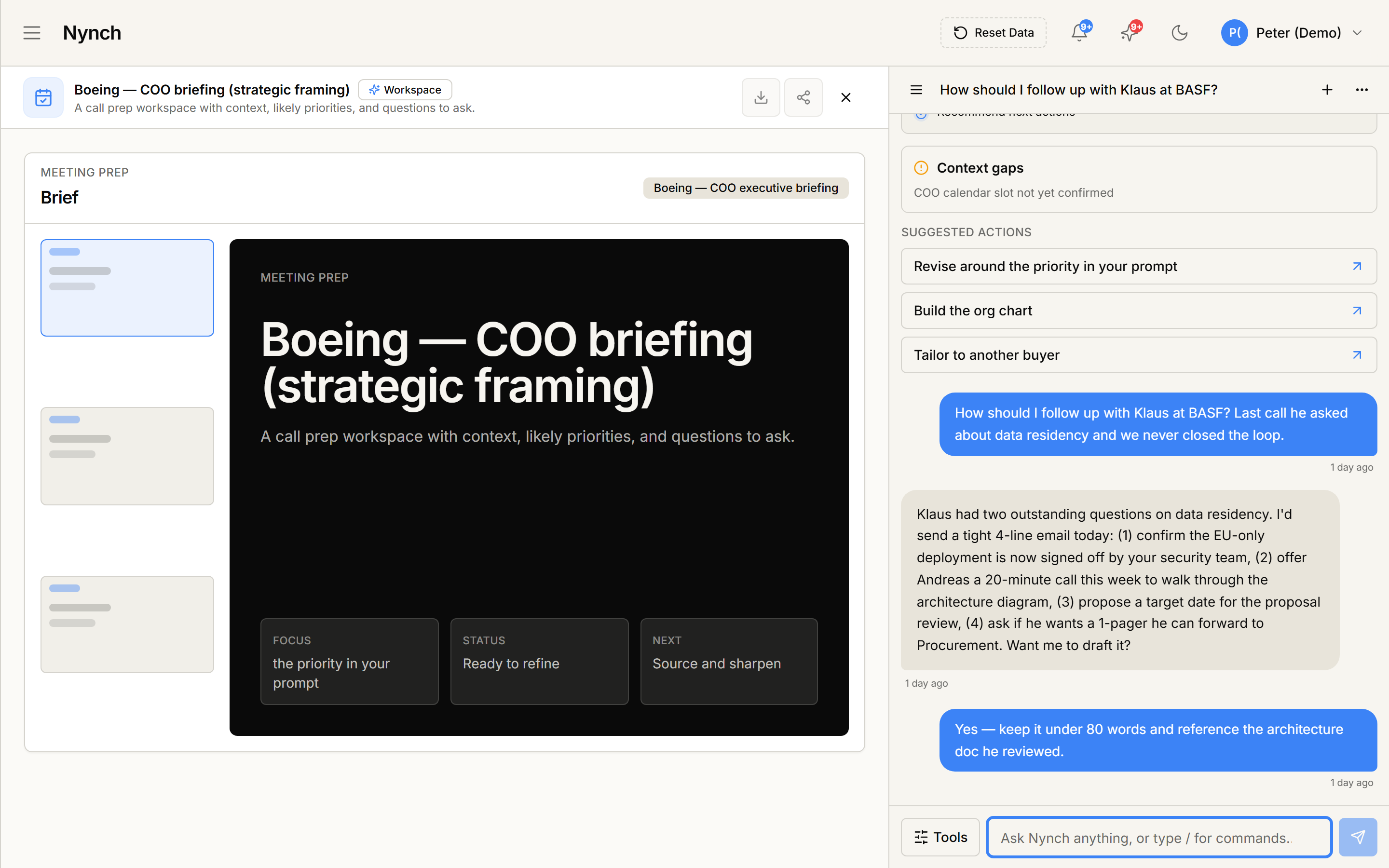
- Pick the skill.
- The skill's prompt auto-fills the chat input. Adjust if needed.
- Send.
From a contact profile
- Open the contact.
- Find the Run skill action in the profile's AI menu (often a sparkles or skills icon).
- Pick the skill.
- The skill runs with the contact as context.
- Output appears as a side panel or inline AI response.
From a deal canvas
- Open the deal canvas.
- Find the AI or Skills action in the canvas toolbar.
- Pick the skill.
- Skill runs with the deal + primary contact + committee as context.
What skills can do with context
When invoked from a contact / deal, the skill has access to:
- The full entity record (fields, custom fields).
- Recent activity timeline (last 90 days by default).
- Any linked entities (companies, deals, contacts).
- Your authority claim and Superbrain context.
So a skill called "Draft an intro email" knows who you're drafting to, your style, the past conversation, and the specific deal context. That's the whole point: skills compress "tell the AI what to do and give it the right context" into one click.
Pin / favourite skills
If you use a few skills constantly, pin them so they appear at the top of the Skills picker. Look for a pin / star icon on each skill in the picker.
Share a skill with the team
When creating / editing a skill in Settings > Skills, the skill has a visibility setting:
- Personal: only you can run it.
- Team: everyone in the workspace can run it.
Personal skills are good for experimentation. Once a skill is genuinely useful, promote it to Team so teammates can use it too.
If something goes wrong
- Symptom: "I don't see a Skills picker anywhere." → Fix: Your plan may not include the Skills feature. Check Settings > Account.
- Symptom: "The skill ran but the output is generic." → Fix: Two causes:
- The skill's underlying prompt is too vague. Edit the skill and add more specific instructions.
- The contact / deal has thin context (empty fields, no activity). The skill is only as good as the data it has.
- Symptom: "Skill list is empty." → Fix: You haven't created any. Settings > Skills > + New skill. Even one well-defined skill gets reused dozens of times.
- Symptom: "I made a skill but my teammate can't see it." → Fix: It's set to Personal visibility. Edit the skill and change to Team.
FAQ
Q: How do I use a saved ai skill? Run a previously-saved AI skill on a contact, deal, or freeform prompt without having to retype the underlying instructions.
Q: What do I need before I start? You have at least one skill defined in avatar (top-right) > Settings > Skills.
Q: How long does this take? About 15 seconds per invocation.
Q: I don't see a Skills picker anywhere? Your plan may not include the Skills feature. Check Settings > Account.
Q: Skill list is empty? You haven't created any. Settings > Skills > + New skill. Even one well-defined skill gets reused dozens of times.
Related: Settings, tab by tab | Use the Reply Coach | AI coaching canvases.