You'll learn how to: Give a teammate admin permissions so they can invite others, manage roles, see the audit log, and edit any record in the workspace.
Time: 30 seconds.
Prereqs: You're an Owner. Admins can't promote others to admin (they can only promote / demote members).
Steps
- Click your avatar (top-right), then Settings.
- Click the Team tab (or a similar team/people management section if your workspace names it differently).
- Find the teammate in the roster.
- On their row, click the more-actions icon (three dots or similar).
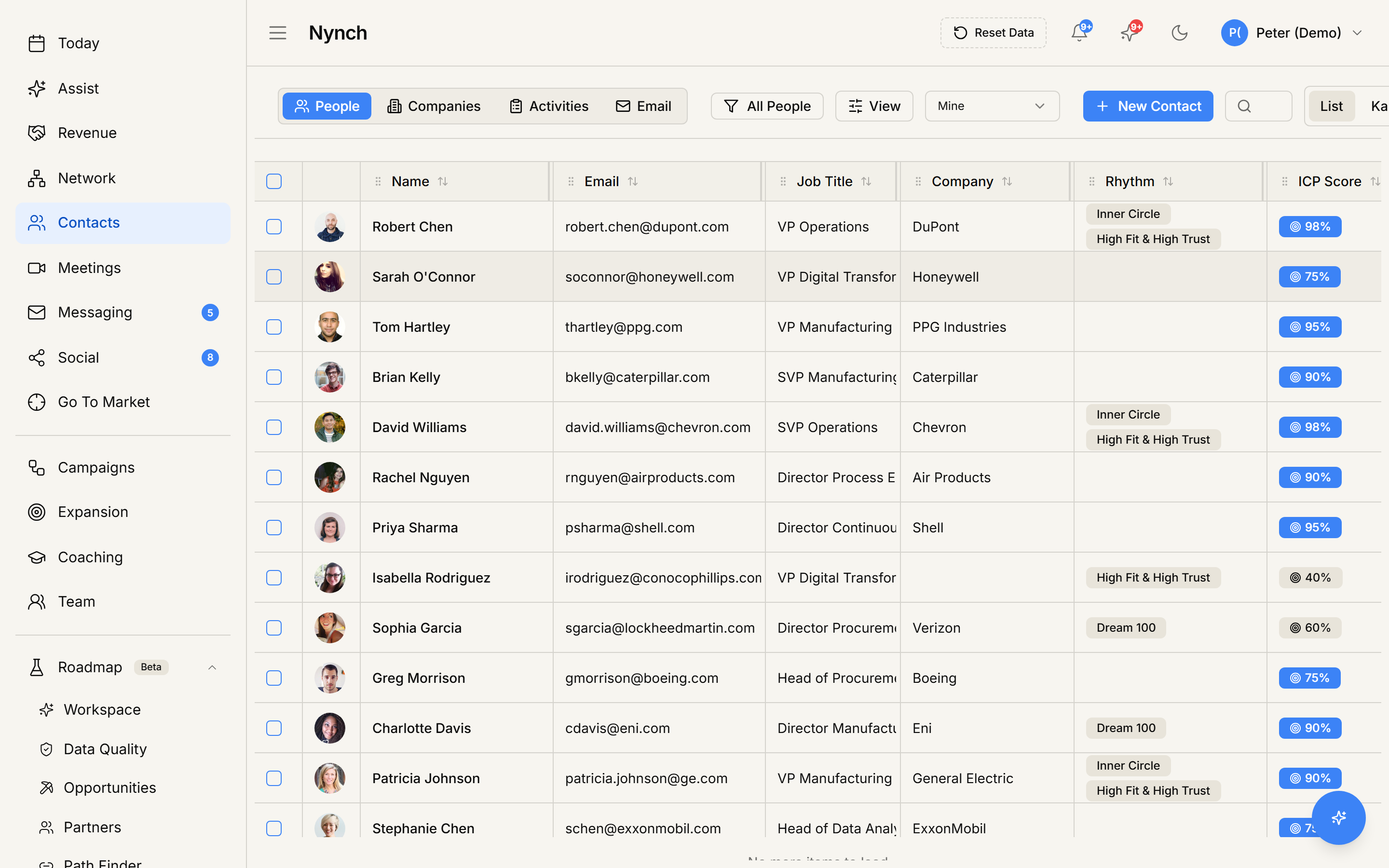
- Click Change role.
- Pick Admin.
- Confirm.
The role change takes effect immediately. The teammate's badge in the roster updates. They see the new admin permissions on their next page load.
What admin enables for them
- Invite new teammates and remove existing ones (except owners).
- Promote / demote members and other admins.
- See and edit every record in the workspace, regardless of owner.
- See the audit log.
- Change workspace sharing policies.
- Configure pipelines, methodologies, rhythms at the workspace level.
What admin does NOT enables:
- Changing billing (owner-only).
- Removing other owners (owner-only).
- Transferring workspace ownership (owner-only).
See Team and workspace for the full role matrix.
Demote an admin back to member
Same flow, pick Member in step 6. Demotion is logged in the audit log just like promotion.
You can't demote yourself if you're the sole owner. Workspaces require at least one owner at all times.
Promote to owner
Owner is a higher tier than admin and has additional consequences (billing access, irreversible by lower roles). The role-change menu typically requires an extra confirmation for the Owner role and may need the receiving teammate to accept the promotion.
Most workspaces never need more than 1-2 owners. Admin is the right level for "trusted teammate who needs full operational access".
If something goes wrong
- Symptom: "Change role option isn't there." → Fix: Your role isn't Owner. Only Owners can promote to Admin. Ask the workspace owner.
- Symptom: "I promoted but they still can't see admin features." → Fix: They need to refresh the page. Role changes don't auto-push to active sessions. they take effect on next page load.
- Symptom: "The teammate isn't in the roster." → Fix: They haven't accepted their invite yet, or they're not in the workspace. Check the Pending Invitations section.
- Symptom: "Promotion failed with an error." → Fix: Most common cause: the receiving teammate's session is in a weird state (they just signed in or signed out). Refresh and try again. If persistent, contact support.
FAQ
Q: How do I promote a teammate to admin? Give a teammate admin permissions so they can invite others, manage roles, see the audit log, and edit any record in the workspace.
Q: What do I need before I start? You're an Owner. Admins can't promote others to admin (they can only promote / demote members).
Q: How long does this take? About 30 seconds.
Q: Change role option isn't there? Your role isn't Owner. Only Owners can promote to Admin. Ask the workspace owner.
Q: I promoted but they still can't see admin features? They need to refresh the page. Role changes don't auto-push to active sessions. they take effect on next page load.
Related: Team and workspace | Settings, tab by tab.