You'll learn how to: Set up rhythms, assign contacts to them, change a contact's rhythm, and configure how often each rhythm appears in Today’s Next Steps.
Time: 5 minutes to set up your starter rhythms. Once they exist, the system waits for your review.
Prereqs: You have at least a handful of contacts in Nynch. Most useful if you've also connected email so Nynch can see real interaction history.
What a rhythm is
A rhythm is a named cadence with a frequency in days. Examples:
- Weekly (7 days): current clients, hot prospects, your inner circle.
- Bi-weekly (14 days): active deals in the middle of a sales cycle.
- Monthly (30 days): warm relationships, recent dormants, key referrers.
- Quarterly (90 days): cold but valuable contacts, past clients, target accounts you're building toward.
- Yearly (365 days): seasonal touchpoints (birthdays, anniversaries, holiday wishes).
You don't have to start with all of these. Two or three is enough. Most users settle on Weekly + Monthly + Quarterly for the first month.
Why rhythms matter
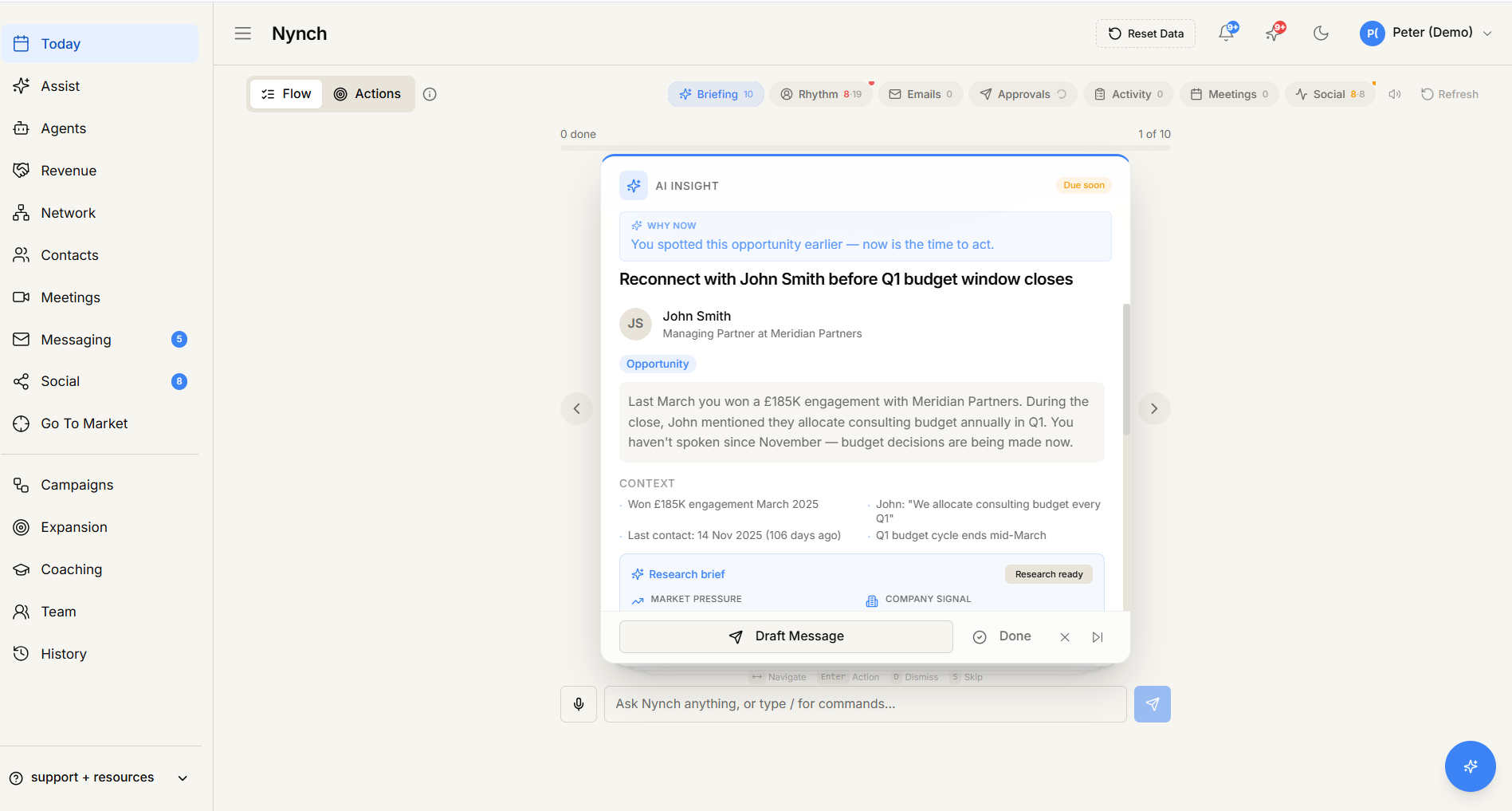
Once a contact is in a rhythm, Nynch tracks the last time you actually engaged with them (email, meeting, message, comment on a post, etc.) and surfaces them under Today → Next Steps when they're due for their next touch.
This is the core "you don't have to remember who to reconnect with" loop. Without rhythms, Today is sparse and you're back to the "I should reach out to..." moments of guilt.
See your rhythms
Click Nurture in the left sidebar. The Nurture view shows every rhythm as a card with contact counts, who's overdue, and who's coming up soon. Below is a Network Activity Planner chart showing touchpoints due over the next 7, 30, 60, or 90 days.
Create a new rhythm
From the Nurture view, click + Create. Fill in:
- Name (e.g. "Top clients", "Mastermind contacts", "Investors").
- Frequency in days. Defaults sit at common cadences but you can set any number.
- Optional goal for the rhythm. A one-line note about what you're trying to do with it.
Save. The new rhythm appears as a card in the Nurture view and in the Sort flow and in the bulk-assign action on the People table.
Assign a contact to a rhythm
Three ways:
1. From the Sort flow
The fastest way for bulk triage. Nurture > Sort. Run through unsorted contacts and click the rhythm button for each. See Sort your network.
2. From the People table, bulk
Click People, click the People tab. Tick checkboxes on the rows you want to assign, click Assign to Rhythm in the bulk-action toolbar at the bottom of the screen, pick a rhythm, confirm. Every selected contact joins that rhythm.
3. From a contact's profile, single
Click any contact in the People table. The profile overlay opens. Find the Rhythms field and add or remove rhythms from there.
A single contact can belong to multiple rhythms (e.g. a client who's also a referral source might be in both "Clients" and "Top referrers"). Today picks the most frequent cadence to determine when they're due.
Change a contact's rhythm
Same three paths as above. Removing them from one rhythm and adding to another is one step.
If you remove a contact from every rhythm, they no longer surface under Today → Next Steps. They're still in Nynch, just not on the daily list.
Override the cadence per contact
Most contacts use their rhythm's default frequency. For a specific contact you can override:
- Open the contact profile.
- Find the rhythm membership.
- Edit the per-contact cadence (e.g. set this one client to 14 days even though the rhythm default is 30).
Useful for the few contacts who genuinely need a different cadence than the rest of their rhythm peers.
How "due" is calculated
Nynch checks every connected interaction source:
- Emails sent or received.
- Meetings attended.
- LinkedIn messages.
- Phone calls logged.
- Manual notes you marked as a "touch".
The most recent of those is the contact's "last touched" date. Once now - last_touched > rhythm.frequency_days, they appear under Today → Next Steps.
This means if you have Gmail or LinkedIn message sync set up, you mostly don't need to log touches manually. Just doing the work makes the system happy.
Snooze and skip
On a relationship reminder in Today → Next Steps:
- Snooze pushes the contact to the back of the queue for a few days.
- Mark as touched records a manual touch (use when you've engaged outside any connected channel, e.g. a phone call you forgot to log).
- Skip marks the suggestion as ignored. The contact doesn't reappear until they're due again.
If something goes wrong
- Symptom: "I created a rhythm but nobody appears in it." → Fix: Newly created rhythms are empty. Add contacts via the Sort flow or the bulk-assign action on the People table.
- Symptom: "Today says I have 0 due but I know I have overdue contacts." → Fix: Check that the contacts are in a rhythm at all (some may have been auto-imported and never sorted). Run the Sort flow on the unsorted backlog.
- Symptom: "A contact keeps appearing as overdue even though I emailed them yesterday." → Fix: Email sync may be delayed. The Last Touched date refreshes every few minutes. If it's been more than 1 hour and still stale, manually mark them as touched and check Gmail's connection status in Settings.
- Symptom: "Two rhythms have the same contact and they're firing at different cadences." → Fix: Multi-rhythm membership uses the most aggressive (shortest) cadence. To slow down the cadence for a specific contact, override at the contact level.
- Symptom: "I want to delete a rhythm but it has contacts in it." → Fix: The delete action will surface a confirmation asking what to do with the orphaned contacts (reassign to another rhythm, or unassign).
FAQ
Q: How do I relationship rhythms? Set up rhythms, assign contacts to them, change a contact's rhythm, and configure how often each rhythm appears in Today’s Next Steps.
Q: What do I need before I start? You have at least a handful of contacts in Nynch. Most useful if you've also connected email so Nynch can see real interaction history.
Q: How long does this take? About 5 minutes to set up your starter rhythms. Once they exist, the system waits for your review.
Q: I created a rhythm but nobody appears in it? Newly created rhythms are empty. Add contacts via the Sort flow or the bulk-assign action on the People table.
Q: Today says I have 0 due but I know I have overdue contacts? Check that the contacts are in a rhythm at all (some may have been auto-imported and never sorted). Run the Sort flow on the unsorted backlog.
Related: Sort your network | Today, your daily action feed | Create a new rhythm.