You'll learn how to: Find out why a specific contact has the ICP score they have, broken down signal by signal.
Time: 1 minute.
Prereqs: You have at least one ICP configured in Strategy mode (see Configure an ICP), and the contact has been scored.
Steps
- Open the contact's profile from the People section, People tab.
- Find the ICP score badge. It usually sits near the top of the profile with the score as a number (e.g. 78) and a colour-coded badge (red / amber / green).
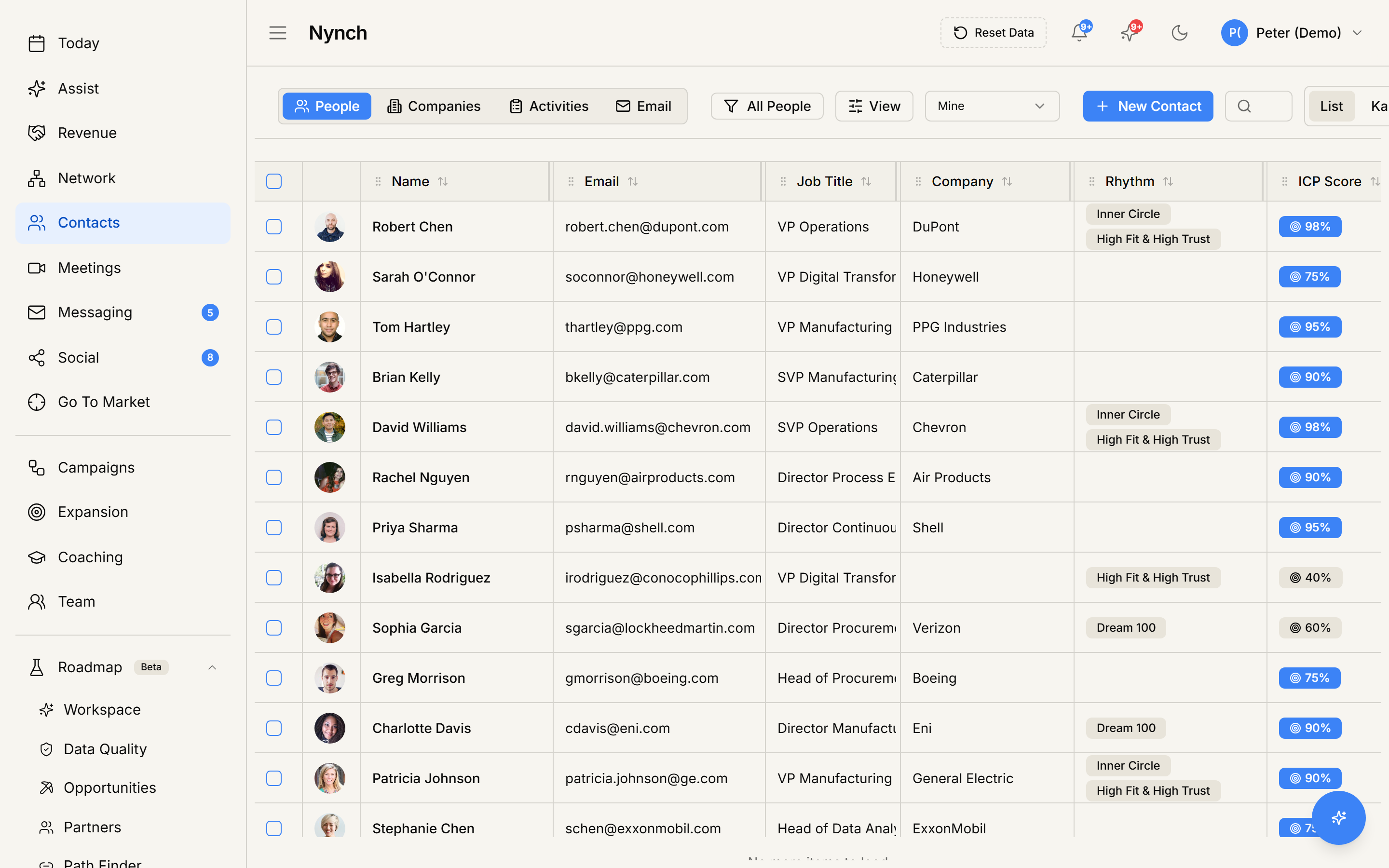
- Click the badge.
- A breakdown panel opens showing:
- Score against each priority ICP (typically ICP #1, ICP #2).
- Signals matched for each ICP (e.g. "Industry: SaaS = match", "Headcount: 50-200 = match", "Title contains 'Head of' = match").
- Signals missing (e.g. "Funding stage: unknown", "Location: not in target region").
- AI-derived signals (if your plan supports it, e.g. "Recent posts about scaling = match").
- Overall reasoning in plain English.
- Close the panel by clicking outside or the X.
What the score means
- 80-100 (green): high-fit. Treat as a priority contact for outbound or rhythm engagement.
- 50-79 (amber): moderate fit. Worth nurturing but not first-priority.
- 0-49 (red): low fit. Either not your ICP or missing too many signals to evaluate. Don't waste outbound budget here unless there's a specific reason.
The exact thresholds may vary by workspace. The colour bands are configurable in Strategy mode.
Improve a low score
If a contact looks like a good fit but the score is low, the breakdown usually tells you why. Common reasons and fixes:
- Missing professional details: use Fill profile details on the contact. See Fill profile details.
- Missing company data (industry, headcount, funding): open the company and use Fill company details.
- Title doesn't match any of your ICP title patterns: edit the contact's title field to match what they actually do, or add their actual title to the ICP's title-pattern list.
- Domain not resolved: their email domain might not have been linked to a company. Set the Company field on the contact.
- ICP itself is too narrow: re-tune the ICP in Strategy mode with looser criteria.
Re-score on demand
If you've updated the contact's data or the ICP definition, you can re-score:
- Click the Re-score action in the breakdown panel. Use Re-score after changing the evidence or ICP definition. Profile filling and scoring are separate actions, so one does not silently stand in for the other.
Bulk re-score
The People bulk toolbar does not currently offer a re-score action. Open each contact's ICP section and use Re-score. Do not use Fill profile details as a substitute: profile filling and scoring have separate meanings.
If something goes wrong
- Symptom: "ICP badge isn't on the profile." → Fix: Either you have no ICPs configured (set one up in Strategy mode) or the contact has not been scored yet. Open the contact's ICP section and use Re-score.
- Symptom: "Breakdown shows 'No ICP configured'." → Fix: Set up at least one priority ICP. See Configure an ICP.
- Symptom: "The score updates but the breakdown doesn't refresh." → Fix: Close and reopen the breakdown panel.
- Symptom: "I disagree with the score." → Fix: Either tune the ICP (loosen or tighten criteria), or accept that the score is a heuristic and use your judgment. The score is advisory, not gospel.
FAQ
Q: How do I view a contact's icp fit breakdown? Find out why a specific contact has the ICP score they have, broken down signal by signal.
Q: What do I need before I start? You have at least one ICP configured in Strategy mode (see Configure an ICP), and the contact has been scored.
Q: How long does this take? About 1 minute.
Q: ICP badge isn't on the profile? Either you have no ICPs configured (set one up in Strategy mode) or the contact has not been scored yet. Open the contact's ICP section and use Re-score.
Q: Breakdown shows 'No ICP configured'? Set up at least one priority ICP. See Configure an ICP.
Related: Configure an ICP | View a contact's ICP fit breakdown | Fill profile details.