You'll learn how to: Open Assist, ask a question about your data, and use quick-action prompts to get insights in seconds.
Time: 2 min
Prereqs: None. Assist is available to all plans.
What Assist is
Assist is your in-app AI analyst. It can:
- Answer questions grounded in your live Nynch data (contacts, deals, activity, outcomes).
- Run guided workflows that produce outputs (Account Plans, decks, imports).
- Search the Nynch wiki for help and best practices.
- Take actions you approve (add tags, log calls, import data).
Assist learns from your network structure, historical context, and activity patterns, so its answers get better as your data grows.
How to open Assist
Option 1: Sidebar
In the left sidebar, click the Assist icon (the sparkle).
Option 2: Floating button
At any screen in Nynch, click the green sparkle button in the bottom-right corner.
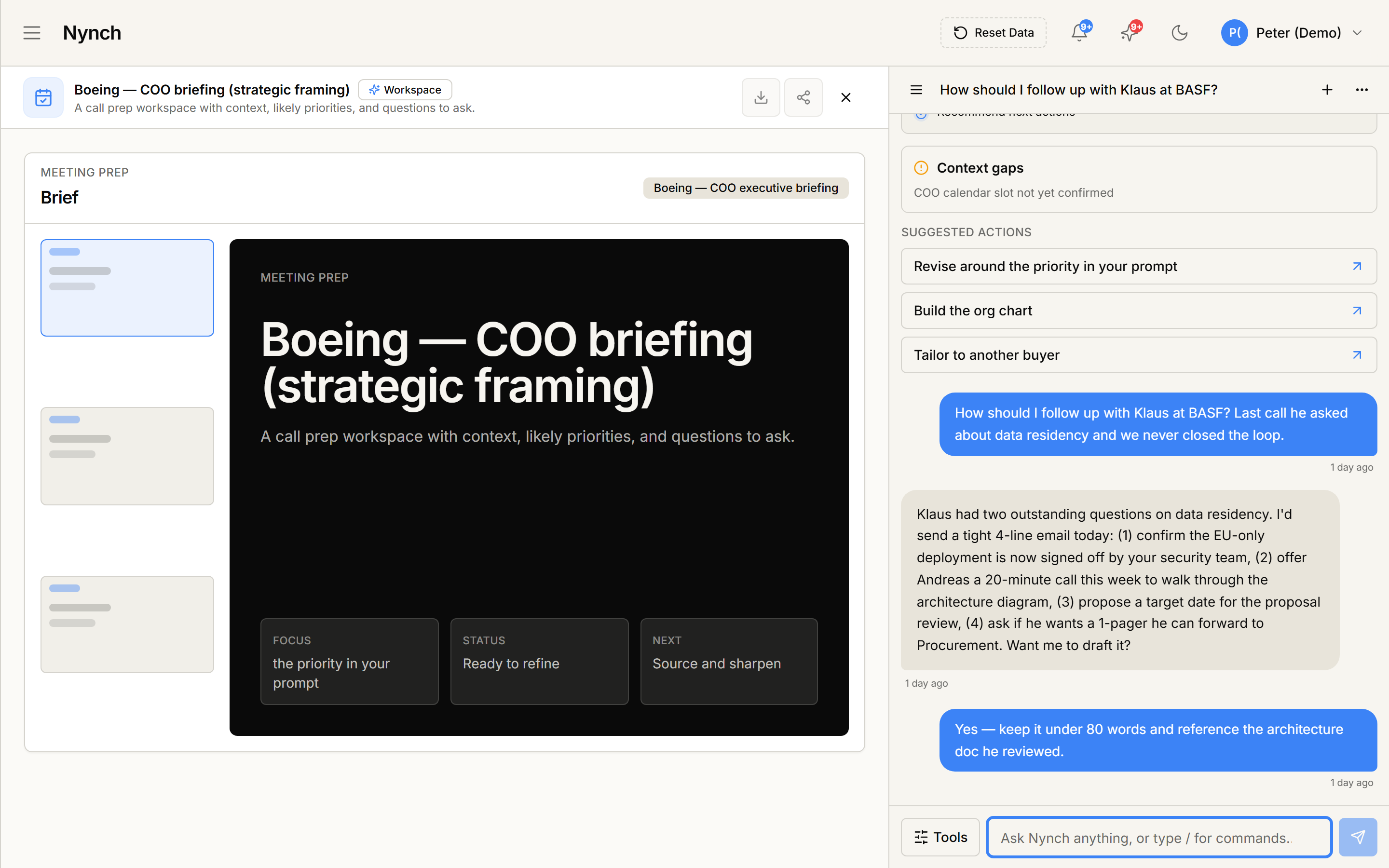
Both open the same Assist panel. The panel shows:
- New chat button at the top (start a fresh conversation).
- Conversation history (your recent chats and workflows).
- Conversation folders (Reports, Clients, Prospects) to organize chats.
- Search box to find past conversations.
Ask a question
- Click the New chat button.
- In the input box ("Ask Nynch anything..."), type your question.
Examples:
- "Which deals in my pipeline have been stuck for over 60 days?"
- "What are the top themes from recent calls with ABC Corp?"
- "Show me the win rate by deal stage this quarter."
- "Which prospects haven't engaged in 30 days?"
- Hit Enter or click Send.
Assist searches your live data and returns an answer with a sample size. Answers render inline as bullets, tables, or summaries depending on the question type.
Use quick actions (Ask The Analyst)
When you start a new chat, Assist shows pre-built prompts called Ask The Analyst:
- Pipeline trend: "Show me deal velocity and stage distribution."
- Themes from calls: "Extract common topics and pain points from recent meetings."
- Won vs lost: "Compare closed deals. What separated wins from losses?"
- Top-10 to focus: "Rank my pipeline by combined probability, deal size, and engagement."
Click any quick action to run it instantly. No typing needed.
Use the command palette
Type / in the input box to see available commands.
Commands let you trigger actions like tagging contacts, adding notes, or exporting results. The palette shows exact command names.
Search conversations
In the Assist sidebar, use the search box to find past conversations by topic or keyword.
If something goes wrong
- Symptom: "Assist says there's no data to answer my question." → Fix: Assist answers questions about data already in your network (contacts, deals, calls, emails). If a field is blank for most of your contacts, Assist has fewer signals to work with. Fill in key fields (titles, companies, outcomes) to improve answers.
- Symptom: "Answer seems generic or off-topic." → Fix: Ask a more specific question. Instead of "Tell me about my pipeline," try "Show me deals in the Proposal stage with no recent activity."
- Symptom: "Floating sparkle button is not appearing." → Fix: Refresh the page. The button should appear after 2-3 seconds.
FAQ
Q: What is Nynch Assist? Assist is the in-app AI analyst. It answers questions from your live Nynch data, runs guided workflows, searches the wiki, and takes actions you approve.
Q: How do I open Assist? Click Assist in the left sidebar, or click the green sparkle button in the bottom-right corner.
Q: Does Assist use my data to train shared models? No. Your data powers your own answers and workflows. It is not used to train shared models and is not shared with other customers. Assist is included on every plan. Solo is $79 a month, billed once a year at $950. There is no free trial and no 90-day pilot.
Related: Run an Assist workflow | Create a new AI skill | Use a saved AI skill.