You'll learn how to: Send the same email (with optional personalisation) to multiple contacts at once. Each contact gets their own copy, not a CC list.
Time: 5 minutes for a thoughtful bulk message.
Prereqs: Email account connected. You've selected the contacts you want to email.
When to use
- A one-off update to 5-30 specific people ("We just shipped X, thought you'd want to know").
- A holiday or end-of-year touch to a curated rhythm.
- Following up with a specific cohort from an event.
For ongoing sequenced outreach (multi-step cadence), use a Campaign instead. Bulk Email is for one-shot sends.
Steps
- Open Nurture, find the rhythm, and click Show Contacts. You can also start from a filtered list in People.
- Tick each person to email, or use Select All inside the rhythm.
- Click Email in the selection actions.
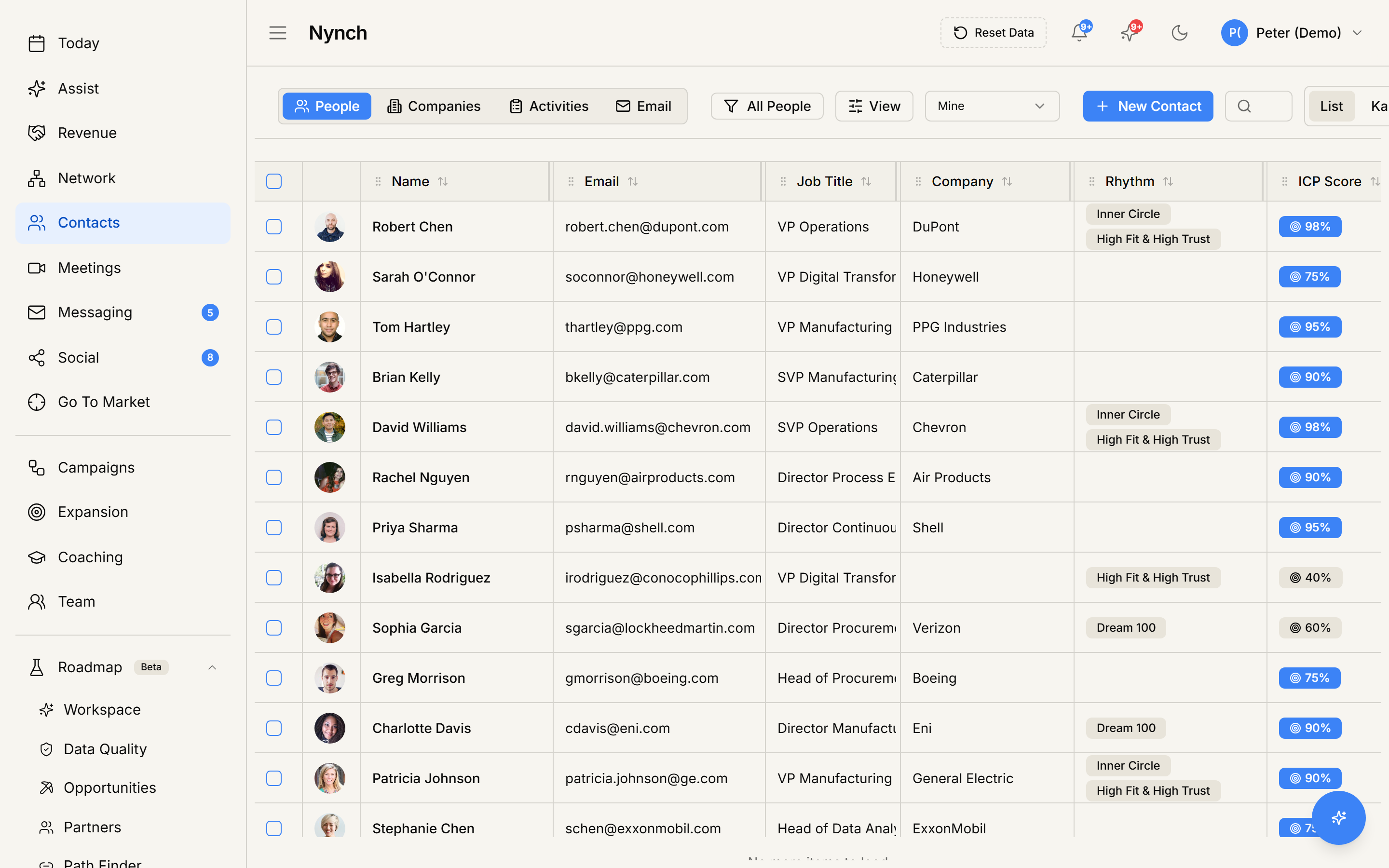
- The Email Composer opens with all selected people listed on the left. People without a valid email stay visible but will be skipped.
- Write your message:
- Subject: required. Same subject for everyone, with optional merge fields.
- Body: same template for everyone, personalised separately for each recipient with merge fields.
- From: pick which connected account sends.
- Templates: choose a saved template, including templates with AI-written sections.
- Review recipients individually in the left-hand list or use Preview to check the final personalised copy.
- For two or more recipients, click Queue emails. The Emails per day setting controls the delivery pace. For a single recipient, you can choose Send now or Queue.
Personalisation via merge fields
Merge fields make each recipient's copy feel personal. Common fields:
{{contact.first_name}}{{contact.last_name}}{{contact.name}}{{contact.company}}{{contact.title}}{{contact.industry}}{{contact.email}}{{peer_names}}for the other selected, sendable people at the same company
Older saved templates using fields such as {{first_name}}, {{company}}, or {{title}} are upgraded automatically. Those aliases remain supported for compatibility, but new templates always use the namespaced fields above.
If a merge field cannot resolve, it stays visible in the preview and Nynch blocks the send or queue action until it is corrected. It is never silently replaced with a blank value.
The Insert merge field picker is searchable and uses the same field catalogue in the bulk composer, one-person composer, saved-template editor, and Reply Coach. saved templates use the same catalogue when applied to an inline reply. It includes useful standard contact fields, standard company fields, contact custom fields, and company custom fields. Company fields use tokens such as {{company.description}}. company custom fields use {{company_custom.field_name}}.
AI-written sections in saved templates
Use an AI-written section when most of the email should stay fixed but one line or paragraph should be written from a specific piece of contact data.
- Open Templates, then create or edit a saved template.
- Under AI-written sections, choose the source the AI should use. This can be a standard or custom contact field, a standard or custom company field, or recent notes.
- Choose Line or Paragraph, then describe what the section should say. You can add an example to show the tone or structure you want.
- Add the section to the template and save it. The rest of the subject and body remains exactly as written.
- Apply the template in the composer. Nynch writes that section separately for each recipient and shows the finished result in the preview before anything is sent.
Nynch will not invent a value when the chosen source is empty. That recipient is marked as failed and the message cannot be sent until you add the missing data, retry, or exclude that person from a bulk batch. Bulk AI generation is limited to 100 recipients at a time.
What happens after send
- Each recipient gets a separate email through your connected provider (Gmail / Outlook).
- The email lands on each person's individual timeline.
- Each person's last-touched date updates.
- Group sends on the Email tab (People > Email) shows the pending and sent batch with delivery / open / reply tracking.
Delivery limits
- Emails per day controls queued delivery pacing. it is not a recipient-selection cap.
- Connected email providers have their own daily limits. Use a Campaign for sequenced or larger planned outreach.
If something goes wrong
- Symptom: "Email is greyed out in the More menu." → Fix: Some of your selected people have no email address. Either filter to "has email" before bulk-selecting, or accept that those people will be skipped.
- Symptom: "A merge field is still visible in the preview." → Fix: The selected person is missing the required data, the field is not supported on this email surface, or a custom field has no value. Correct the contact/template before sending.
- Symptom: "An AI-written section could not be generated." → Fix: Check that the selected source field or recent notes contain useful information for that person. Add the missing information and retry, or exclude the failed recipient from a bulk batch.
- Symptom: "Some sends bounced." → Fix: Check the Email queue tab for the bounce reasons. Common: invalid email, full inbox, recipient blocked your address. Bounced recipients need to be cleaned out before re-sending.
- Symptom: "I want to undo a bulk send." → Fix: Email isn't recallable from Nynch (or anywhere). Reach out individually to anyone who got an unintended send.
FAQ
Q: How do I bulk email selected people? Send the same email (with optional personalisation) to multiple contacts at once. Each contact gets their own copy, not a CC list.
Q: What do I need before I start? Email account connected. You've selected the contacts you want to email.
Q: How long does this take? About 5 minutes for a thoughtful bulk message.
Q: Email is greyed out in the More menu? Some of your selected people have no email address. Either filter to "has email" before bulk-selecting, or accept that those people will be skipped.
Q: A merge field is still visible in the preview? The selected person is missing the required data, the field is not supported on this email surface, or a custom field has no value. Correct the contact/template before sending.
Related: Send a one-off email from a contact profile | Use the Reply Coach | Nurture your network with rhythms.