You'll learn how to: Open the People table, open Companies from its own sidebar item, search and filter, save reusable views, change between List and Kanban layouts, and add a new contact or company from scratch.
Time: 10 minutes the first time. Comes back as muscle memory.
Prereqs: You have at least one contact in Nynch. New to Nynch? Start with Importing your network.
Where the table lives
In the left sidebar, click People, then open the People tab. The full working table loads.
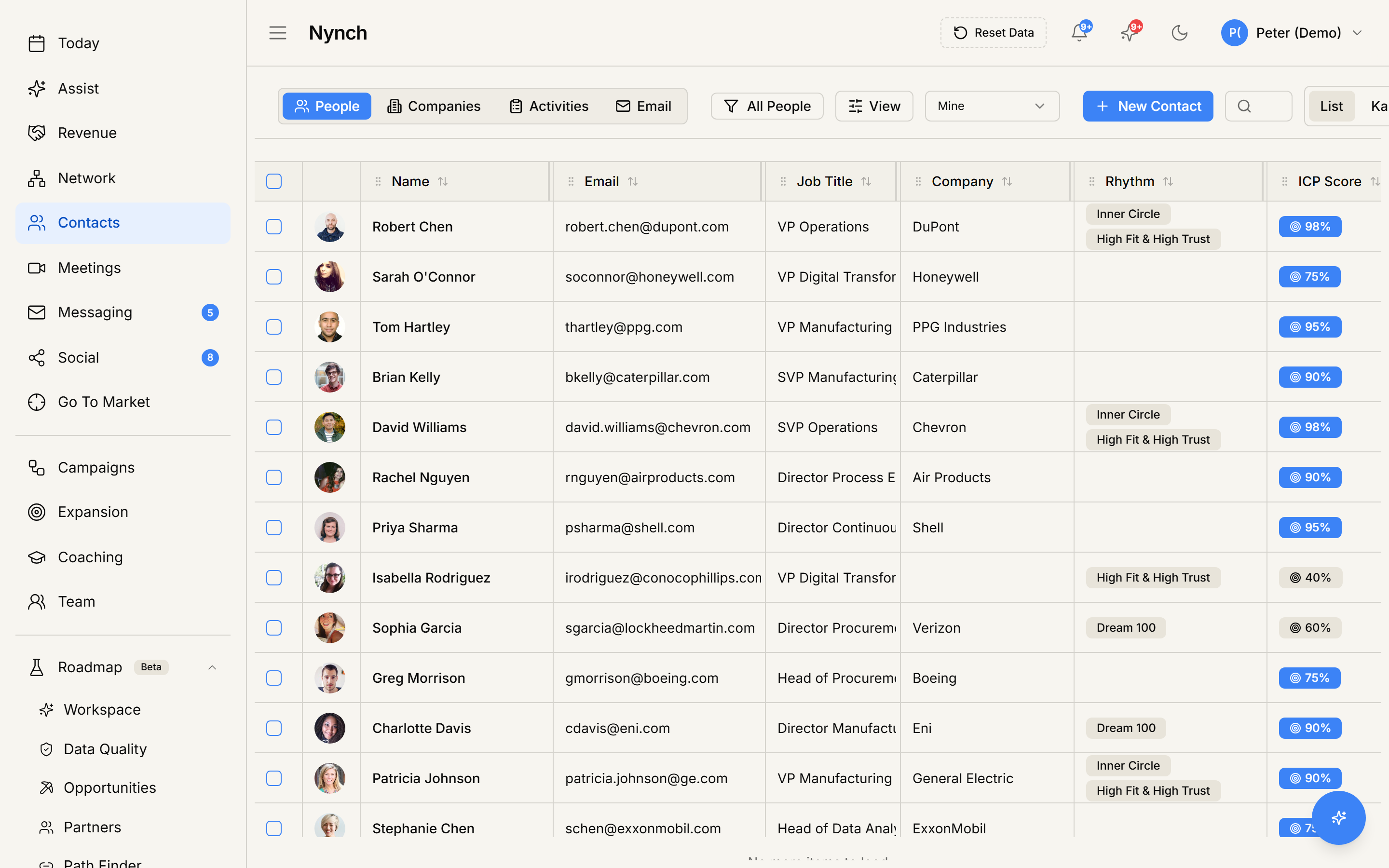
The People section is where you do every "list-of-records" operation on contacts: viewing, filtering, bulk-editing, merging duplicates, importing, and exporting. Email, LinkedIn, and Meetings are the other People tabs. Leftover promises live in the Tasks view on the People table, not on a global task board. Organisations live under the Companies sidebar item, not here.
If you came in from somewhere else (a saved view, a notification, a search result) and want to get back to the default list, click People in the sidebar again and open the People tab.
The tabs across the top
The People section has a row of tabs in the top-right of the header that pick what you're looking at:
- People (default) - the working table of your contacts. Use the Tasks view here when you want to see the people you owe an open task or promise.
- Email - your email inbox. Group sends and Templates are tools on this tab.
- LinkedIn - your LinkedIn inbox.
- Meetings - meetings captured from your connected calendar.
Companies is not a People tab. Open the Companies sidebar item for organisations. The rest of this article focuses on the People tab and the Companies workbench, which use the same table machinery.
Toolbar tour
Left to right on the toolbar:
- Saved views picker (labelled with the current view, e.g. All People) - switch between saved views, or Save as new view. The default view is "All People" with no filters.
- View - opens a popover with Sort, Filter, and Fields tabs (choose which columns show, filter the rows, and set the sort).
- + New Contact (or + New Company on the Companies workbench).
- Search - searches name, email, company, and the visible columns.
- List / Kanban toggle.
- More menu (three horizontal dots) on the far right - holds Import CSV, Import History, Export CSV, and Settings.
To filter by owner in a shared workspace, open View → Filter and add an Owner condition. See Filter the People table by owner.
Add a contact
- Make sure you're on the People tab.
- Click + New Contact in the toolbar.
- The Create Contact form opens in a dialog. Fill in the fields:
- Name (required). Full name.
- Title. Their job title.
- Email. Primary email. You can add more email addresses with the
+button below this field. - Phone. Primary phone.
- Company. Start typing. pick from existing companies or create a new one inline.
- Location. City, country.
- Bio. Free-form notes about the person.
- Tags. Pick from existing tags or type to add new ones.
- Click Save at the bottom of the dialog.
The new contact appears in the table immediately. If you've imported the same email or LinkedIn URL before, Nynch detects a likely duplicate at submit and offers to merge instead of creating a new record. See Merge duplicate contacts for what that merge wizard does.
Add a company
- Open Companies in the left sidebar.
- Click + New Company.
- Fill in the dialog (name, domain, industry, employee count, etc.) and click Save.
Most of the time, companies get created on the fly when you create a contact (via the inline "create company" option in the Company field), so the New Company button is for cases where you want to add an account before you have a contact at it.
Filter, sort, and choose columns
Click View in the toolbar. The popover has these tabs:
Fields
Tick the columns you want visible in the List view, untick the ones you don't. Common columns: Name, Email, Job title, Company, Owner, Phone, Tags, Rhythm, ICP Score, Engagement, Date added, Last interaction.
Filter
Add one or more filter conditions. Each condition is a (Field, Operator, Value) triple. Operators vary by field type:
containsequalsstarts withgreater thanless thanis emptyis not empty
When filters are active, a chip row appears showing each active filter with an X to remove it. Filtered counts replace total counts everywhere in the app while the filter is on.
Sort
Pick a column and a direction (ascending / descending). The current sort is also visible in the column header.
In Kanban view, a Group option lets you pick which field becomes the column dimension (rhythm for People, industry for Companies).
Save a view
Once you've got your filters, columns, and sort the way you want them:
- Open the Saved views picker (the one showing the current view name).
- Click Save as new view.
- Name it (e.g. "Senior decision-makers, last contacted 30+ days ago"). Save.
Your view appears in the picker. Click it any time to restore exactly those filters, columns, and sort.
Switch between List and Kanban
The List / Kanban toggle on the toolbar flips between:
- List - rows and columns, like a spreadsheet. Best for bulk actions, exports, and reading lots of records at once.
- Kanban - cards grouped by the field you pick. Best for triaging by stage / rhythm / status.
Both views use the same filters and the same selection. Selecting cards in Kanban populates the same bulk-action toolbar described below.
Bulk actions
Tick the checkbox on any row to start a selection. A bulk-action toolbar slides up showing the count ("X selected") and these actions:
- Edit Fields - bulk-edit one column across every selected record.
- Assign to Rhythm - move all selected contacts into an engagement rhythm at once.
- Email - opens the group-send composer. Contacts without an address show Find Email inside the composer, after you have made the outreach choice.
- More dropdown - holds Merge Contacts, Add to Campaign, and Fill profile details.
- Delete (red) - soft-delete with an Undo toast.
For details on each, see the dedicated articles:
Open a contact
Click a contact's avatar (in List) or a card (in Kanban) to open the full contact profile. It opens as an overlay. (Clicking the name cell instead lets you rename the contact inline.)
The profile has action buttons across the top for deals, rhythms, profile filling, actions, LinkedIn, messages, and email, plus tabs for Details, Timeline, Outreach, and Social. From there you can:
- Edit any field inline on the Details tab (including Tags).
- See email history, meetings, notes, and the activity timeline.
- See the deal history and ICP score breakdown.
- Fill profile details, research the contact, score ICP fit, or draft a message. If you start an email without an address, Nynch offers Find Email before sending.
- Open the LinkedIn profile if one is set.
Close the overlay with Esc or by clicking the X. You stay on the same table position, so your scroll and selection are preserved.
Import and export
Hit the More menu (three dots) at the far right of the toolbar.
- Import CSV opens the CSV import wizard. See Import contacts from a CSV.
- Import History shows your past CSV imports with status badges and an option to undo a recent one.
- Export CSV dumps the currently filtered and sorted table to a CSV file. The export respects your current view exactly.
Meetings tab and the Tasks view
The Meetings tab lists the meetings Nynch captured from your connected calendar, with prep notes and AI briefings.
Open promises stay on the person. To inspect leftover promises, stay on the People tab and choose Tasks from the views picker (it used to be called People I owe). That view is a list, not a Rhythms board: it shows a What's owed column from the actual open promise (not the Next action field). Switching People to Kanban is a different view grouped by Rhythms. Today also links here when more than seven people are waiting. Completing a promise without contacting the person is the failure mode. Today is where you write.
Your email inbox lives on the Email tab, and LinkedIn on the LinkedIn tab, rather than here.
If something goes wrong
- Symptom: "I opened Companies but I don't see any companies." → Fix: Companies are created automatically when you assign a company to a contact. If you've never set a company on a contact and never imported a company CSV, the list will be empty. Either add a company with + New Company, or import a company CSV.
- Symptom: "My filters are gone after I refresh." → Fix: Filters are part of the saved view. To make them stick, save the filtered state as a named view via the Saved views picker.
- Symptom: "The search bar doesn't find a contact I know exists." → Fix: Search matches the visible columns and the contact's primary email. Add the column you're searching by via View → Fields, or type part of the contact's email address.
- Symptom: "+ New Contact button is greyed out." → Fix: You're on a tab other than People. Switch to the People tab. To add an organisation, open the Companies sidebar item and use + New Company.
- Symptom: "I created a contact but it's not in my rhythm." → Fix: New contacts don't auto-join a rhythm. Either select them and use Assign to Rhythm in the bulk toolbar, or sort them into a rhythm from Nurture → Sort.
- Symptom: "I deleted a contact by accident." → Fix: The Delete toast has an Undo button for a few seconds. After that, contacts are soft-deleted. Support can restore them within 24 hours.
FAQ
Q: How do I manage your contacts and companies? Open the People table, open Companies from its own sidebar item, search and filter, save reusable views, change between List and Kanban layouts, and add a new contact or company from scratch.
Q: What do I need before I start? You have at least one contact in Nynch. New to Nynch? Start with Importing your network.
Q: How long does this take? About 10 minutes the first time. Comes back as muscle memory.
Q: I opened Companies but I don't see any companies? Companies are created automatically when you assign a company to a contact. If you've never set a company on a contact and never imported a company CSV, the list will be empty. Either add a company with + New Company, or import a company CSV.
Q: My filters are gone after I refresh? Filters are part of the saved view. To make them stick, save the filtered state as a named view via the Saved views picker.
Related: Merge duplicate contacts | Import contacts from a CSV | Using the Chrome extension.