You'll learn how to: Update your profile photo, the image that signs every AI-drafted email and shows up wherever your identity appears in Nynch.
Time: 30 seconds.
Steps
- Click your avatar (top-right), then Settings.
- Click the Profile tab.
- Find your current avatar at the top of the profile section.
- Click the avatar (or look for an Upload photo or Change photo action next to it).
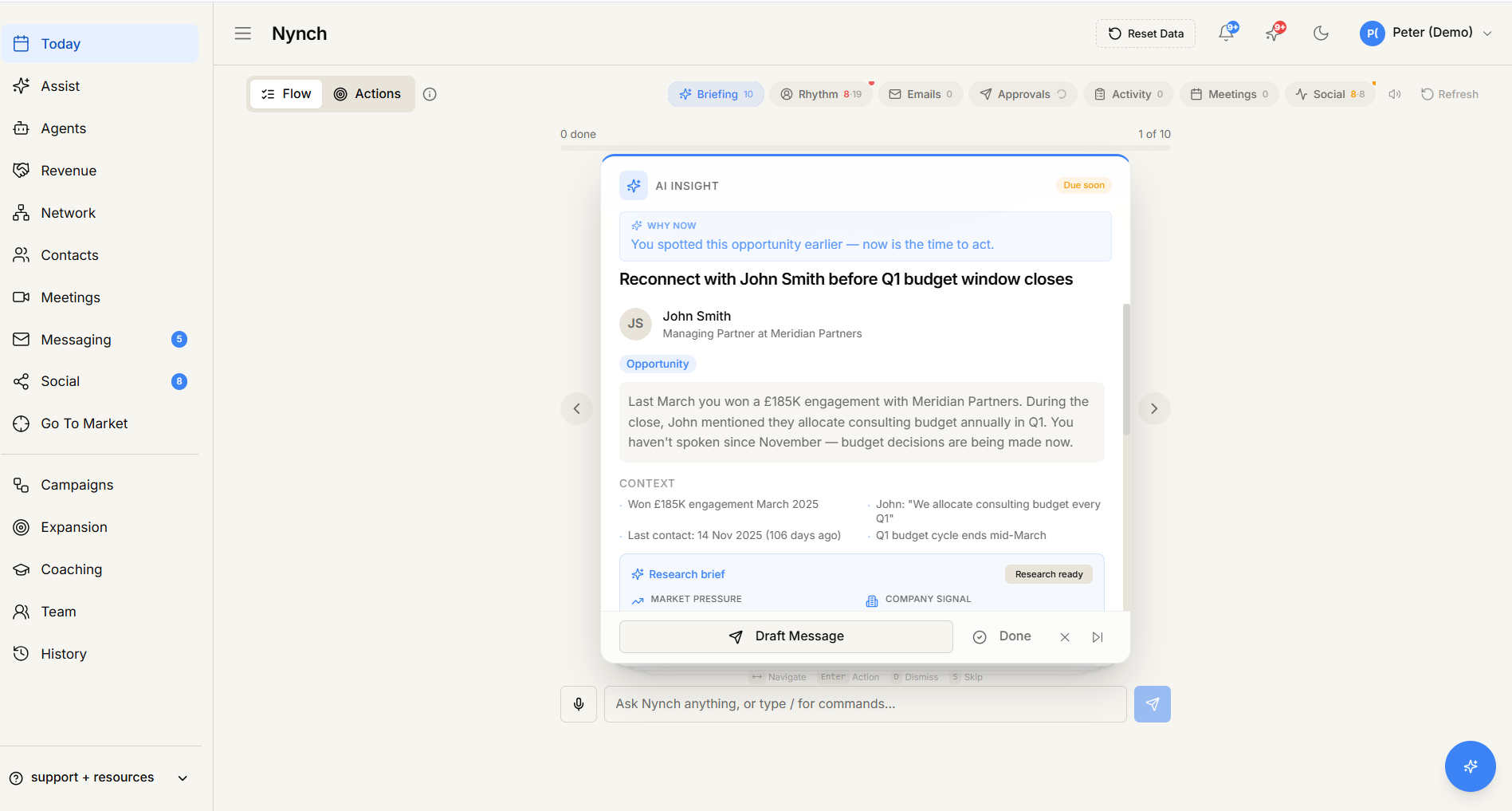
- Pick an image file from your computer.
- (Optional) Crop or adjust if the upload modal supports it.
- Save.
The new photo applies immediately. Existing tabs may need a refresh to see it.
Where the photo shows up
- Your activity timeline entries.
- AI-drafted email signatures.
- Shared deal rooms (with your branding).
- Coaching / Assist responses where you're identified.
- The roster in the Team tab.
- LinkedIn-style cards in the Daily Relationship Review (your contact view that teammates see).
Photo recommendations
- Square or 1:1 crop. Round avatars crop circular. rectangular originals look weird.
- Face visible. Tight head-shot beats full-body for the sizes Nynch uses.
- Recent. Decade-old headshots are obvious and undermine trust.
- Reasonable file size. Under 2MB. The upload may downsample anyway, but huge files slow the upload.
Remove the photo
- Click your avatar (top-right) → Settings → Profile.
- Click your current avatar.
- Look for Remove photo in the upload modal or the avatar's more-actions menu.
- The avatar reverts to your initials in a coloured circle.
Different photos for different surfaces
Currently Nynch uses one profile photo everywhere. If you want a different image on, say, deal rooms vs the in-app interface, that's not configurable today. Pick one good photo and use it consistently.
If something goes wrong
- Symptom: "Upload says 'File too large'." → Fix: Compress the image to under 2MB. Most image-editing tools can resize / re-compress.
- Symptom: "Upload succeeded but the photo is missing." → Fix: Refresh the page. The CDN can take a moment to surface the new image. If still missing, try uploading again.
- Symptom: "Photo shows as the old one in emails I send." → Fix: Existing email drafts may have cached the old image. New drafts use the new photo. If a sent email had the old photo, that's normal. recipients see what was current at send time.
- Symptom: "Crop modal doesn't let me adjust." → Fix: Some plans don't include the inline crop tool. Crop the image in another tool first (Photos / Preview / online cropper) and upload the result.
FAQ
Q: How do I change your profile photo? Update your profile photo, the image that signs every AI-drafted email and shows up wherever your identity appears in Nynch.
Q: Where do I start in Nynch? Click your avatar (top-right), then Settings.
Q: How long does this take? About 30 seconds.
Q: Upload says 'File too large'? Compress the image to under 2MB. Most image-editing tools can resize / re-compress.
Q: Upload succeeded but the photo is missing? Refresh the page. The CDN can take a moment to surface the new image. If still missing, try uploading again.
Related: Settings, tab by tab | Setting up your account.