You'll learn how to: Connect your Microsoft 365 / Outlook account so Nynch can sync mail and let you send replies.
Time: 3 minutes.
Prereqs: A Microsoft 365 or personal Outlook account. If you're on a managed Microsoft 365 tenant, your IT admin may need to grant Nynch app permission first.
Steps
- Click your avatar (top-right of the screen), then click Settings.
- Click the Email & Calendar tab.
- Find the Outlook card (third card in the integrations panel, envelope icon).
- Click Connect on the right of the card.
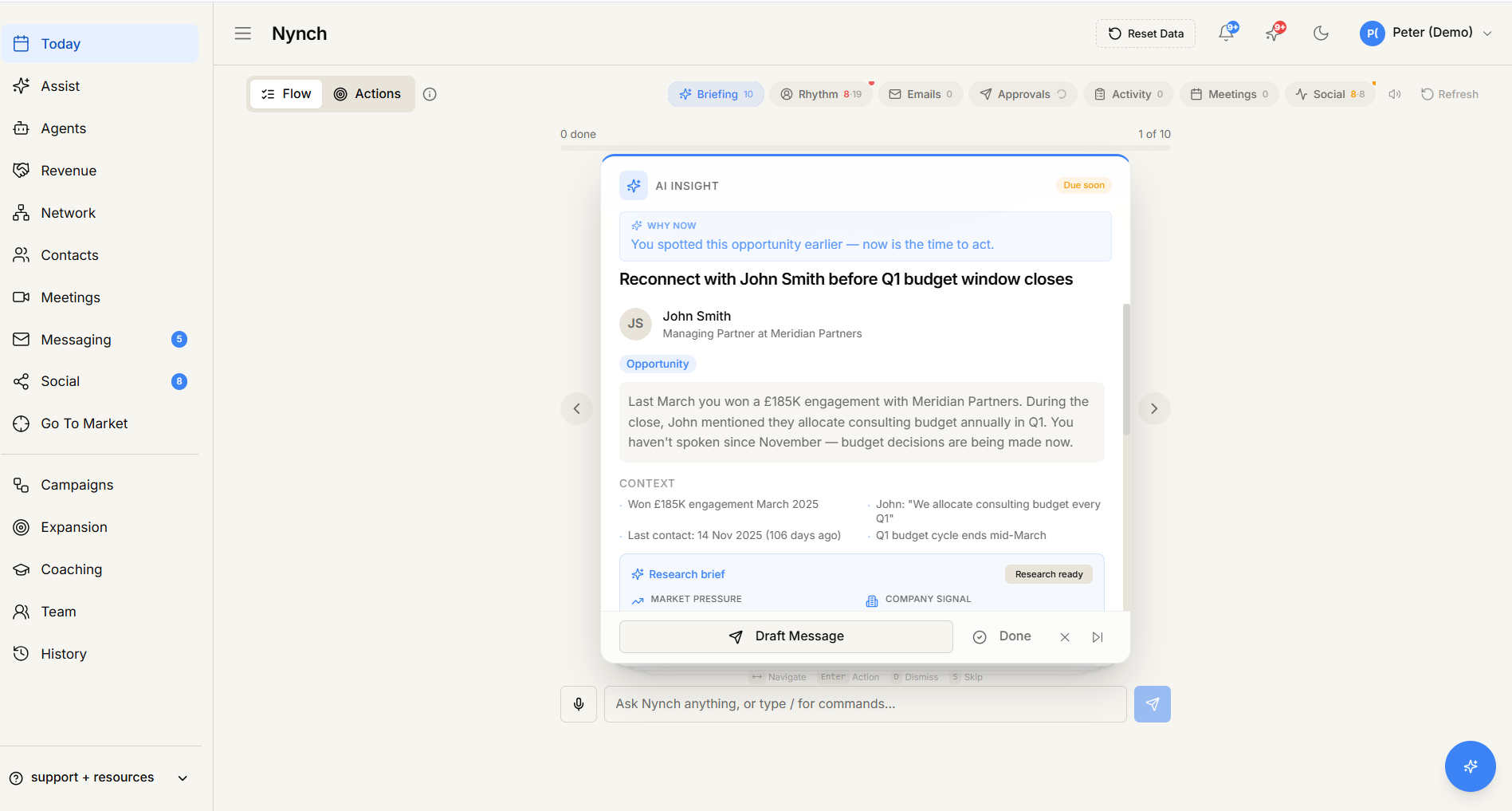
- The button spins while Nynch builds the OAuth URL.
- Your browser redirects to Microsoft's sign-in screen.
- Pick the account you want to connect (or sign in).
- Microsoft shows a consent screen titled "Permissions requested" with the scopes Nynch needs.
Permissions Nynch requests
- Read your mail: lets Nynch sync messages for the unified inbox and contact timelines.
- Send mail as you: lets you reply from inside Nynch. Nothing sends without your explicit action.
- Read your calendars: only if you're also connecting Outlook Calendar (a separate card).
- Sign you in and read your profile: standard OAuth for identifying which account you authorised.
What Nynch does with these:
- Reads your inbox in the background to surface emails on the Today feed and contact timelines.
- Sends replies through your account when you click Send in the Nynch composer.
What Nynch does NOT do:
- Doesn't silently send messages without you composing them.
- Doesn't share your mail with other Nynch users in your workspace.
Click Accept at the bottom of the consent screen.
Step 4: Wait for the redirect
Microsoft returns you to Nynch. The Outlook card now shows:
- Status badge: Active (green).
- Connected email: the address you authorised.
- Configure button (replaces Connect) for picking historical import preferences.
Import your email history
- Click Configure on the Outlook card.
- The setup wizard opens.
- Pick a date range for the initial import (last 30 days, 90 days, 1 year, all time).
- (Optional) configure folder filters, auto-create-contacts behaviour, and import-meeting-invites preferences.
- Click Save.
An "Importing Outlook history..." banner appears at the top of the panel showing live progress (message count). You can keep using Nynch while this runs.
Outlook Calendar is separate
The Outlook Calendar card sits below the Outlook card in the same panel. Connect it separately if you want calendar sync. The flow is identical: click Connect, walk the OAuth, pick which calendars to sync via the Calendar Selection modal.
Connecting additional sending accounts
If you have multiple Outlook addresses (e.g. personal + work), connect each separately via the Additional Email Sending And Receiving Accounts section below the main panel. Each appears in the composer's From dropdown.
If something goes wrong
- Symptom: "Microsoft says my account is restricted by my organisation." → Fix: Your Microsoft 365 tenant blocks third-party apps. Ask your IT admin to consent to the Nynch app on the tenant level. They can do this once for the whole org via the Azure portal.
- Symptom: "Connect button is greyed out / shows Loading forever." → Fix: Refresh the page. The OAuth URL builder occasionally hangs. refresh fixes it.
- Symptom: "I got 'App not configured for organisation' error." → Fix: Same as above, your IT admin needs to consent. Forward them the error message. they'll know what to do.
- Symptom: "Outlook connects but no emails appear." → Fix: Open Configure on the Outlook card and verify the date range. By default no historical import happens. you have to opt in.
- Symptom: "Card shows Reconnect Required (red badge)." → Fix: Microsoft OAuth tokens expire periodically. Click Reconnect on the card and walk the consent flow again.
What changes once Outlook is connected
- The Today screen's Emails section starts populating.
- Each contact profile shows the full email history.
- Reply Coach activates inline.
- Auto-logging kicks in: new emails to/from network contacts land on their timeline.
- Fill from email signatures can use historical mail to add missing phone, role, and company details. It does not discover or buy email addresses.
FAQ
Q: How do I connect outlook to nynch? Connect your Microsoft 365 / Outlook account so Nynch can sync mail and let you send replies.
Q: What do I need before I start? A Microsoft 365 or personal Outlook account. If you're on a managed Microsoft 365 tenant, your IT admin may need to grant Nynch app permission first.
Q: How long does this take? About 3 minutes.
Q: Microsoft says my account is restricted by my organisation? Your Microsoft 365 tenant blocks third-party apps. Ask your IT admin to consent to the Nynch app on the tenant level. They can do this once for the whole org via the Azure portal.
Q: Connect button is greyed out / shows Loading forever? Refresh the page. The OAuth URL builder occasionally hangs. refresh fixes it.
Related: Connect Gmail to Nynch | Connect Google Calendar | Use the Reply Coach | Disconnect a Gmail account.