You'll learn how to: Set your work days and hours, then choose which activities get a time block on Today.
Time: 5 minutes.
Prereqs: Your daily briefing and the Actions tab on Today.
Open the wizard
- In the left sidebar, click Today.
- Click the Actions tab, next to Flow at the top of the page.
- Scroll down past the weekly activity table to Set Up Time Blocking. The wizard is on this page. It does not open in a pop-up.
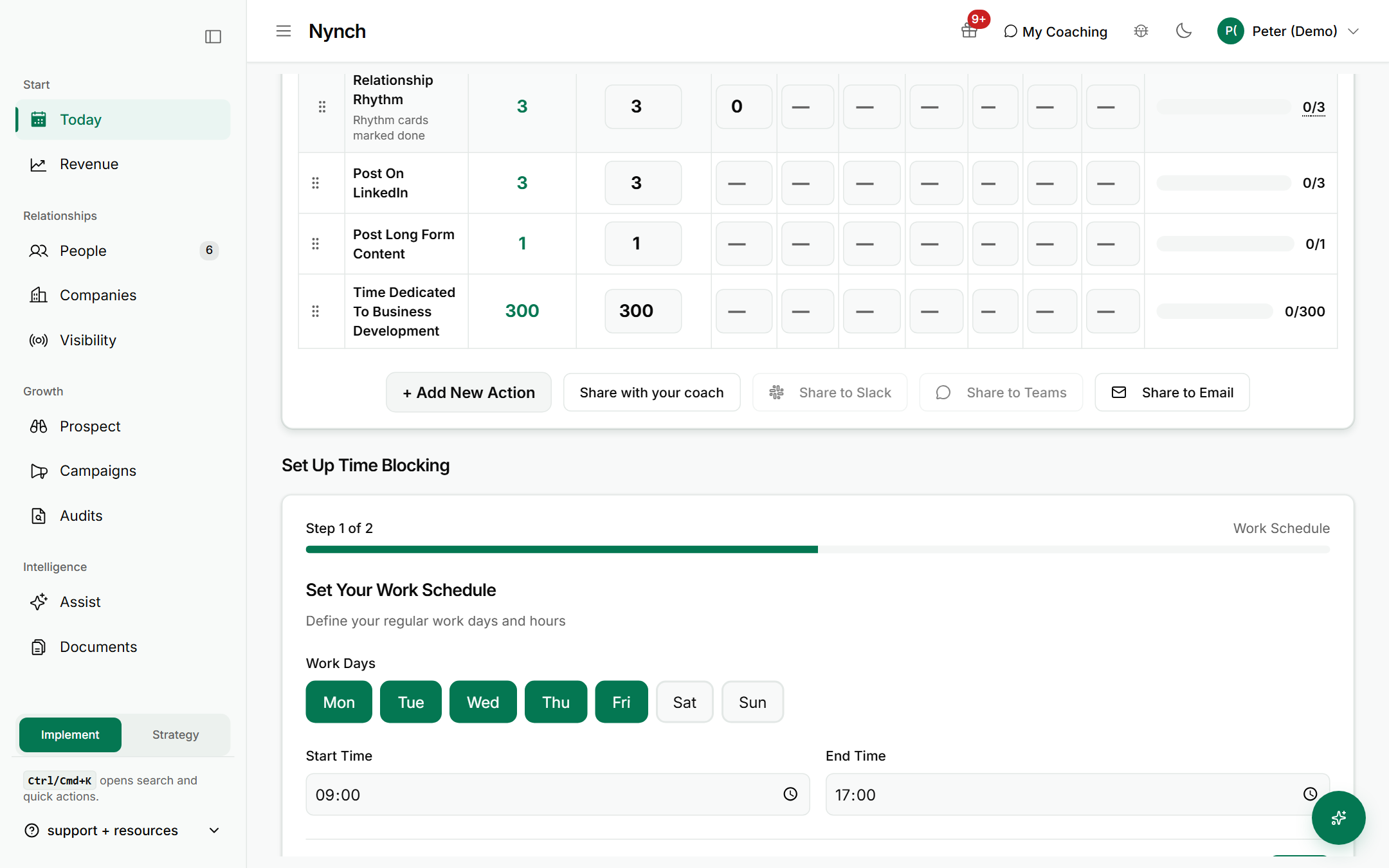
Step 1: Set Your Work Schedule
- Under Work Days, click each day you work. Days you select turn green.
- Under Start Time, set when your day starts.
- Under End Time, set when your day ends.
- Click Next to go to step 2.
Step 2: Configure Activity Time Blocks
- The heading reads Configure Activity Time Blocks, with the line Set when and how long you'll work on each activity.
- Each activity has its own switch, labelled Enabled when on. The activities are Pipeline Review, F2F Conversation, New LinkedIn Connections In ICP, Relationship Rhythm, Post On LinkedIn, Post Long Form Content and Time Dedicated To Business Development.
- Switch on the activities you want a block for. Switch off the rest.
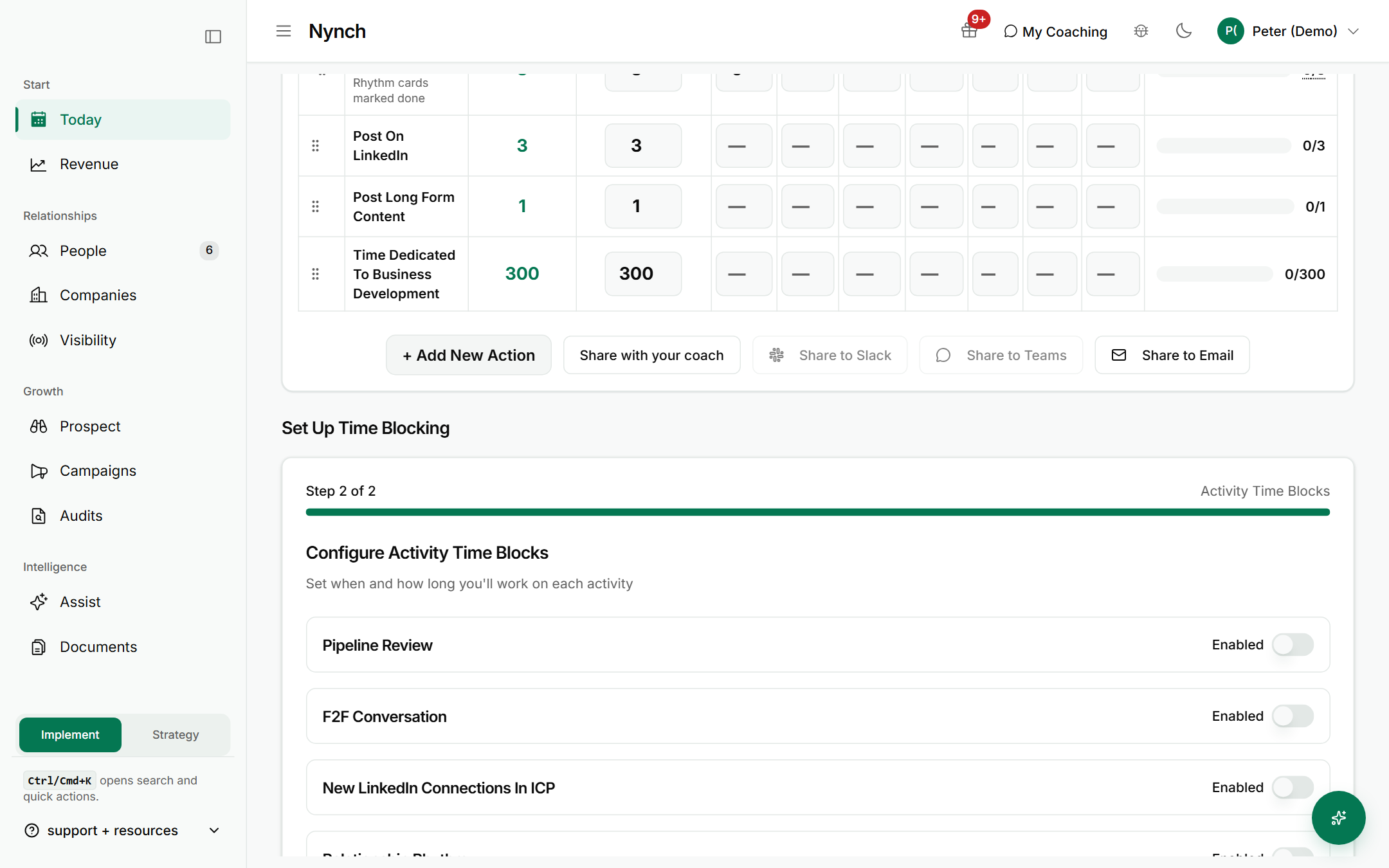
- Click Save Template to keep the set-up. Click Back to change step 1.
FAQ
Q: Does time blocking put events in my calendar? Yes, when a calendar is connected. The saved template is used to build the blocks for your week, and those blocks sync to the connected calendar.
Q: Can I change my work days later? Yes. Open the Actions tab on Today, scroll to Set Up Time Blocking, change the days or times, and click Save Template again.
Q: What is the difference between the weekly table and time blocking? The weekly table sets how many times each activity should happen in a week. Time blocking sets your working hours and which activities get a block in them.
If something goes wrong
- Symptom: You cannot find Set Up Time Blocking. → Fix: Make sure the Actions tab is selected, not Flow, then scroll down below the weekly table.
- Symptom: Next does not move you to step 2. → Fix: Check that at least one work day is green and that the start and end times are filled in.
- Symptom: The blocks do not appear in your calendar. → Fix: Check that your calendar is connected, then wait for the next sync before you check again.
Related: Your daily briefing, Today: the daily feed, Add an action item, Use my coaching