You'll learn how to: Find recent workspace admin events and the change history for one contact, company or deal.
Time: About 30 seconds.
See the history of one record
This is usually the useful view for a solo consultant:
- Open a contact, company or deal.
- Open its Timeline or Activity area.
- Expand Record history.
Record history shows:
- What kind of change happened and which fields changed.
- When it happened.
- Whether the change came from you, another workspace member, Nynch or an integration.
- Whether undo is available.
Historical field values are not shown. Sensitive values therefore cannot be recovered from this view. If an entry says Undo unavailable, there is no undo action for that change.
See recent workspace admin events
Owners and admins can also see a small workspace-level admin feed:
- Open your avatar (top-right), then click Settings.
- Open Team.
- Scroll to Admin Audit Log.
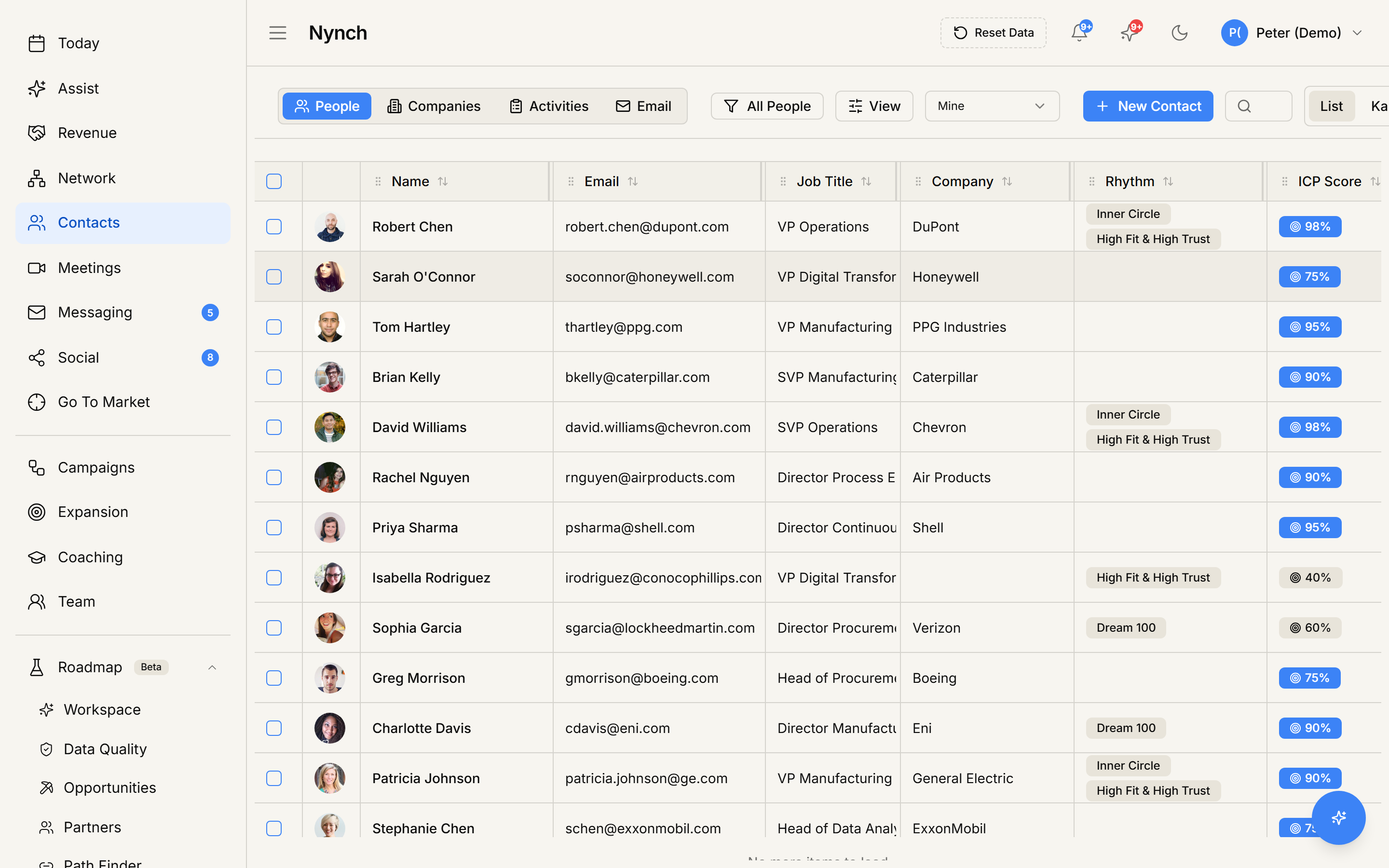
The panel shows up to 50 recent recorded team, billing and campaign-enrolment admin events, newest first. Each event shows the recorded actor, action, description and time.
This is not a complete record of every action in the app. In particular, it does not currently provide:
- Filters or date-range search.
- CSV export.
- Proof of read-only actions such as opening a record or exporting data.
- A guaranteed log of every settings, integration, pipeline or bulk-data change.
Do not rely on the admin feed as a complete compliance or incident-response record.
If something goes wrong
- Record history is empty: No retained mutation receipt was found for this record. It does not prove the record has never changed.
- Record history could not be loaded: Retry. A loading failure is shown as an error, not as an empty history.
- Admin Audit Log is missing: Only workspace owners and admins can see it.
- An expected admin event is missing: The workspace feed covers only the event types described above. it is not a complete audit console.
FAQ
Q: How do I view record and workspace history? Find recent workspace admin events and the change history for one contact, company or deal.
Q: Where do I start in Nynch? Open a contact, company or deal.
Q: How long does this take? About About 30 seconds.
Q: What should I know about see recent workspace admin events?
- Open a contact, company or deal. 2. Open its Timeline or Activity area. 3. Expand Record history.
Related: Team and workspace | Settings, tab by tab | Promote a teammate to admin.