You'll learn how to: Bring a list of people into Nynch from a spreadsheet, map your columns, handle duplicates, and optionally fill professional details or run research before the rows land.
Time: 5 minutes for a small CSV. Longer for larger files because Nynch processes them in the background.
Prereqs: A CSV file. Nynch can handle very large files: up to the per-file maximum shown on the upload screen. If your export came from LinkedIn, you're in good shape: Nynch has a one-tick shortcut for that.
Import wizard stages
Every CSV import walks through the same numbered stages, shown across the top of the dialog as a progress bar. They are, in order:
- Upload: pick the file and set top-of-import options.
- Map: match your CSV columns to Nynch fields.
- Stages: pipeline-stage mapping. Only appears for deal imports.
- Filter: narrow down which rows you actually want to bring in.
- Profile: choose whether Nynch should fill profile details or run Full Research. Only appears for contact imports.
- Dupes: choose how Nynch should handle rows that match an existing record. Only appears for contact imports.
- Import. Nynch processes the rows. You can close the dialog and come back. the import runs in the background.
- Done: summary of what landed, what was merged, and what was skipped.
Some stages are conditional based on what you're importing. A typical People import shows most stages. Companies and deals may show fewer.
Step 1: Upload
Open the People section, People tab, then click the ... menu and select Import CSV.
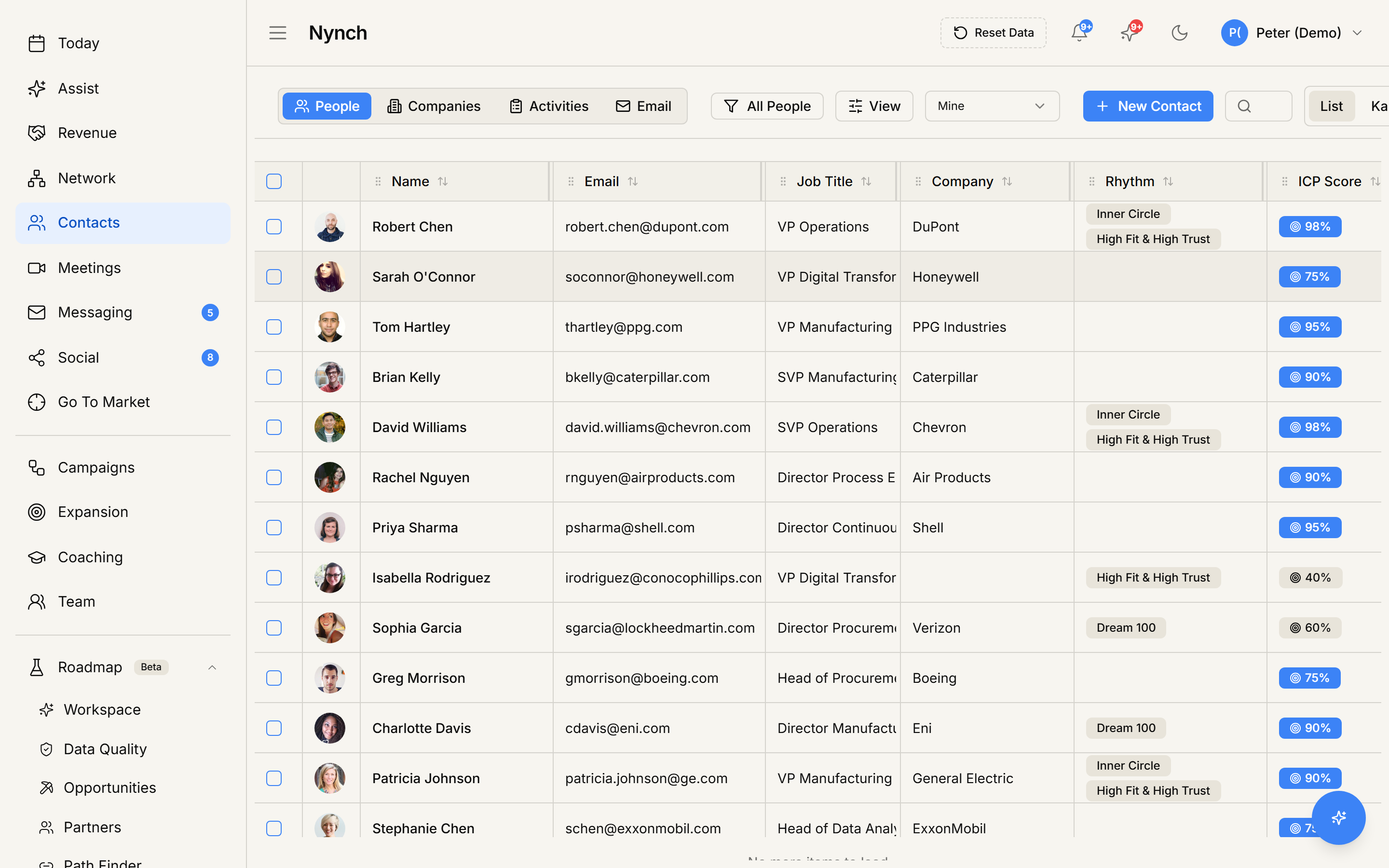
You'll see:
- A summary alert: "Upload a CSV file to begin. We'll automatically detect and map columns, handle duplicates, and process your data."
- The row-count maximum for one file.
- If you're importing contacts and your workspace uses Rhythm Sort, a "Rhythm assignment" panel with two options:
- Hold in Rhythm Sort (Recommended): imported contacts queue up to be sorted card-by-card in the rhythm game. Tick this if you want to triage them later.
- Or assign all directly to a rhythm: a dropdown of your existing rhythms with the cadence shown ("Weekly (7d)", "Monthly (30d)", etc.). Pick one to skip the sort game.
- For contacts only, a These are LinkedIn connections checkbox. Tick this if your CSV was exported from LinkedIn. Nynch marks every imported contact as "Connected" on LinkedIn, which enables downstream behaviours.
- A Download CSV Template (with examples) button. If you're not sure what columns Nynch wants, download this and use it as your starting point.
- The drop / pick zone: "Click to upload CSV". Either click it and pick a file, or drag-and-drop your file onto it.
- An optional Try Demo Import (10 sample contacts) button below the upload area. Useful the first time, to see the rest of the flow with no real data at stake.
Pick your file. Nynch parses it on the spot and moves you to Map.
Step 2: Map
Nynch tries to auto-detect every column. You'll see a table where each row is one column from your CSV, and the right side is a dropdown of Nynch fields to map it to. The alert at the top says:
Review and adjust the automatic column mapping below. Required fields must be mapped to proceed.
If Nynch's auto-detection is right, leave the mapping alone. If a column is mismatched, change it via the dropdown. If a column is junk and you don't want it, set the mapping to Skip (or "Don't import").
When AI suggestions are available, you'll see a small badge next to the suggestion. You can accept individual suggestions or dismiss them all at once.
Date columns get a date-format picker, so pick the format that matches your data (DD/MM/YYYY, MM/DD/YYYY, ISO, etc.). Nynch tries to detect this but won't guess wrong if it's not sure.
When every required field is mapped, click Next: Review & Filter.
Nynch then runs a validation pass. If any rows fail validation (bad email format, missing required field, etc.), a preview screen lists every problem with row numbers so you can see what's about to be skipped. From there you can go back and fix the mapping, or continue past the errors to import the valid rows only.
Step 3: Stages (deal imports only)
For deal imports, Nynch needs to know which pipeline stage each deal belongs to. Map your CSV's stage values to your Nynch pipeline stages, then continue.
You also pass through a separate "Deal Dupes" mini-stage before Stages if any deals look like potential duplicates of deals already in your pipeline. Each match shows the existing deal next to the CSV row, and you choose Skip, Update, or Create New per pair.
Step 4: Filter
The pre-import filter lets you narrow down which CSV rows actually get imported. You can filter by any mapped field. Useful for cases like "only import the rows where Country = United Kingdom" without having to edit the CSV.
If you don't need filtering, just click through.
Step 5: Profile and research options (contact imports only)
Choose how much work Nynch should do before importing the contacts:
- Fill LinkedIn Profile Details. Fills missing professional details such as job title, headline, location, bio, and company information for rows with a LinkedIn URL. This does not buy email addresses.
- Full Research. Adds ICP fit scoring to profile filling and company-domain resolution. It is only available when you have a priority ICP configured.
- Skip profile filling. Imports the contacts exactly as supplied.
The button changes to Import with Quick Scan, Import with Full Research, or Import without profile filling.
An email address already present in your CSV can be imported as contact identity. Nynch does not run a paid email finder during CSV import. If an imported contact has no address, start an email or add them to a campaign later. Nynch will show Find Email at that point so you can choose whether to run it.
Step 6: Dupes (contact imports only)
The dedupe-strategy screen asks: "How should we handle duplicates?" with four cards. Pick one:
- Smart Deduplication (Recommended). exact matches on email or LinkedIn URL auto-merge into the existing contact. Anything ambiguous gets flagged for your review on a follow-up screen, so nothing surprising lands.
- Skip Duplicates: if a CSV row matches an existing contact in any way, skip the row entirely. Only brand-new contacts get imported.
- Update Existing: every match auto-merges, with CSV data overwriting empty fields on the existing contact (it never overwrites a non-empty field). No review step.
- Import All as New: skip dedup entirely. Every row becomes a new contact, even if it's clearly the same person. Use this only if you're sure.
Click Continue with Import.
If you picked Smart Deduplication and Nynch found matches, you'll get a quick review screen showing each potential match before the final commit. You can flip individual ones between Merge and Create New here.
Step 7: Import
Nynch processes the rows in the background. The dialog shows progress. You can close the dialog and the import keeps running. Nynch tracks it on the import history page and notifies you when it finishes.
For very large imports, this stage can take several minutes. For smaller files (under a few thousand rows), it usually completes in seconds.
Step 8: Done
The summary screen tells you exactly what happened:
- How many rows landed as brand-new contacts.
- How many were merged into existing records.
- How many were skipped (with reasons).
- How many failed validation (with row numbers).
If you chose profile filling or Full Research, the summary also reports the profile, company-domain, and ICP-scoring work completed.
If something goes wrong
- Symptom: "The Next button on the Map screen is greyed out." → Fix: A required field isn't mapped. The mapper shows which fields are required with a small marker. Scroll through the column list and make sure each required Nynch field has a CSV column pointed at it.
- Symptom: "Half my rows show validation errors before import." → Fix: The validation preview lists each error with a row number. Most common causes: malformed email addresses, dates in an unexpected format, or text that's too long for a field. Either fix the CSV and re-upload, or click "Continue with valid rows only" to skip the bad ones.
- Symptom: "I picked Full Research and got 'No ICPs configured'." → Fix: Full Research needs at least one ICP configured. Open Strategy mode, set up an ICP, then come back to the import.
- Symptom: "The import looks stuck on Step 7 for a long time." → Fix: Nynch processes large imports in the background. Close the dialog and keep working. the import continues. You'll get a notification when it's done. You can also check the import history page to see live progress.
- Symptom: "My LinkedIn export imported but every contact is in the wrong rhythm." → Fix: On Step 1, untick "Or assign all directly to a rhythm" or pick a different rhythm before re-importing. There is no bulk-move-out-of-rhythm action right now. you'd have to merge or re-import.
Common LinkedIn-export pattern
If your CSV came from LinkedIn → Settings → Get a copy of your data → Connections:
- On Step 1, tick These are LinkedIn connections. This marks each imported contact as "Connected on LinkedIn" automatically.
- On Step 1, also tick Hold in Rhythm Sort (Recommended). LinkedIn exports are usually large and a one-by-one triage in the Rhythm Sort game works better than dumping everyone into a single rhythm.
- On Step 5 (Profile), pick Fill LinkedIn Profile Details. LinkedIn exports usually lack job title and company domain, so this fills both in without buying email addresses.
- On Step 6 (Dupes), pick Smart Deduplication. If you've imported a LinkedIn export before, this catches the overlap.
FAQ
Q: How do I import contacts from a csv? Bring a list of people into Nynch from a spreadsheet, map your columns, handle duplicates, and optionally fill professional details or run research before the rows land.
Q: What do I need before I start? A CSV file. Nynch can handle very large files: up to the per-file maximum shown on the upload screen. If your export came from LinkedIn, you're in good shape: Nynch has a one-tick shortcut for that.
Q: How long does this take? About 5 minutes for a small CSV. Longer for larger files because Nynch processes them in the background.
Q: The Next button on the Map screen is greyed out? A required field isn't mapped. The mapper shows which fields are required with a small marker. Scroll through the column list and make sure each required Nynch field has a CSV column pointed at it.
Q: Half my rows show validation errors before import? The validation preview lists each error with a row number. Most common causes: malformed email addresses, dates in an unexpected format, or text that's too long for a field. Either fix the CSV and re-upload, or click "Continue with valid rows only" to skip the bad ones.
Related: Find and fix duplicate contacts | Managing your contacts | Relationship rhythms.