You'll learn how to: Build a multi-step outreach campaign from scratch and start enrolling contacts into it.
Time: 15-30 minutes for a thoughtful first campaign. Future campaigns can be cloned in 2 minutes.
Prereqs: Your workspace plan includes Campaigns. Email account is connected (and Chrome extension if you're including LinkedIn steps).
Steps
- Click Nurture in the left sidebar.
- Click Campaigns.
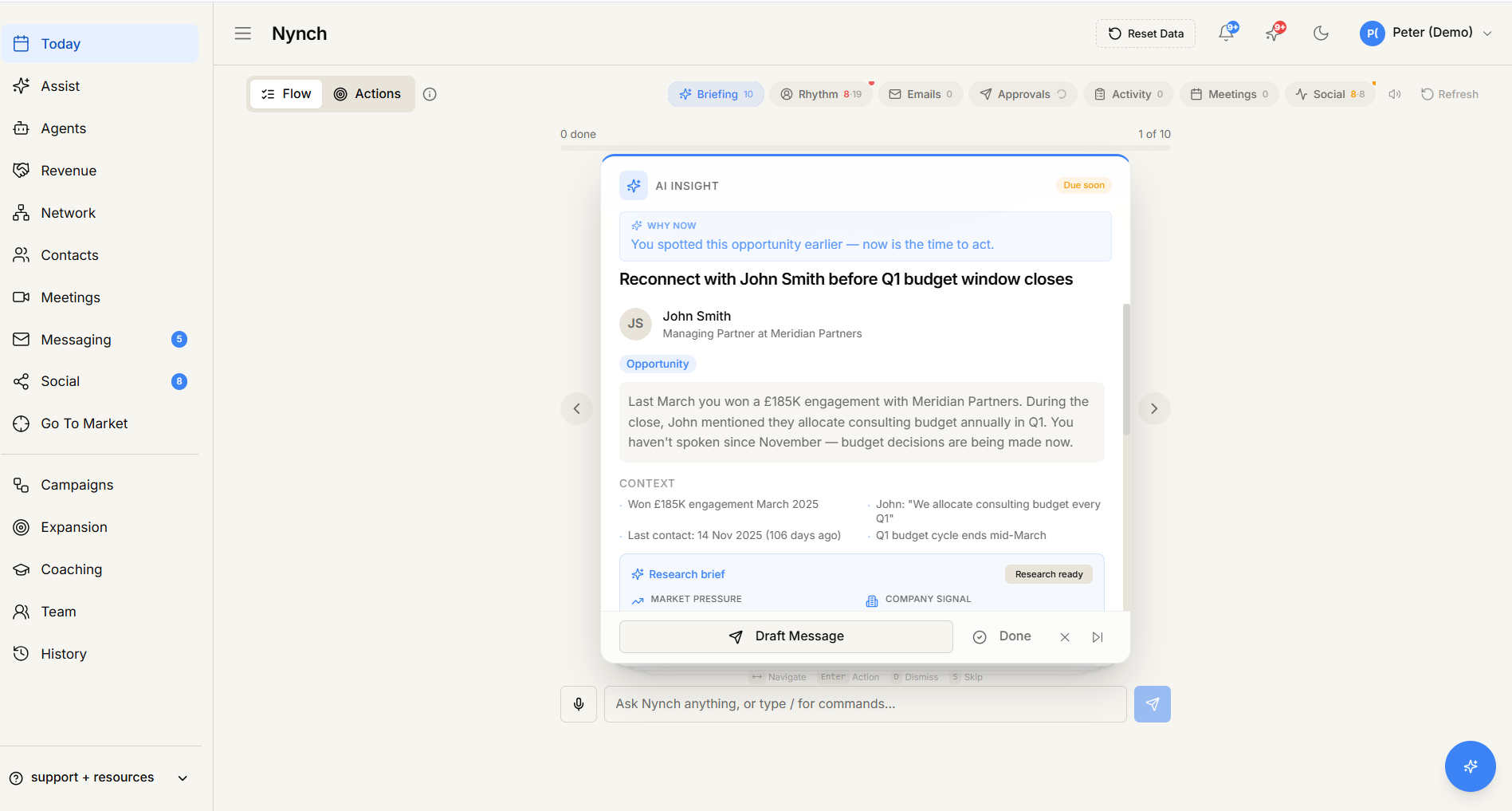
- Click + Start Quickly (to use a template) or Build With Steps (to create from scratch).
- The Campaign Wizard opens. Walk through:
Step 1: Name and goal
- Name (e.g. "Q3 cold outreach to UK Heads of Marketing").
- Goal (e.g. "Book a 15-minute intro call").
- Owner (defaults to you).
Step 2: Audience filter
Define who is eligible to be enrolled:
- Pick filter conditions on contact fields (ICP score, tags, rhythm membership, last activity, custom fields).
- Preview shows the current count of matching contacts.
Audience filters define eligibility, not auto-enrolment. You enrol contacts manually (via the bulk Add to Campaign action) unless you turn on auto-enroll.
Step 3: Cadence (the steps)
Add the steps in order. For each:
- Channel: Email, LinkedIn message, LinkedIn connection request, Wait (delay-only with no action), Manual touch (reminder for you to do something manually), Like, comment or share (one reminder to engage with their post), Watch job postings (holds until a matching role appears on their jobs page), or Hand off to Grok Bot (the only agent handoff, pauses until the Grok agent you pick completes the brief). See Watch for a matching role and Hand a campaign contact to Grok Bot.
- Delay from previous step (e.g. "3 days after step 1").
- Subject + Body for email steps. Use the canonical merge fields shown in the editor, such as
{{contact.first_name}},{{contact.company}}, and{{contact.title}}. On email steps you can also set Wait until so the draft is not written before that time of day in your timezone. - Message body for LinkedIn steps.
- Skip conditions: "skip this step if recipient replied" is on by default.
Typical first campaign has 3-5 steps. 7-step monsters often perform worse than a tight 3-step sequence.
Step 4: Send strategy
- Send window: business hours only / 24/7 / custom.
- Per-day limit: how many new sends per day (respects your provider's daily caps).
- Pause on reply: on by default.
- Trickle vs blast: spread sends over hours or send all in one batch.
Step 5: Review
- Final review of audience size, step count, schedule.
- Click Save as draft if you want to enrol manually later, or Activate to make it live.
Activate vs draft
- Draft: campaign exists but isn't running. No sends fire even if you enrol contacts.
- Active: campaign runs for enrolled contacts according to the schedule. New enrolments fire when their step timer is reached.
You can flip between Draft and Active any time. Pausing an Active campaign stops new sends but doesn't remove enrolled contacts.
After save
The campaign appears in the Campaigns list. From the list you can:
- Edit (steps, audience, schedule).
- Clone (handy for variants of the same campaign).
- View analytics (open rates, reply rates, conversions per step).
- Enrol contacts: either from the campaign's own enrollment action, or from the Contacts table via Add contacts to a campaign.
If something goes wrong
- Symptom: "Campaigns section or + Start Quickly button isn't there." → Fix: Your plan may not include Campaigns. Check your avatar (top-right) > Settings > Account.
- Symptom: "Audience filter shows 0 contacts." → Fix: Either your filters are too narrow or you have no matching contacts. Loosen the filters or add contacts first.
- Symptom: "A merge field is not filled in the preview." → Fix: Use the field reference shown in the editor and check that the contact has the required data. Older aliases such as
{{first_name}},{{firstname}},{{company}}, and{{title}}remain supported, but new campaign copy should use the canonical{{contact.*}}fields. - Symptom: "I activated but no sends are firing." → Fix: Check the send-window settings. If you set "business hours only" and it's currently outside business hours, sends queue for the next window.
- Symptom: "I want to test the campaign on myself before enrolling real contacts." → Fix: Most workspaces support a "Test send" action on the campaign edit screen. Use that to send the step to yourself before flipping to Active.
FAQ
Q: How do I create a new outreach campaign? Build a multi-step outreach campaign from scratch and start enrolling contacts into it.
Q: What do I need before I start? Your workspace plan includes Campaigns. Email account is connected (and Chrome extension if you're including LinkedIn steps).
Q: How long does this take? About 15-30 minutes for a thoughtful first campaign. Future campaigns can be cloned in 2 minutes.
Q: Campaigns section or + Start Quickly button isn't there? Your plan may not include Campaigns. Check your avatar (top-right) > Settings > Account.
Q: Audience filter shows 0 contacts? Either your filters are too narrow or you have no matching contacts. Loosen the filters or add contacts first.
Related: Add contacts to a campaign | Watch for a matching role | Hand a campaign contact to Grok Bot | Create a new outreach campaign | Use the Reply Coach | Bulk-email selected contacts.