You'll learn how to: Create an audit playbook, check its preview, and manage its versions.
Time: 20 minutes to review a generated playbook. Creating one takes a few minutes.
Prereqs: You have an Ideal Client Profile and services and pricing. Your problem statement is written.
What a playbook is
A playbook is the method behind a Value Audit. It names the question the audit answers, the evidence it needs, the assumptions it makes, and the next step it proposes. Nynch uses it later to research each account and prepare an audit you can review.
You write the playbook once. The audits in Implement mode then follow it. See Run Value Audits for running them.
Steps
- Click Strategy at the bottom left of the sidebar.
- Under Growth, click Trust Builders.
- Click Create Audit Playbook.
- In the box under What do you want this audit to convey?, write one or two sentences in your own words. This becomes the spine of the method.
- Check the line Building this around. It shows the service and ideal client the playbook uses. Click Change to pick a different one.
- Click Design my audit. Nynch drafts the full method from your saved Strategy.
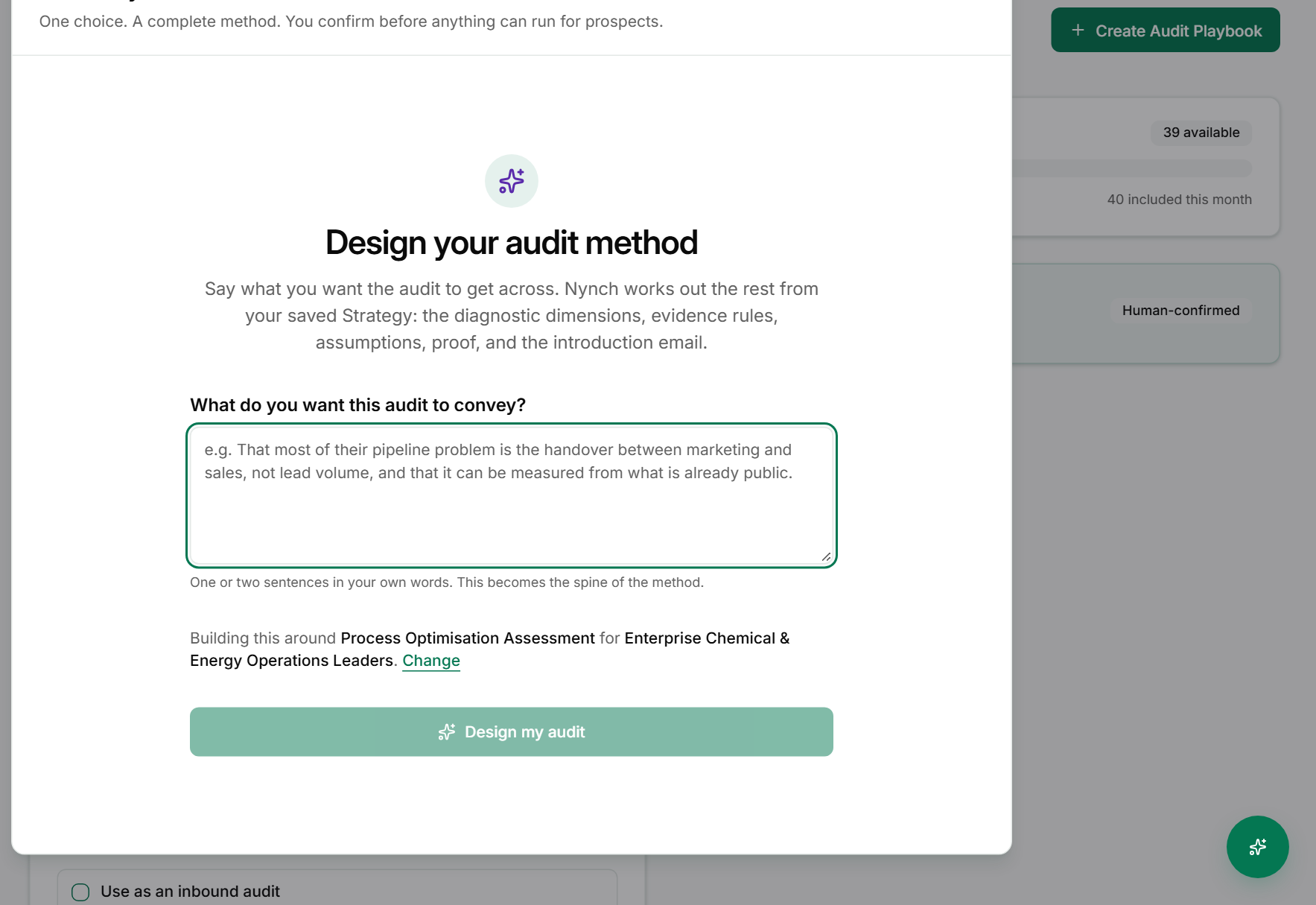
- Review the preview. Check the dimensions in What this audit examines, the Evidence standard, and the Public structure. Each dimension states what evidence is required.
- Edit or regenerate the draft until it reads like you, then activate it. Nothing runs for a prospect until you have confirmed the playbook.
The playbook then shows on the Trust Builders page with a status of Active, its version number, how many audits have used it, and when it was updated.
Manage a playbook
Each playbook card has these buttons:
- New version: opens the playbook builder to make a new version. The current version stays as it is.
- Preview: shows the reusable structure of the playbook. The preview is not a company audit and cannot be shared.
- Duplicate: makes a copy of the playbook to start from.
- Archive: takes the playbook off your active list.
Use New version to change a method that is already in use. Use Duplicate to try a second method without touching the first.
Campaigns for this audit
Below the playbook is Campaigns for this audit. Pick people from one or more rhythms, edit the steps, then launch the campaign. Each campaign keeps the content version it was made from. Click Create another campaign to add one more.
Turn on Use as an inbound audit if people who ask for an audit through your assistant should use this playbook.
If something goes wrong
- Symptom: Create Audit Playbook is missing. → Fix: Make sure you are in Strategy mode, then click Trust Builders under Growth.
- Symptom: The draft is generic. → Fix: Click Change and check the service and ideal client. Then sharpen the sentence in the box and design the audit again.
- Symptom: The preview shows a placeholder such as
{{company}}. → Fix: This is expected. It stands in for the company name, so the preview is a reusable structure.
FAQ
Q: Does creating a playbook contact anyone? No. Setup does not generate, publish or send anything for a prospect. You confirm the playbook before it is used.
Q: Can I change a playbook after audits have used it? Yes. Click New version. Audits already made keep the version they were made with.
Q: What does Human-confirmed mean? It means you have to approve the method before audits run. The banner on the page says so.
Q: How many audits can I run? The Audit capacity this month bar on the Trust Builders page shows your allowance and how much is left.
Related: Run Value Audits | Run an audit to diagnostic funnel | Configure an Ideal Client Profile (ICP) | Define your services and pricing