Skip to content
Product overview
Explore all 15 product areas1. Services and Offer2. Ideal Client Profile3. Find Prospects4. LinkedIn Network5. Relationship Management6. Relationship Intelligence7. Value Audits8. Personalised Outreach9. Authority and Content10. Meeting Intelligence11. Pipeline and Opportunities12. Proposals13. Deal Rooms14. Client Management15. Grow Existing Accounts
Today and AssistSell your business
Use cases Pricing In Person Workshop Resources Sign in Book a call
← Back to changelog
New

Add a video once. Use it in the next buyer conversation.

Upload, preview and reuse videos from your workspace library, including in a deal room when a short explanation helps the buyer.

Release note added 30 October 2026. Screenshots show the current demo app.

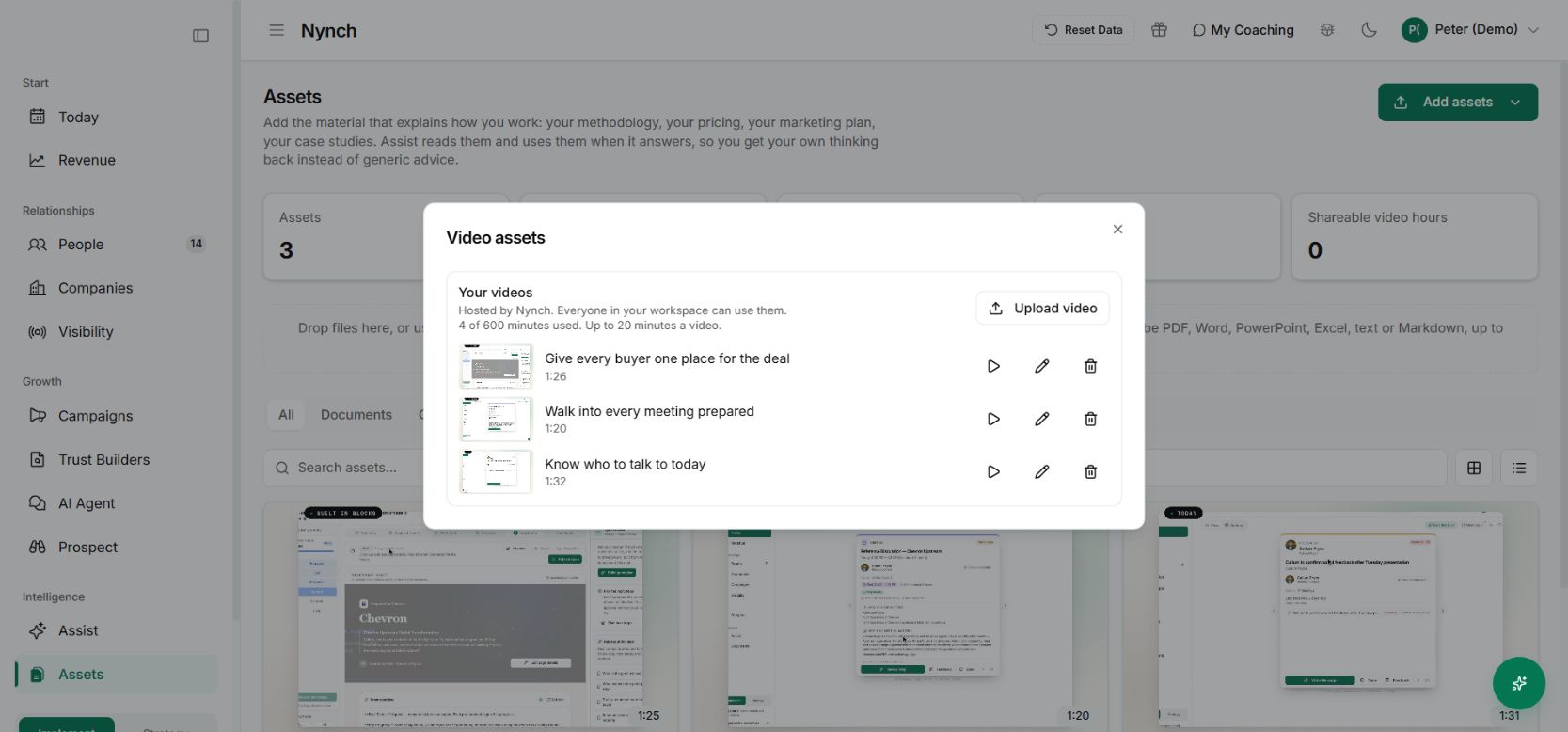
Nynch hosted video library with upload controls and workspace usage
Three existing Nynch product films added to the demo library and checked in the player. Demo workspace with illustrative data. Open the image to see it full size.

You have already recorded the explanation. It answers the same question that comes up in every second call. Yet sending it still means hunting for a link and checking whether it is the right version.

The change

Your workspace now has a hosted video library. Open Assets → Add assets → Upload or manage videos to upload a film, follow its processing status and preview it when it is ready.

Ready videos appear alongside your other assets. The deal-room video workflow can select from the same library, so the explanation can sit beside the proposal it supports.

Put one useful answer on video

Start with a short introduction, a product demonstration or an explanation of your approach. Upload it, give it a recognisable title and watch the preview before sharing it.

Then choose it in the relevant room’s video block. Preview the buyer’s view too. The point is to answer a question the buyer has, not to make them watch everything you have recorded.

The library shows your workspace allowance and maximum video length. An interrupted upload can offer Resume, so check its status before starting another copy.

Move from the library into the buyer’s room

Open the opportunity and its Deal Room. Choose Add asset → Videos, select the ready film and make it visible to the client. Preview the buyer’s view before publishing.
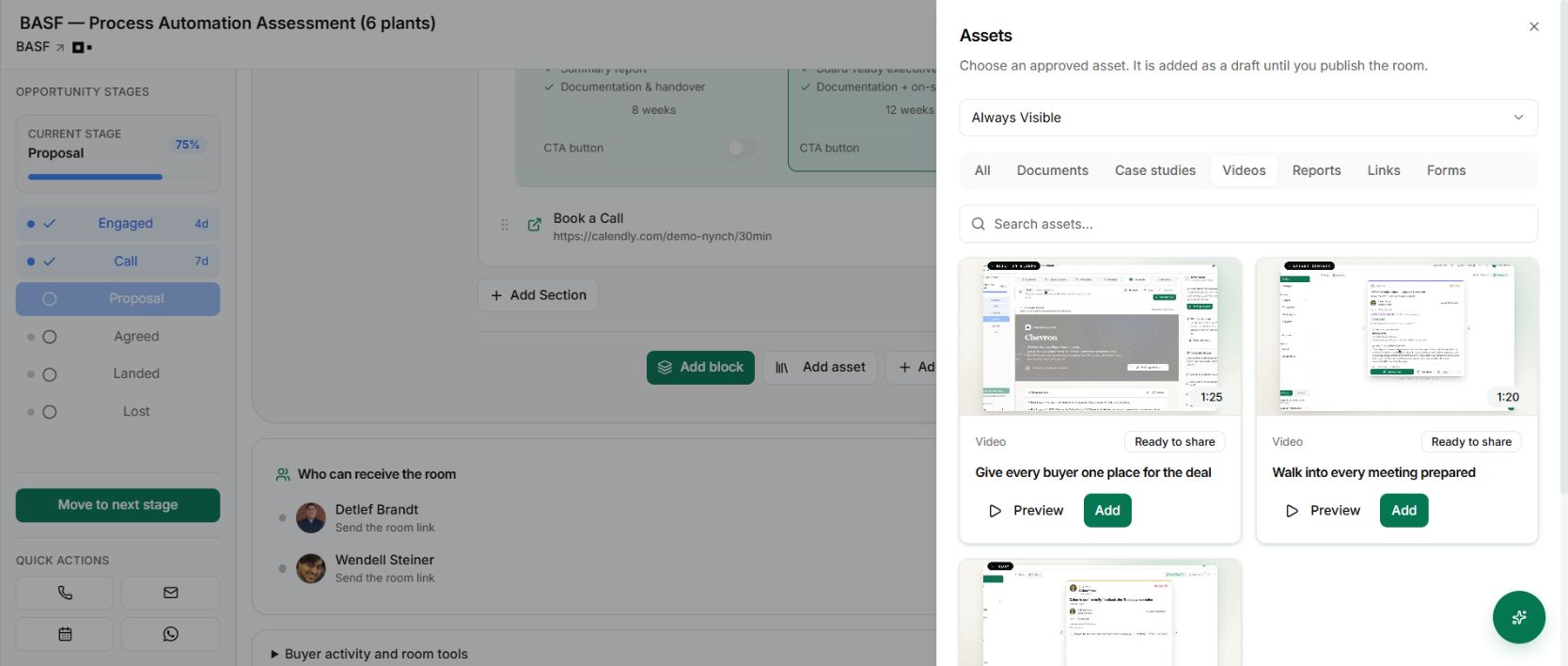
The deal-room asset picker offering the three hosted demo films
Choose a film already held in the workspace library instead of uploading a separate copy for each deal. Demo workspace with illustrative data. Open the image to see it full size.

The film now sits beside the material it explains. For an assessment, that might be the scope and timeline. For a new client, it could explain how to prepare for the first workshop, alongside a kickoff form.
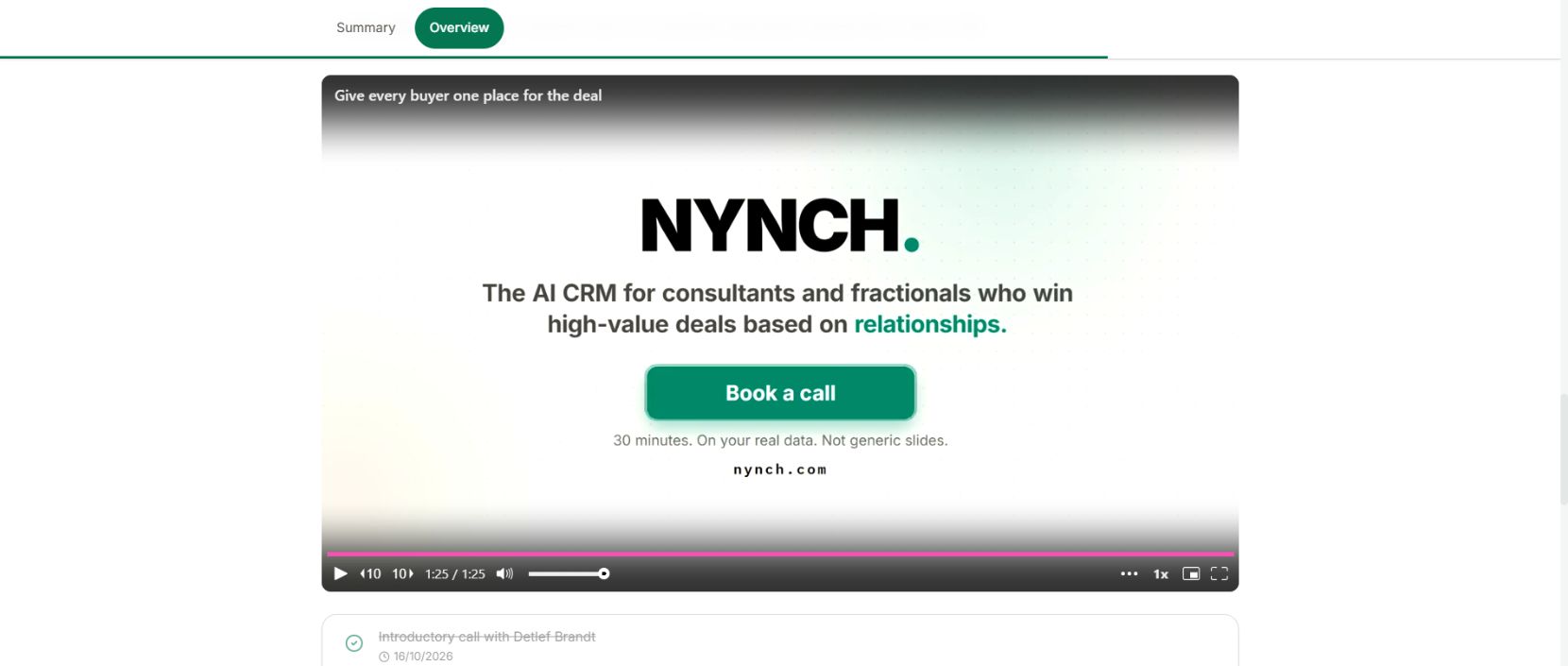
Hosted film displayed in the published demo deal room
The selected film plays in the buyer room alongside the project's other material. Demo workspace with illustrative data. Open the image to see it full size.

Bring the viewing signal back to the relationship

When the viewer uses a personal room invitation, recorded playback can appear on that contact’s timeline. Open Timeline → Videos to review the film and recorded progress before the next conversation.
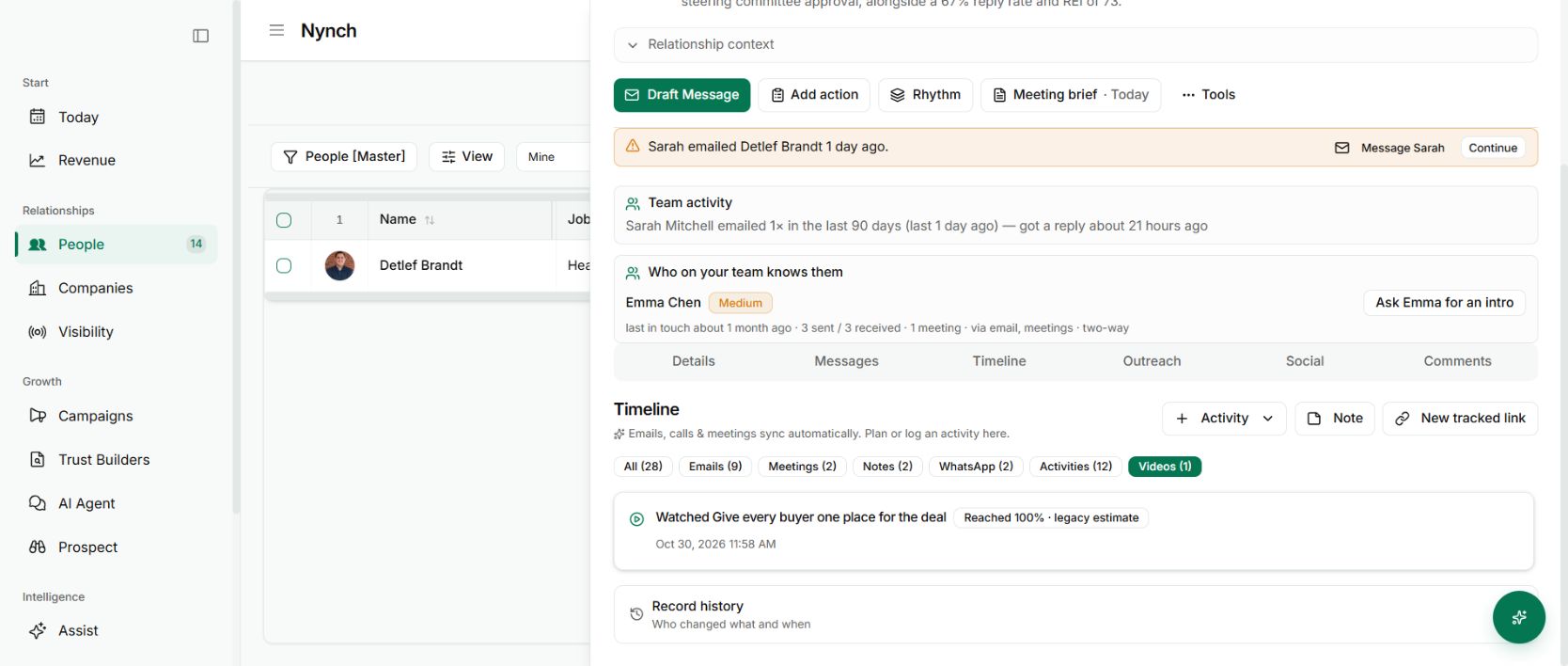
Video playback recorded on the fictional buyer's contact timeline
This activity came from a demonstration playback through the fictional contact's personal room link. Playback progress is context for a conversation, not proof of attention. Demo workspace with illustrative data. Open the image to see it full size.

The buyer video engagement guide explains attribution and how to interpret the signal. Uploading, sharing and following up now form one connected workflow.

Why it is useful

A buyer can revisit the explanation or pass it to someone who missed the call. You keep one useful video available to the team instead of everyone maintaining their own link collection.

Treat removal carefully. Removing a library video can also stop rooms that use it from showing it. Check those uses before retiring a film.

See it for yourself

See Nynch from start to finish

The complete walkthrough: 28 minutes, every screen. Or pick the part you need.

Choose where to start

Chapters Jump to any partHide chapters
  1. Why relationships win the work
  2. A memory that thinks
  3. Every contact arrives already researched
  4. Your inbox, with intelligence
  5. Arrive prepared, every time
  6. A network that never goes cold
  7. Personal outreach, at scale
  8. Campaigns, run with AI agents
  9. Turn conversations into signed work
  10. The procrastination beater
  11. Your AI partner, on every screen
  12. Build the network you do not have yet
  13. Part two: build the foundations
  14. Name the problem, and prove it
  15. Know exactly who you serve
  16. Sell outcomes, not hours
  17. Stand for something
  18. Get the right clients coming to you
  19. Now watch it all work

See this working for your business

Bring a real relationship or opportunity. We will show you where Nynch can help.

Book a call

30 minutes. On your real data. Not generic slides.