The kickoff is booked. You still need the outcome, the working contact and the information that will let you start. So you send a list of questions. The replies arrive in three different emails, with two different versions of the answer.
A form is useful when it makes that handover clearer. It is more useful when the answers stay beside the engagement they belong to.
The change
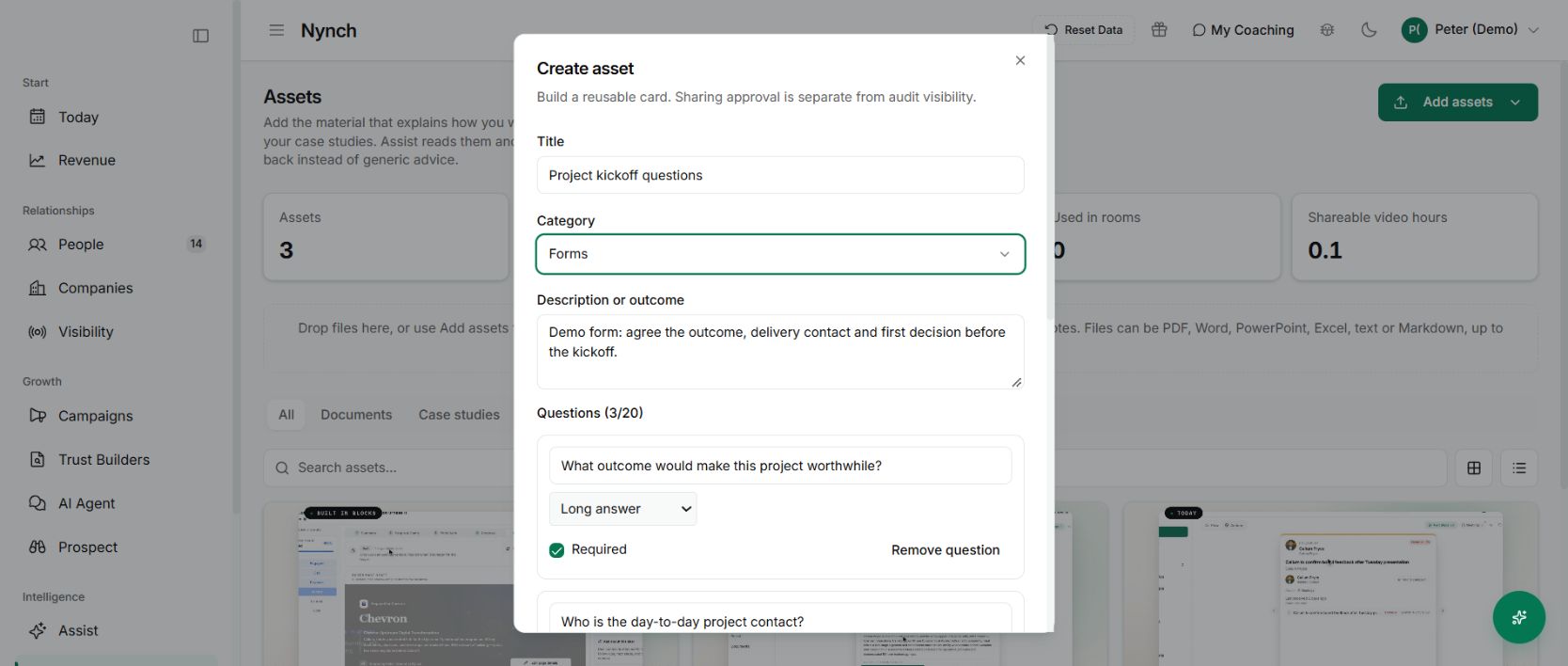
You can create a reusable form in Assets and add it to a buyer room. Choose short answers, longer written responses, email fields, choices or checkboxes. Mark the questions that must be answered and leave the rest optional.
The builder supports up to 20 questions. You do not have to use them all. A short form that helps the next decision is usually a better starting point than an exhaustive questionnaire.
Build the form around the next useful step
For a project kickoff, try three questions:
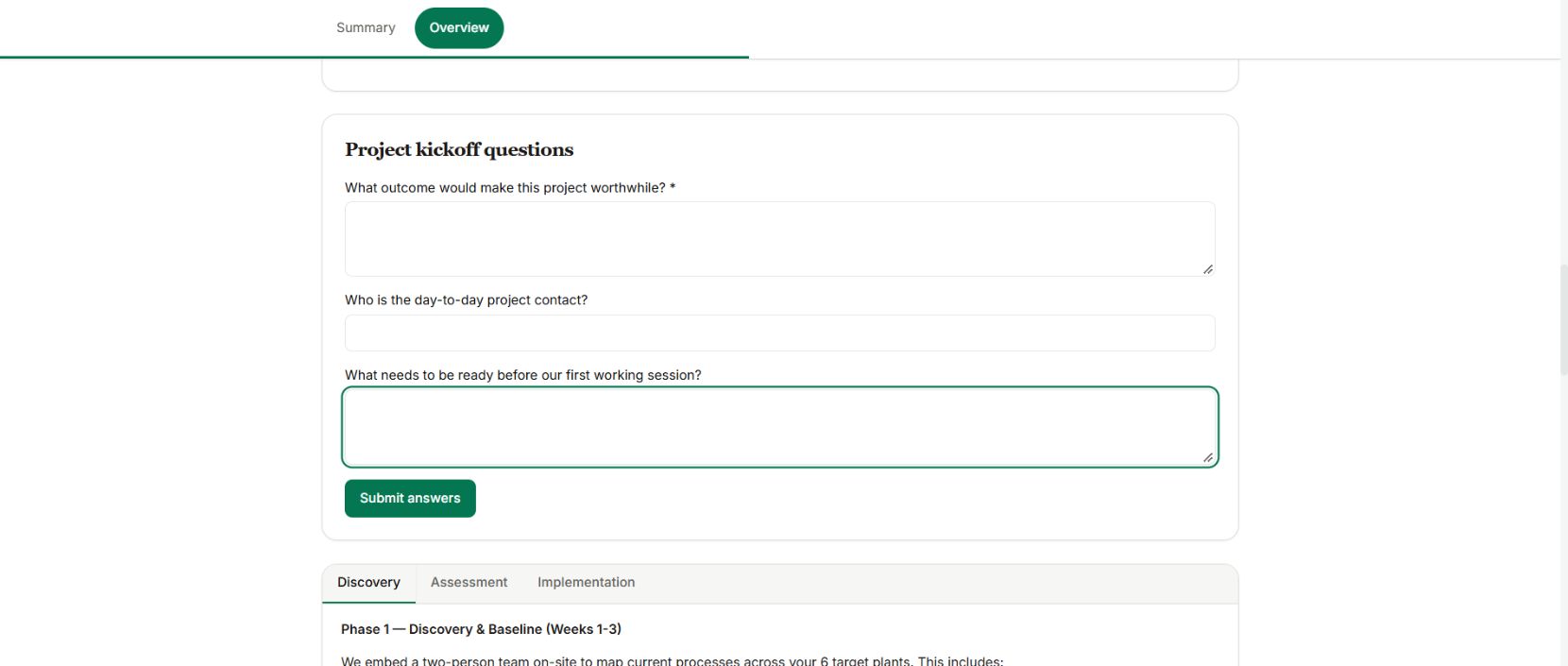
- What outcome would make this project worthwhile?
- Who is the day-to-day project contact?
- What needs to be ready before the first working session?
Those are the questions in the demo form above. The first needs a considered answer. The second needs a name. The third exposes missing access, material or decisions before they delay the work.
Open Assets → Add assets → Create case study, report or link, then choose Forms as the category. Name the form, add the questions and select the appropriate answer types. Review it, approve it for use in rooms and save it. Adding it to a room creates a draft, so check and publish the room before asking the buyer to use it.
Keep answers attached to the engagement
Buyers complete the form through their personal invitation. A general room visitor cannot submit it as though they were an invited participant.
Saved answers can be updated, with previous revisions retained. You can review responses from the seller’s room view. If a submission fails, the current draft stays on screen while the person retries. That is not a promise that an unsaved draft survives closing the browser.
Why it is useful
You collect consistent information without asking the client to learn another portal. The form, proposal, supporting material and next steps share a home.
Use it for discovery questions, kickoff preparation or a delivery checkpoint. Then link it to the client onboarding plan so an answer leads to a clear next action.
Place the reviewed form into the room
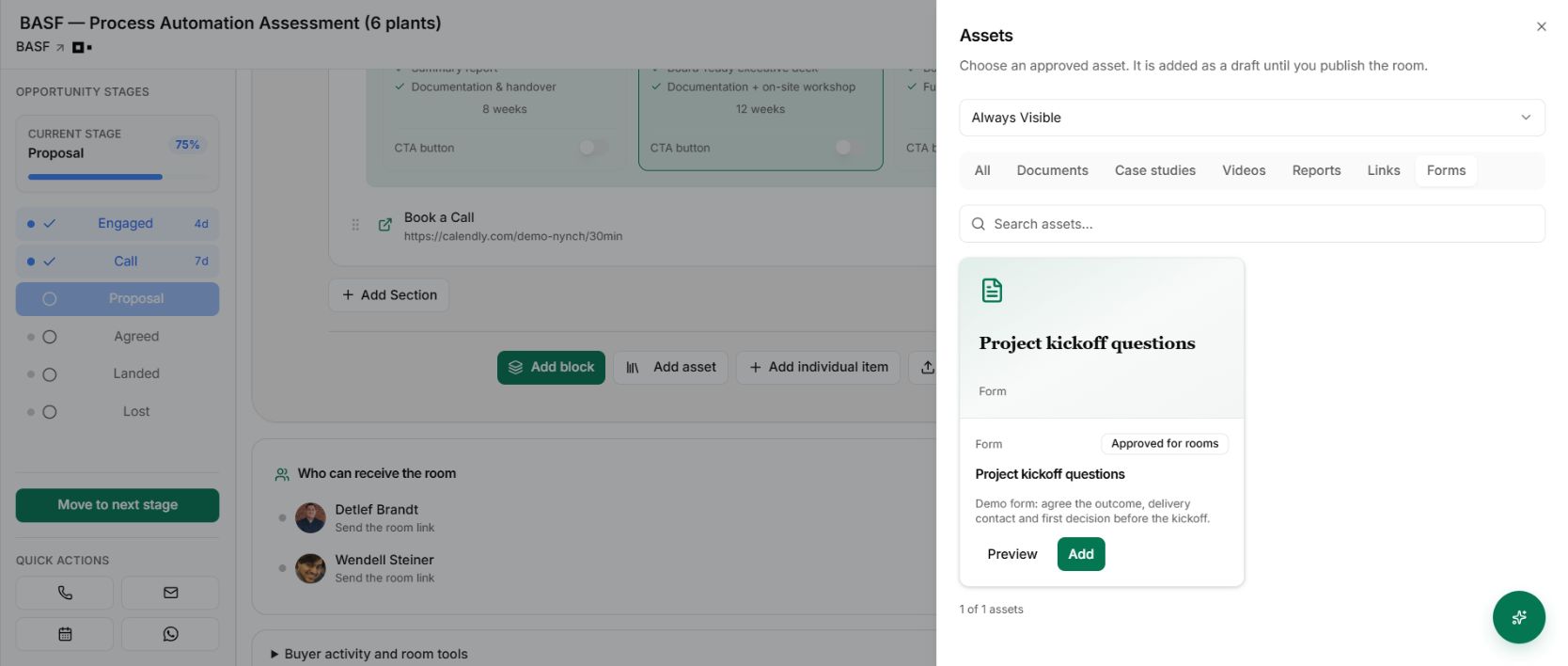
Open the room’s Add asset picker, choose Forms and add the approved questionnaire. Check the destination section and the form’s client visibility. The added item is draft content until the room is published.
For this walkthrough, the three-question demo form was added to the BASF example room. No real client answers were entered.
Preview the actual questions before asking for answers
Read the form in the room’s buyer preview. Check the wording and which answers are required. After publishing, an invited participant can enter answers in the room itself. The screenshot below shows that view through the fictional demo contact’s personal invitation.
Use a personal invitation when the client is ready to respond. Then review the room’s responses and turn any missing information into a specific next action. A saved answer is useful when it changes how you prepare the kickoff.