You send a video because it explains something important. Before the next call, the useful question is not just whether a link was opened. It is whether the explanation appears to have been explored, and which part you may need to revisit.
The change
Videos selected from the hosted library can play inside the buyer room, with playback activity recorded alongside the room context. That includes plays, pauses and progress.
When someone enters through a personal invitation, the activity can be linked to that invited contact. Anonymous visitors remain possible. A general link is not proof of who was at the screen.
1. Choose one explanation from your assets
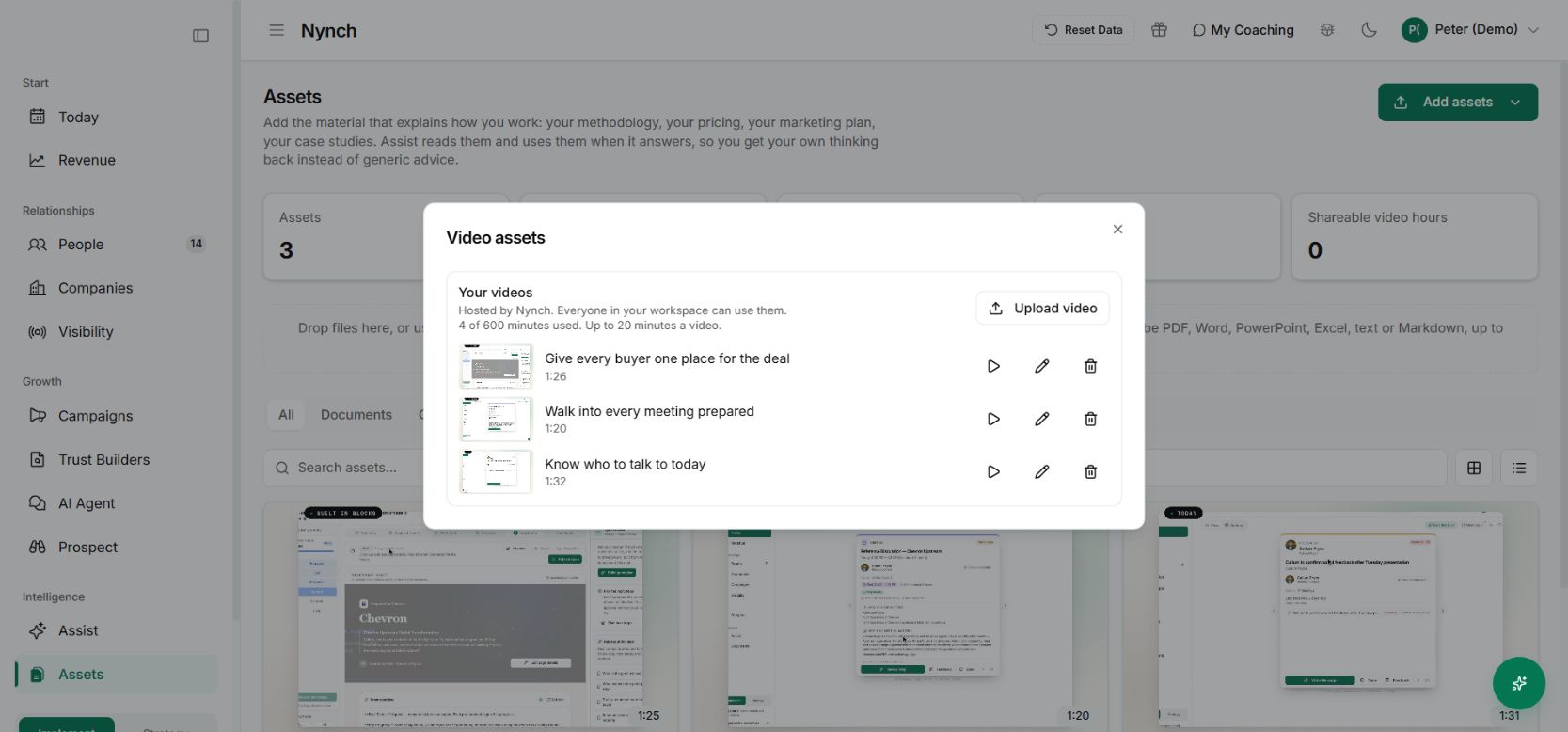
Add the film to your video library, preview it and select it in the room’s video block. Give the surrounding section a useful purpose: how the assessment works, what the first week involves, or how to compare the options.
2. Put it beside the decision it supports
Open the opportunity’s Deal Room, choose Add asset → Videos and add the relevant film. Make it visible to the client, check the buyer view and publish the room when the material is ready.
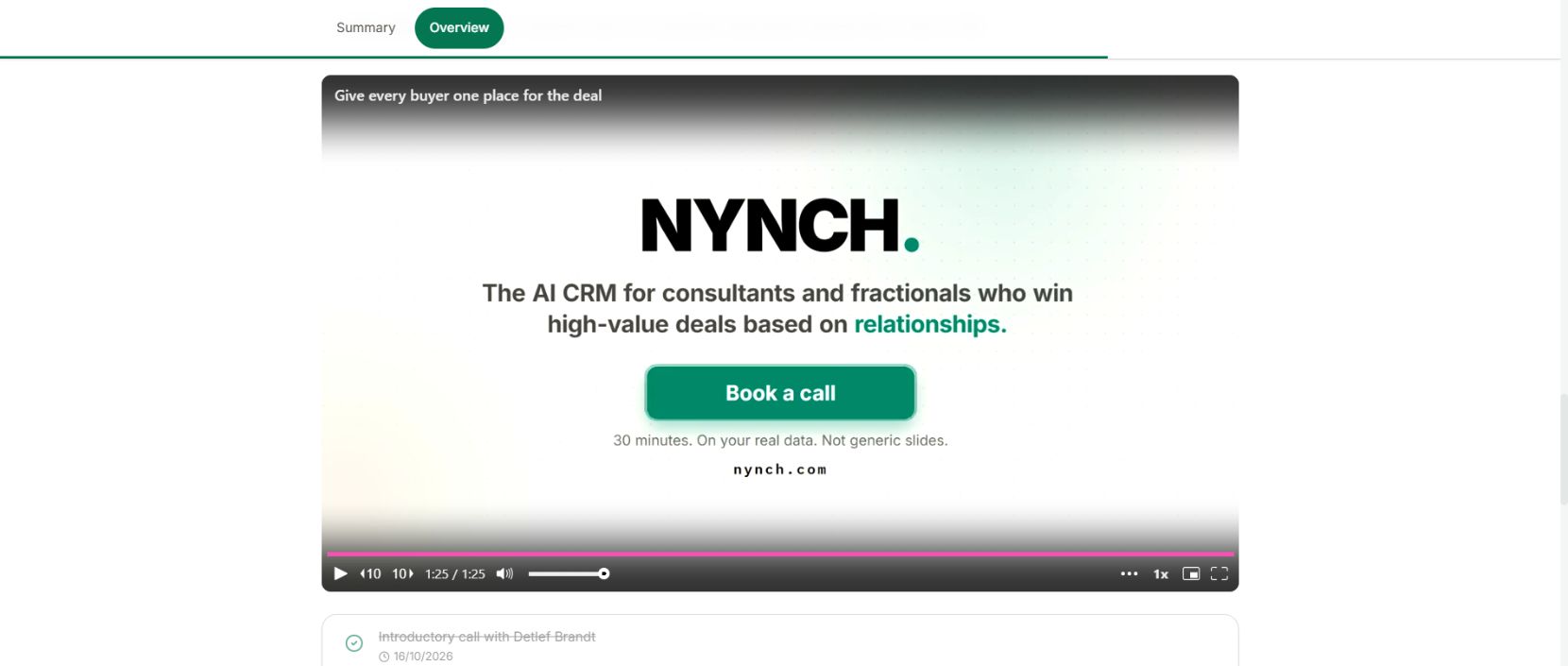
The buyer can play the explanation without leaving the room. Your assessment plan, proposal and next steps remain in the same place. A two-minute explanation of the first working session can sit beside the onboarding plan, so the buyer can understand the work before asking colleagues to take part.
Use the appropriate personal invitation when you need participant-level context. A shared or anonymous link does not establish who watched.
3. Return to the contact before the next call
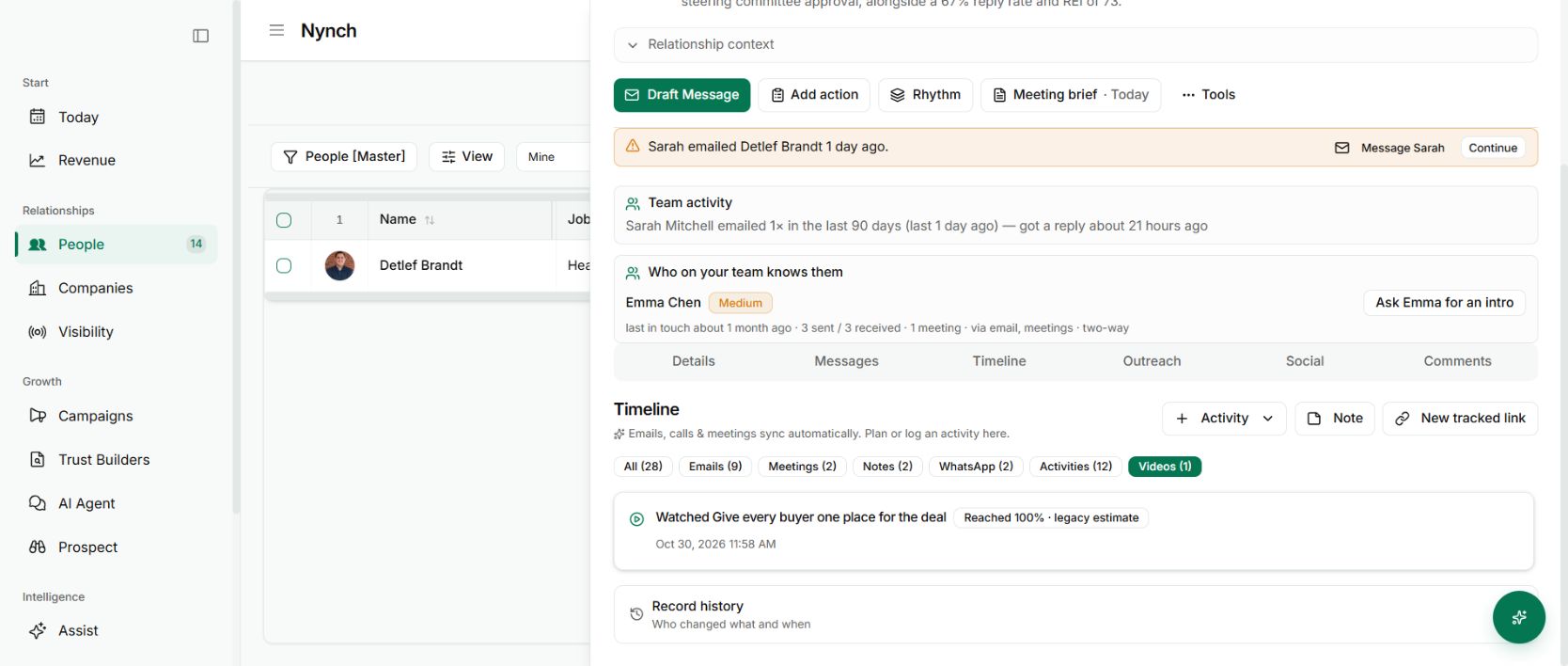
Open the contact’s Timeline and look for the video activity. Where video history exists, the Videos filter helps isolate it from emails, meetings and notes. In this demonstration, playing the hosted film through the fictional contact’s personal room link created the activity shown above.
You can see the film title, the recorded date and the playback depth. That gives the next conversation a more useful starting point than a separate video dashboard with no relationship context.
If they appear to have reached the commercial explanation, you might ask which option needs more discussion. If the video was barely started, a short explanation on the call may be more helpful than assuming they know the details.
Read the signal accurately
Watch depth records the furthest playback position reached. It does not prove attentive viewing of every second before that point. A person can seek forward, leave a tab open or share a device.
Use the activity to prepare a better question. Avoid opening with “I know you watched…” or turning a playback event into a claim about buying intent.
Why it is useful
The video becomes part of the relationship context rather than an attachment that disappears into email. You can spend the call on the question that remains instead of automatically repeating the whole explanation.
Uploading the film and interpreting its engagement are different jobs. The library guide covers the first. This update connects it to the buyer conversation.