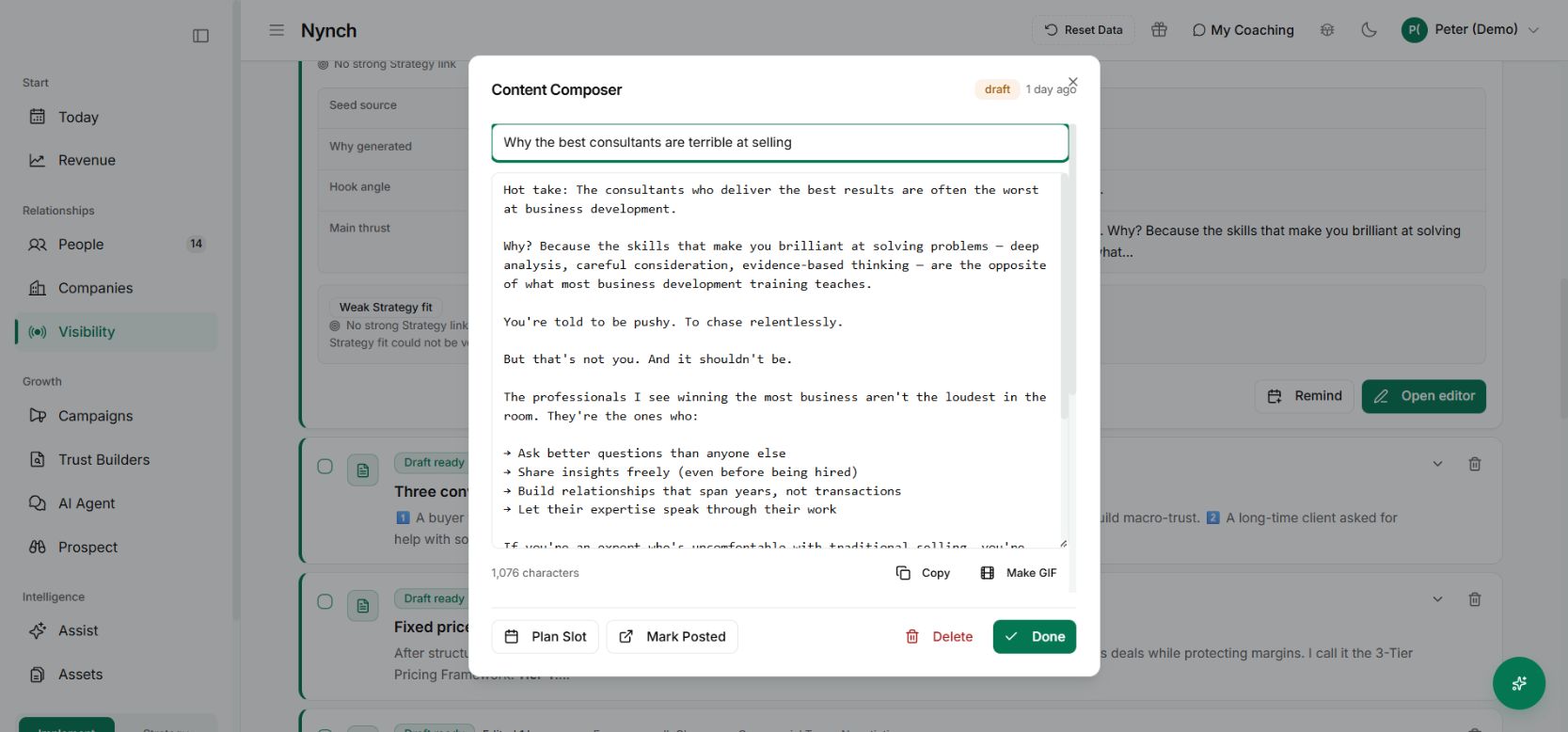
The post is ready. Then a client call runs long, you forget to paste it into LinkedIn, and another useful idea stays in drafts.
The change
The LinkedIn content workflow connects writing and scheduling. With a connected publishing account and publishing enabled, you can save the final draft, choose its publishing time and let the scheduled post go out.
Visibility → Write separates new ideas, drafts, scheduled posts and posted work. A planning slot or a manually marked post is different from a confirmed scheduled publication.
Give the idea a useful visual
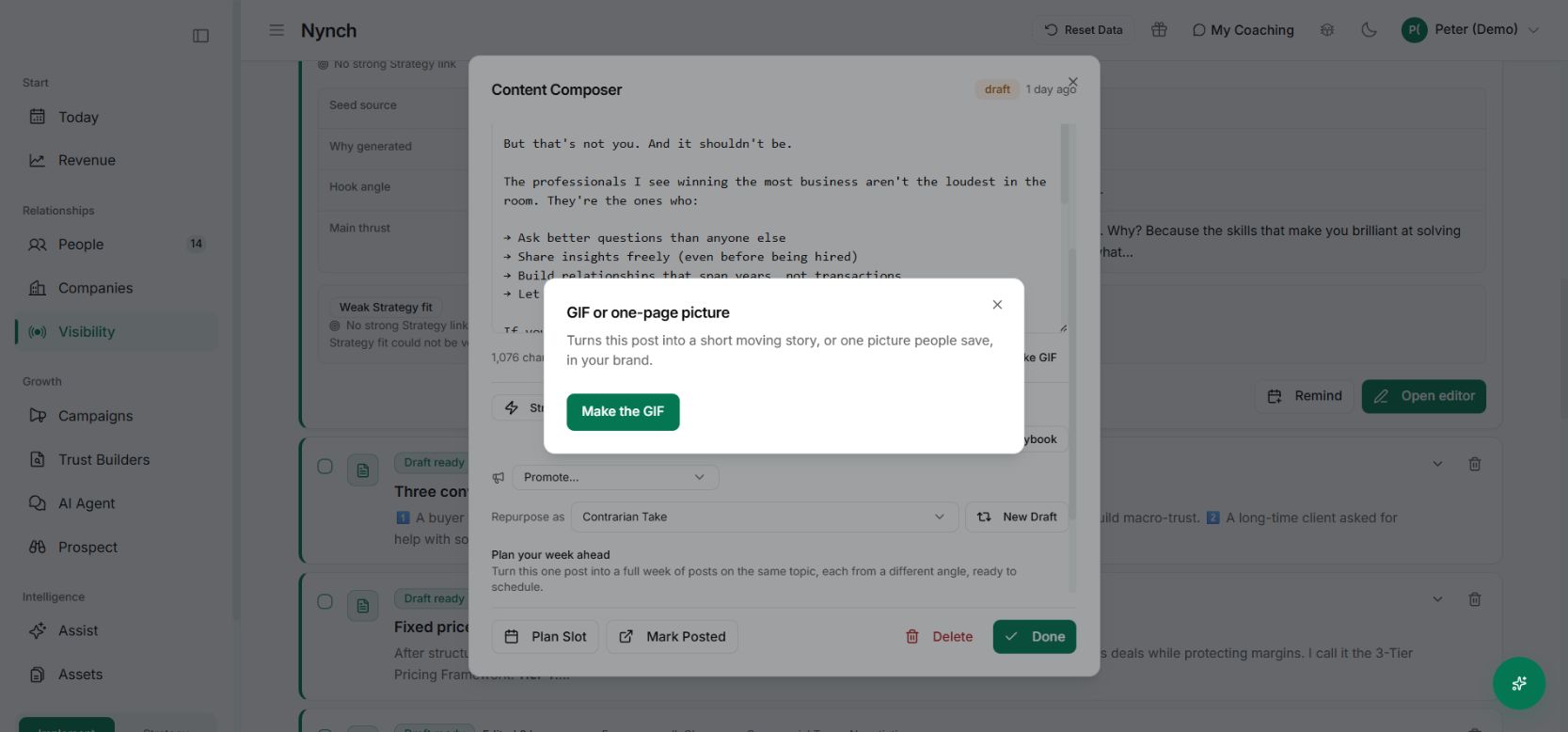
The composer includes Make GIF. This starts the workflow for turning the saved post into a short moving story or a one-page picture in your brand. The visual tools also support export formats such as a static image and a carousel.
Review the result before using it. A visual should explain the idea, not introduce a statistic or claim the post cannot support. Supported attached media can travel with the scheduled post, so check the attachment as well as the text.
Put it to work
Open a saved draft, check the hook and remove private client details. Prepare or select the relevant visual, save your edits and use Schedule on LinkedIn when it is available for your connected account.
Check the account and time before confirming. If you change a scheduled message, follow the cancellation and rescheduling guidance so the intended version is the one that publishes.
Why it is useful
You can finish the content while you have the time and attention to do it well. The publishing step no longer depends on being free at the exact moment you want the post to appear.
The screenshot shows a demo draft and the creative controls. No live account was connected and no post was published for this guide.